During Public Preview you can use the Team plan for free, and get an early-adopter discount at GA. Sign in
Deploying a Public IP Prefix
This guide shows you how to deploy a Public IP Prefix against Locally, and create Public IP Addresses from it. As with the other guides we're going to use the Azure CLI, but the same resources can be provisioned with HashiCorp Terraform, Pulumi or Bicep too.
Before you start
- The Azure CLI (
az) installed. - Locally installed, with Locally Setup completed.
1. Start Locally
Firstly, we need to launch Locally which we can do from a terminal by running:
                $


            locally build
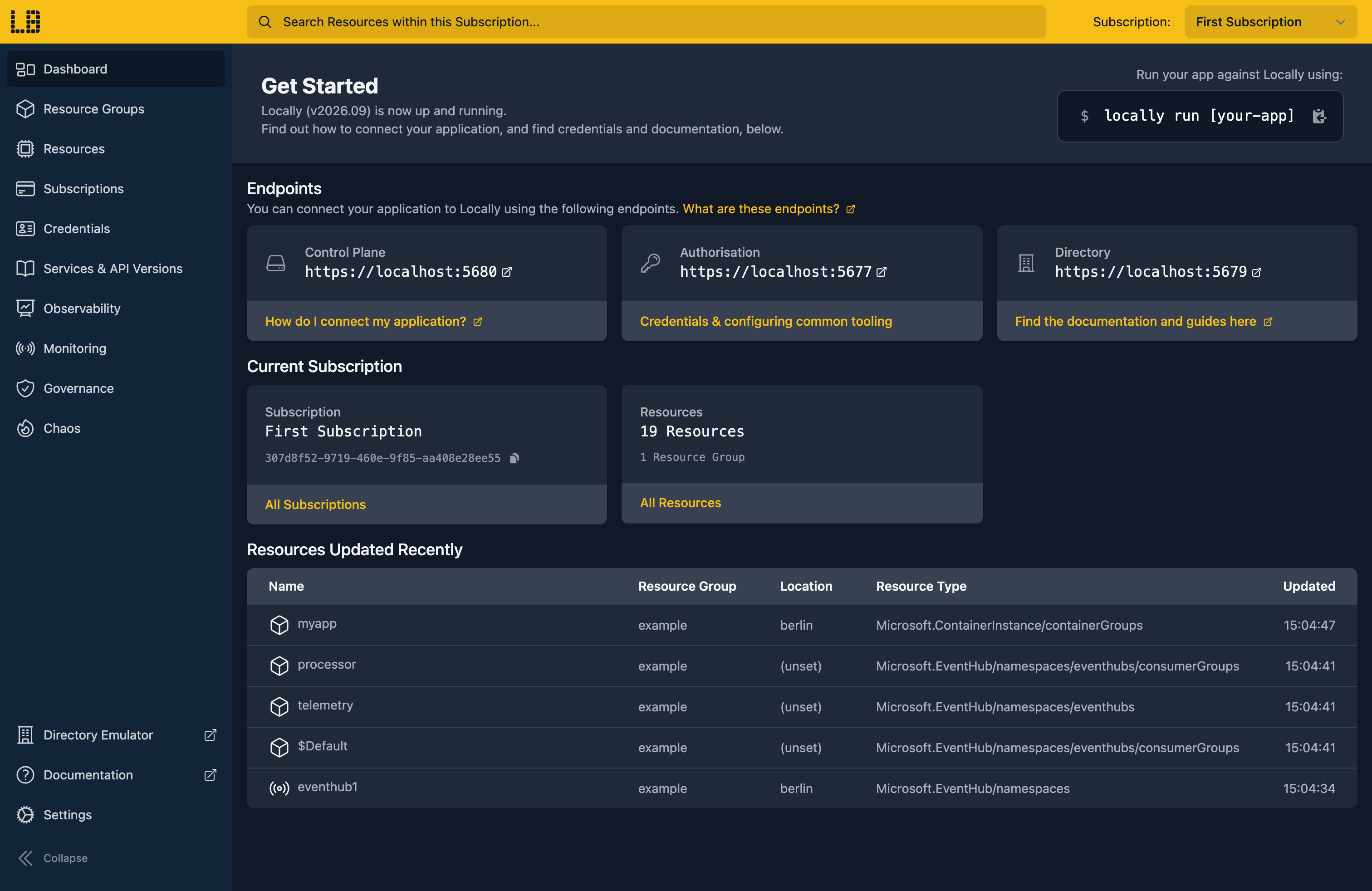
Once Locally has started, the Locally Dashboard will open automatically:
2. Create a Resource Group
Next we can create the Resource Group:
                $


            locally run az group create -n sample-ip-prefix -l berlin
There's two things to note here:
- The Azure CLI supports Automatic Configuration, meaning that it can automatically be configured to work against Locally just by prefixing commands with
locally run. - Locally intentionally uses a different set of locations to Azure as a safety precaution, so that you can be confident you're deploying against Locally rather than regular Azure. You can also configure Locally to use the Azure locations too, but you'll want to be extra sure that you're prefixing commands with
locally runwhen you do.
3. Create the Public IP Prefix
A Public IP Prefix reserves a contiguous block of addresses. We'll create a Regional /30, which holds four:
                $


            locally run az network public-ip prefix create -g sample-ip-prefix -n sample-prefix --length 30 --tier Regional --query "{name:name, prefix:ipPrefix, length:prefixLength, sku:sku.name, tier:sku.tier, state:provisioningState}"
{
  "length": 30,
  "name": "sample-prefix",
  "prefix": "36.42.27.56/30",
  "sku": "Standard",
  "state": "Succeeded",
  "tier": "Regional"
}
4. Create Public IP Addresses from it
Now we can create Public IP Addresses from the prefix:
                $


            locally run az network public-ip create -g sample-ip-prefix -n sample-pip-1 --sku Standard --public-ip-prefix sample-prefix --query "publicIp.{name:name, ip:ipAddress, prefix:publicIPPrefix.id}"
{
  "ip": "127.1.0.1",
  "name": "sample-pip-1",
  "prefix": "/subscriptions/0f766306-391f-4f66-b9ee-927fb2db629c/resourceGroups/sample-ip-prefix/providers/Microsoft.Network/publicIPPrefixes/sample-prefix"
}
                $


            locally run az network public-ip create -g sample-ip-prefix -n sample-pip-2 --sku Standard --public-ip-prefix sample-prefix --query "publicIp.{name:name, ip:ipAddress, prefix:publicIPPrefix.id}"
{
  "ip": "127.1.0.2",
  "name": "sample-pip-2",
  "prefix": "/subscriptions/0f766306-391f-4f66-b9ee-927fb2db629c/resourceGroups/sample-ip-prefix/providers/Microsoft.Network/publicIPPrefixes/sample-prefix"
}
Note
5. List the Public IP Prefixes
To see the Public IP Prefixes in the Resource Group:
                $


            locally run az network public-ip prefix list -g sample-ip-prefix --query "[].{Name:name, Prefix:ipPrefix, Length:prefixLength, State:provisioningState}" -o table
Name           Prefix          Length    State
-------------  --------------  --------  ---------
sample-prefix  36.42.27.56/30  30        Succeeded
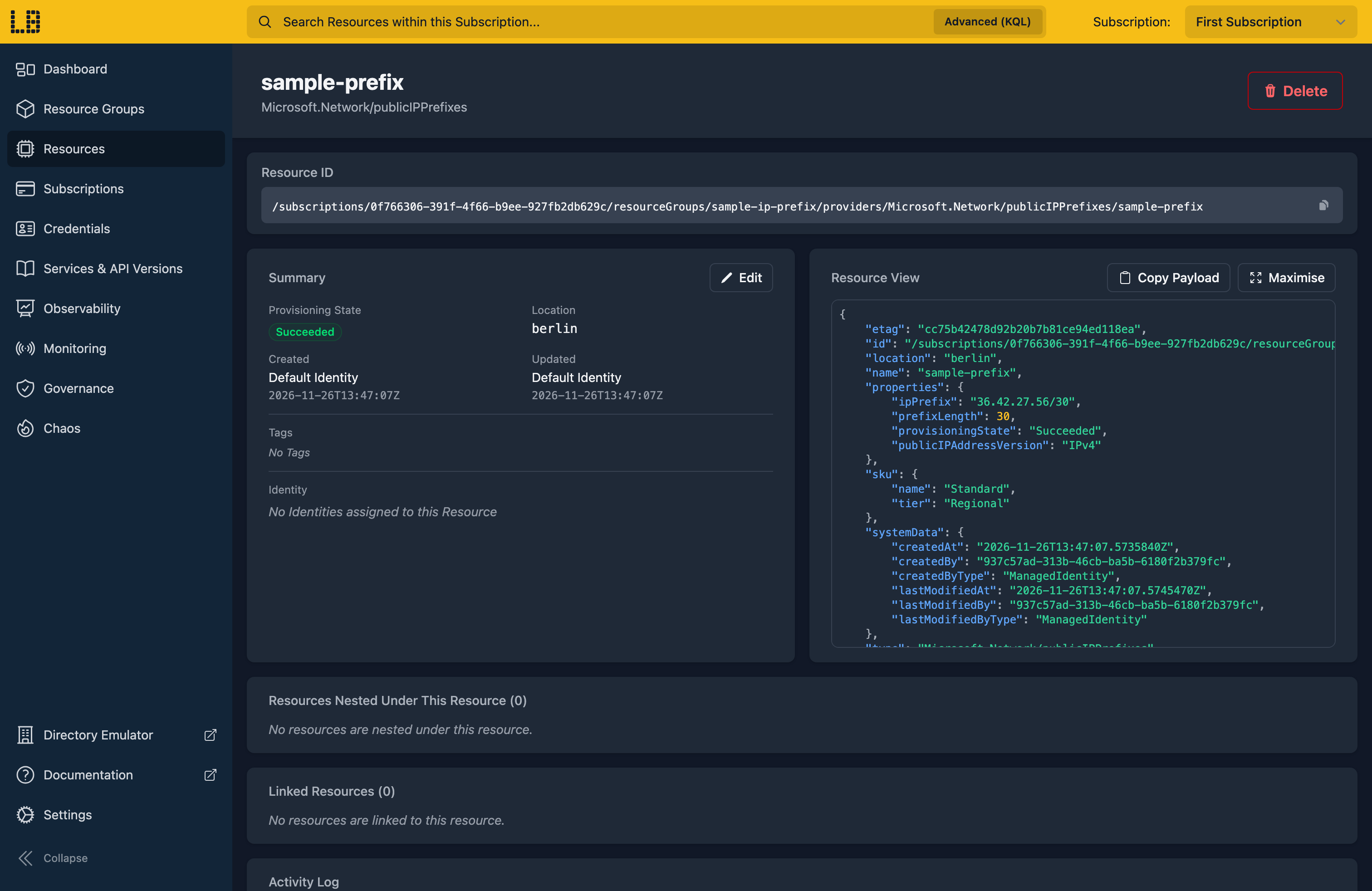
We can see the Public IP Prefix in the Locally Dashboard too:
Doing this with other tooling
Whilst this guide used the Azure CLI, Public IP Prefixes work the same way through any of the tooling that Locally supports - a Microsoft.Network/publicIPPrefixes resource in HashiCorp Terraform or OpenTofu, Pulumi, Bicep or an ARM Template all provision against Locally in the same way, with only the location changed.
Next steps
To give outbound traffic from a subnet one of these addresses, use them with a NAT Gateway. For inbound traffic, see Load Balancer.
Should you encounter any issues, please take a look at the troubleshooting section, reach out in our Discord or open an issue and we'll take a look.
Resource types this guide uses
These are the Azure resource types this guide creates in Locally:
During Public Preview you can use the Team plan for free, and get an early-adopter discount at GA. Sign in
