During Public Preview you can use the Team plan for free, and get an early-adopter discount at GA. Sign in
Provisioning a HorizonDB Cluster
This guide shows you how to provision an Azure HorizonDB cluster against Locally, set its administrator password, add a pool and then connect with psql. As with the other guides we're going to use the Azure CLI, but the same resources can be provisioned with HashiCorp Terraform, Pulumi or Bicep too.
Note
az commands below may change before it becomes generally available.Before you start
- The Azure CLI (
az) installed. It installs thehorizondbextension the first time you run anaz horizondbcommand. - Locally installed, with Locally Setup completed.
- Either Docker or Podman installed and running - Locally runs each pool as a real PostgreSQL container.
- The PostgreSQL client (
psql) installed on your machine.
1. Start Locally
Firstly, we need to launch Locally which we can do from a terminal by running:
                $


            locally build
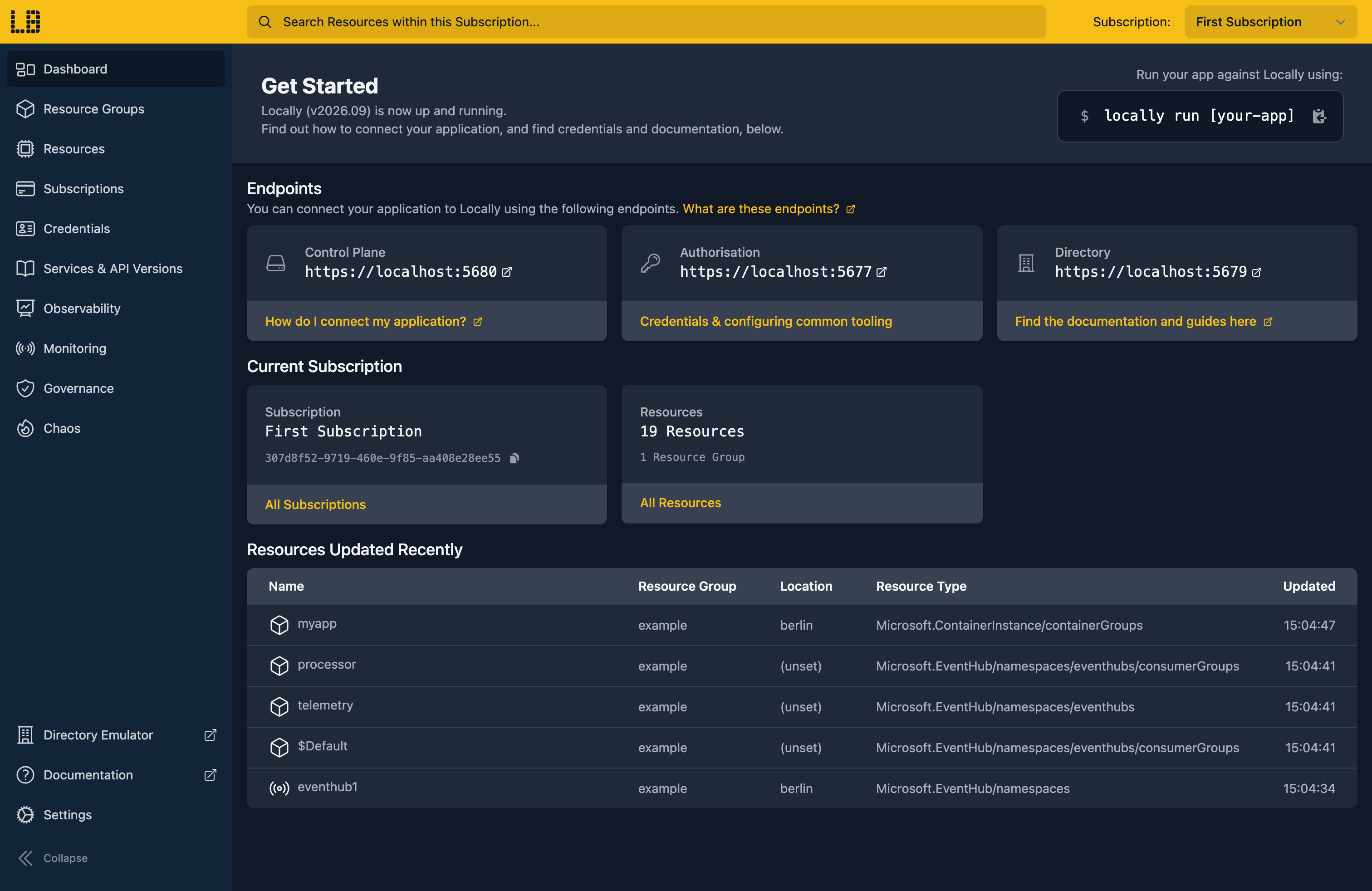
Once Locally has started, the Locally Dashboard will open automatically:
2. Create a Resource Group
Next we can create the Resource Group to hold the cluster:
                $


            locally run az group create -n sample-horizondb -l berlin
There's two things to note here:
- The Azure CLI supports Automatic Configuration, meaning that it can automatically be configured to work against Locally just by prefixing commands with
locally run. - Locally intentionally uses a different set of locations to Azure as a safety precaution, so that you can be confident you're deploying against Locally rather than regular Azure. You can also configure Locally to use the Azure locations too, but you'll want to be extra sure that you're prefixing commands with
locally runwhen you do.
3. Create the cluster
With the Resource Group in place, we can create the cluster. It takes the Resource Group's location, and we'll ask for PostgreSQL 18:
                $


            locally run az horizondb cluster create --name samplehdb-docs1 --resource-group sample-horizondb --version 18 --public-access Enabled --geo-redundancy Disabled
{
  "id": "/subscriptions/0f766306-391f-4f66-b9ee-927fb2db629c/resourceGroups/sample-horizondb/providers/Microsoft.HorizonDb/clusters/samplehdb-docs1",
  "location": "berlin",
  "name": "samplehdb-docs1",
  "properties": {
    "aiModelManagement": "Disabled",
    "backup": {
      "geoRedundancy": "Disabled",
      "retentionDays": 7
    },
    "creationMode": "Create",
    "dataEncryption": {
      "type": "SystemManaged"
    },
    "network": {
      "publicAccess": "Enabled"
    },
    "postgreSqlVersion": "18",
    "provisioningState": "Succeeded",
    "readWritePool": {},
    "state": "Ready"
  },
  "resourceGroup": "sample-horizondb",
  "systemData": {
    "createdAt": "2026-11-17T18:06:33.1911430Z",
    "createdBy": "937c57ad-313b-46cb-ba5b-6180f2b379fc",
    "createdByType": "ManagedIdentity",
    "lastModifiedAt": "2026-11-17T18:06:33.1929690Z",
    "lastModifiedBy": "937c57ad-313b-46cb-ba5b-6180f2b379fc",
    "lastModifiedByType": "ManagedIdentity"
  },
  "tags": {},
  "type": "Microsoft.HorizonDb/clusters"
}
A cluster on its own doesn't run anything yet. The database arrives with its first pool, which we'll add once the cluster has an administrator.
4. Set the administrator login
A HorizonDB cluster keeps its administrator login and password in a nested resource named authentications/passwordMethod. The horizondb extension doesn't have a command for it yet, so we'll send the request with az rest. First we grab the cluster's Resource ID:
                $


            export CLUSTER_ID=$(locally run az horizondb cluster show --name samplehdb-docs1 --resource-group sample-horizondb --query id --output tsv)
And then set the login and password, enabling password authentication at the same time:
                $


            locally run az rest --method put --url "$CLUSTER_ID/authentications/passwordMethod?api-version=2026-10-01-preview" --body '{"properties":{"administratorLogin":"hdbadmin","administratorLoginPassword":"Correct-Horse-42","state":"Enabled"}}' --query "{name:name, administratorLogin:properties.administratorLogin, state:properties.state, provisioningState:properties.provisioningState}"
{
  "administratorLogin": "hdbadmin",
  "name": "passwordMethod",
  "provisioningState": "Succeeded",
  "state": "Enabled"
}
Do this before creating a pool, since a pool starts with whichever administrator the cluster has at the time. The login can't be renamed afterwards, but the password can be changed with a PATCH to the same URL.
5. Add a pool
A pool is the compute that serves the cluster's data. We'll add a single-node pool:
                $


            locally run az horizondb cluster pool create --cluster-name samplehdb-docs1 --resource-group sample-horizondb --name primary --compute-processor AMD --compute-generation 3 --v-cores 2 --node-count 1 --high-availability-mode Disabled
Behind the scenes Locally starts a PostgreSQL 18 container for the pool, and returns once it's ready:
{
  "id": "/subscriptions/0f766306-391f-4f66-b9ee-927fb2db629c/resourceGroups/sample-horizondb/providers/Microsoft.HorizonDb/clusters/samplehdb-docs1/pools/primary",
  "name": "primary",
  "properties": {
    "computeModel": {
      "computeGeneration": 3,
      "computeProcessor": "AMD",
      "type": "Provisioned",
      "vCores": 2
    },
    "highAvailability": {
      "mode": "Disabled"
    },
    "nodeCount": 1,
    "parameterGroup": {
      "applyMethod": "Immediate",
      "parameterGroupResourceId": "/subscriptions/0f766306-391f-4f66-b9ee-927fb2db629c/providers/Microsoft.HorizonDb/locations/berlin/parameterGroups/default-postgresql-18-provisioned",
      "syncStatus": "InSync"
    },
    "provisioningState": "Succeeded",
    "scheduledMaintenance": {
      "maintenanceManagementType": "System"
    },
    "state": "Ready"
  },
  "resourceGroup": "sample-horizondb",
  "systemData": {
    "createdAt": "2026-11-17T18:06:45.2184970Z",
    "createdBy": "937c57ad-313b-46cb-ba5b-6180f2b379fc",
    "createdByType": "ManagedIdentity",
    "lastModifiedAt": "2026-11-17T18:06:45.2184970Z",
    "lastModifiedBy": "937c57ad-313b-46cb-ba5b-6180f2b379fc",
    "lastModifiedByType": "ManagedIdentity"
  },
  "type": "Microsoft.HorizonDb/clusters/pools"
}
Heads up
The pool doesn't say where to connect; the cluster's endpoints do. We can list them with:
                $


            locally run az rest --method get --url "$CLUSTER_ID/endpoints?api-version=2026-10-01-preview" --query "value[].{name:name, role:properties.role, scope:properties.scope, fullyQualifiedDomainName:properties.fullyQualifiedDomainName}"
[
  {
    "fullyQualifiedDomainName": "primary.gondola.locally:62822",
    "name": "cluster-samplehdb-docs1",
    "role": "ReadWrite",
    "scope": "Cluster"
  },
  {
    "fullyQualifiedDomainName": "primary.gondola.locally:62822",
    "name": "pool-primary",
    "role": "ReadOnly",
    "scope": "Pool"
  }
]
That gondola.locally hostname is served by Locally's own DNS server. Unlike Azure, the fullyQualifiedDomainName includes the port, since each pool on your machine listens on its own port rather than 5432. Both endpoints point at the same container, so the ReadOnly one accepts writes too.
6. Connect with psql
Now for the fun part. We'll put the administrator login and the cluster endpoint together into a connection string, using the port from your own output:
                $


            export HORIZONDB_URL="postgresql://hdbadmin:[email protected]:62822/postgres?sslmode=require"
Every pool starts with a postgres database, so we can create a table and add a couple of rows straight away:
                $


            psql "$HORIZONDB_URL" -c "CREATE TABLE orders (id serial PRIMARY KEY, customer text NOT NULL, total numeric(10,2) NOT NULL); INSERT INTO orders (customer, total) VALUES ('Ada', 42.50), ('Grace', 17.25);"
INSERT 0 2And read them back:
                $


            psql "$HORIZONDB_URL" -c "SELECT * FROM orders;"
 id | customer | total
----+----------+-------
  1 | Ada      | 42.50
  2 | Grace    | 17.25
(2 rows)
That's a real PostgreSQL server answering over TLS, so sslmode=require works just as it does against Azure, and any PostgreSQL driver or ORM can use the same connection string. A connection that doesn't use TLS is refused.
Doing this with other tooling
Whilst this guide used the Azure CLI, HorizonDB clusters work the same way through any of the tooling that Locally supports - a Microsoft.HorizonDb/clusters resource in HashiCorp Terraform, Pulumi, Bicep or an ARM Template all provision against Locally in the same way, with only the location changed.
Next steps
To see how your application copes when the database misbehaves, Chaos Engineering can drop connections, add latency or take a pool down with locally chaos horizondb. If you're after a regular PostgreSQL server instead, see PostgreSQL Flexible Server.
Should you encounter any issues, please take a look at the troubleshooting section, reach out in our Discord or open an issue and we'll take a look.
Resource types this guide uses
These are the Azure resource types this guide creates in Locally:
- Microsoft.HorizonDb/clusters
- Microsoft.HorizonDb/clusters/pools
During Public Preview you can use the Team plan for free, and get an early-adopter discount at GA. Sign in
