Provisioning a DNS Zone
Sign in during Public Preview to get the Team plan free, plus an early-adopter discount when we launch. Sign in
Provisioning a DNS Zone
This guide shows you how to provision a DNS Zone against Locally, add a few common records to it, and then look them up with dig. As with the other guides we're going to use the Azure CLI, but the same resources can be provisioned with HashiCorp Terraform, Pulumi or Bicep too.
This guide covers public DNS Zones. If you're after names that only resolve inside your own networks, see Private DNS Zone.
Before you start
- The Azure CLI (
az) installed. diginstalled. It ships with macOS and most Linux distributions (in thednsutilsorbind-utilspackage).- Locally installed, with Locally Setup completed.
1. Start Locally
Firstly, we need to launch Locally which we can do from a terminal by running:
                $


            locally build
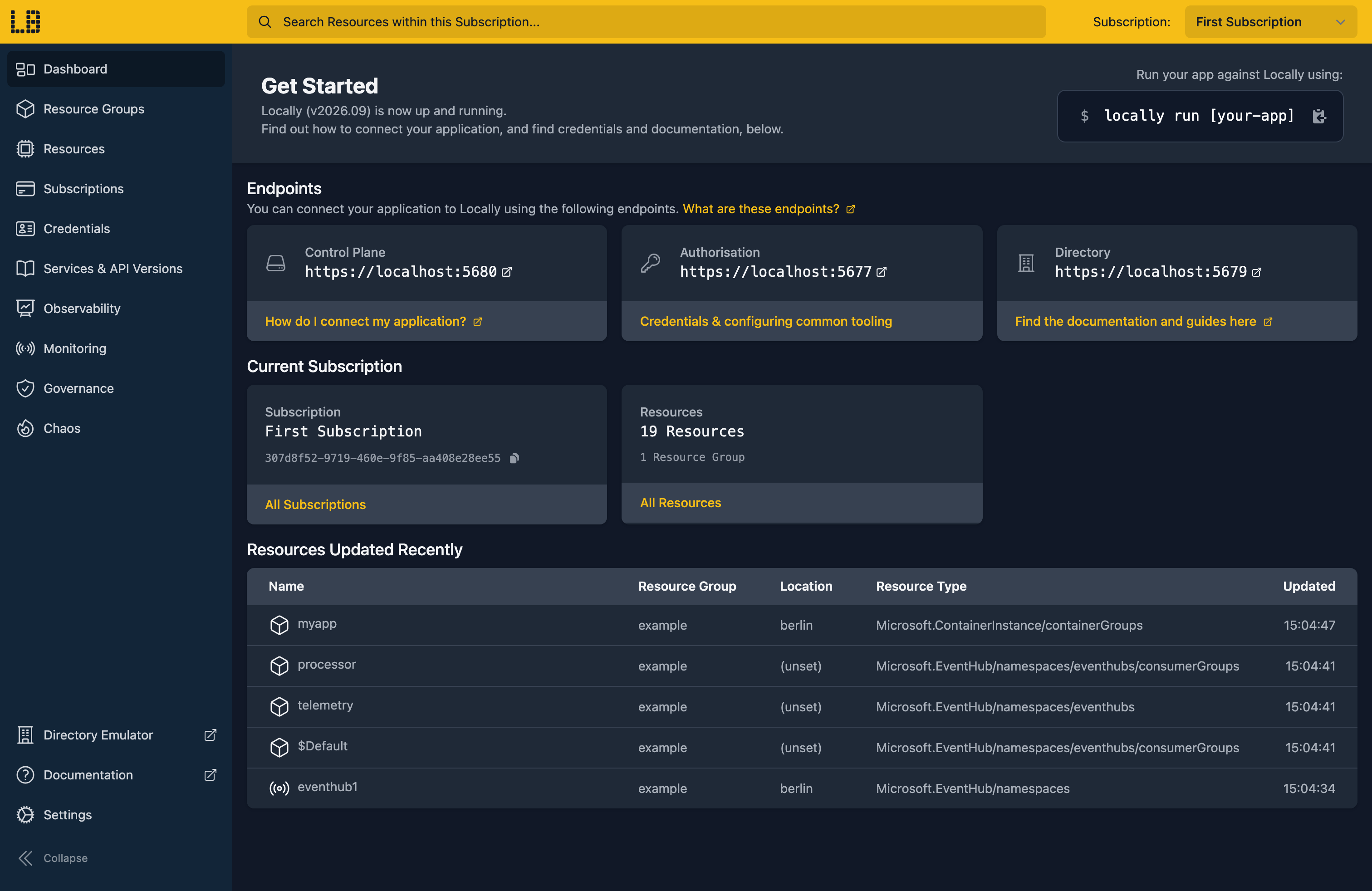
Once Locally has started, the Locally Dashboard will open automatically:
2. Create a Resource Group
Next we can create the Resource Group to hold the zone:
                $


            locally run az group create -n sample-dns -l berlin
There's two things to note here:
- The Azure CLI supports Automatic Configuration, meaning that it can automatically be configured to work against Locally just by prefixing commands with
locally run. - Locally intentionally uses a different set of locations to Azure as a safety precaution, so that you can be confident you're deploying against Locally rather than regular Azure. You can also configure Locally to use the Azure locations too, but you'll want to be extra sure that you're prefixing commands with
locally runwhen you do.
3. Create the DNS Zone
Now we can create the zone. We'll use example.com, which is reserved for documentation. You don't need to own a domain to create a zone for it, in Locally or in Azure:
                $


            locally run az network dns zone create -g sample-dns -n example.com --query "{name:name, type:type, location:location}"
{
  "location": "global",
  "name": "example.com",
  "type": "Microsoft.Network/dnsZones"
}
DNS Zones are always in the global location, whichever location the Resource Group is in. Let's look at the zone's name servers:
                $


            locally run az network dns zone show -g sample-dns -n example.com --query "{name:name, nameServers:nameServers, numberOfRecordSets:numberOfRecordSets}"
{
  "name": "example.com",
  "nameServers": [
    "ns1-01.dns.locally",
    "ns2-01.dns.locally",
    "ns3-01.dns.locally",
    "ns4-01.dns.locally"
  ],
  "numberOfRecordSets": 2
}
In Azure, these are the name servers you'd delegate the domain to at your registrar. In Locally they're Locally's own. The two record sets are the SOA and NS records every new zone starts with.
4. Add some records
An empty zone doesn't resolve anything, so let's add some records. First an A record, pointing www at an address:
                $


            locally run az network dns record-set a add-record -g sample-dns -z example.com -n www -a 10.20.30.40 --query "{fqdn:fqdn, records:ARecords[].ipv4Address}"
{
  "fqdn": "www.example.com.",
  "records": [
    "10.20.30.40"
  ]
}
Then a CNAME, so that shop is an alias for www:
                $


            locally run az network dns record-set cname set-record -g sample-dns -z example.com -n shop -c www.example.com --query "{fqdn:fqdn, cname:CNAMERecord.cname}"
{
  "cname": "www.example.com",
  "fqdn": "shop.example.com."
}
A record set holds one or more records of the same type, which is why A records are added with add-record. A CNAME can only ever have one value, so it's set-record instead.
Next, an MX record for mail sent to the domain. The @ name means the apex of the zone, so this is for example.com itself:
                $


            locally run az network dns record-set mx add-record -g sample-dns -z example.com -n @ -e mail.example.com -p 10 --query "{fqdn:fqdn, records:MXRecords}"
{
  "fqdn": "example.com.",
  "records": [
    {
      "exchange": "mail.example.com",
      "preference": 10
    }
  ]
}
And finally a TXT record at the apex, here an SPF policy:
                $


            locally run az network dns record-set txt add-record -g sample-dns -z example.com -n @ -v "v=spf1 mx -all" --query "{fqdn:fqdn, records:TXTRecords[].value}"
{
  "fqdn": "example.com.",
  "records": [
    [
      "v=spf1 mx -all"
    ]
  ]
}
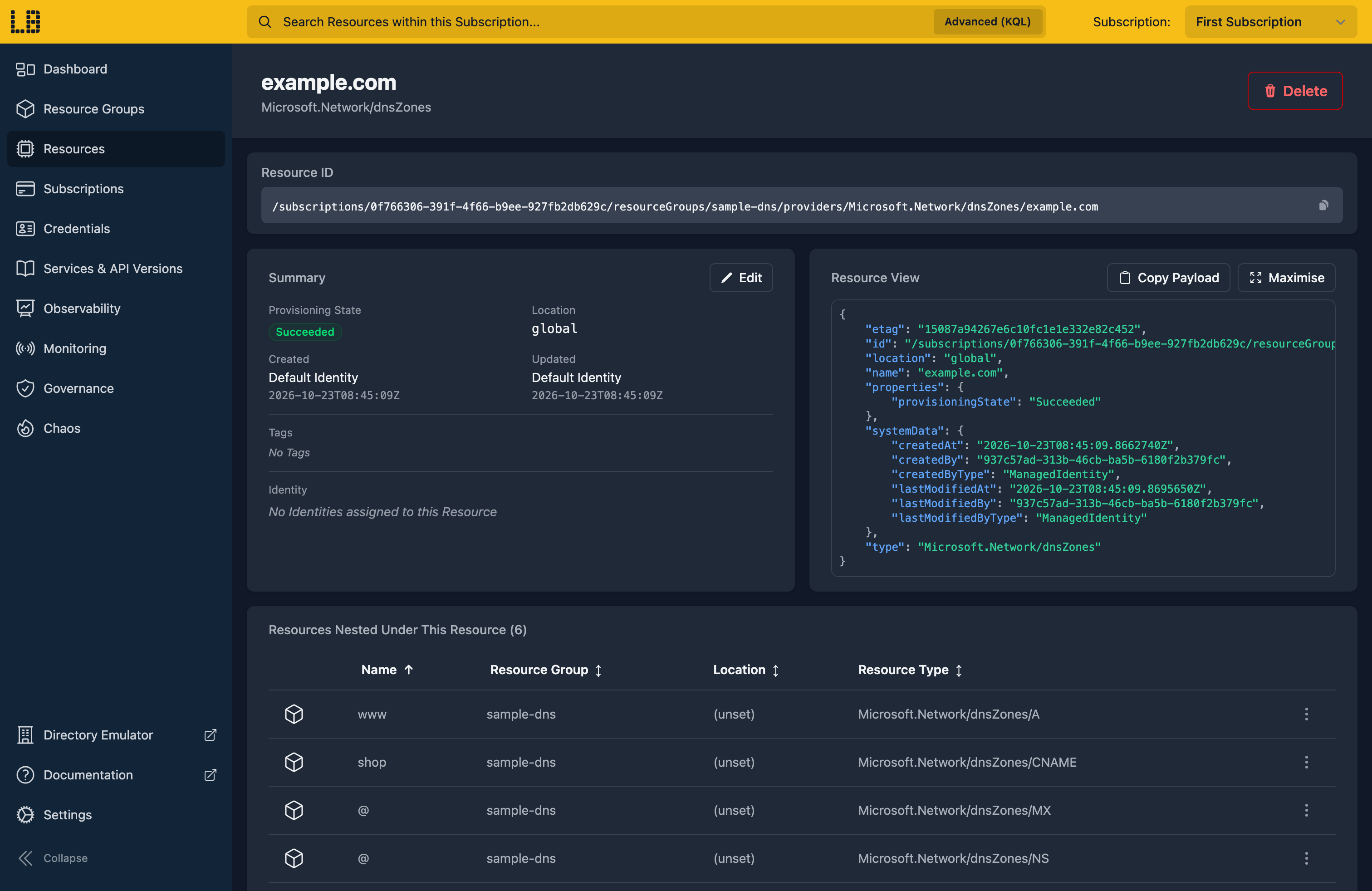
We can see the zone and its records in the Locally Dashboard too:
5. Look up the records
Locally's DNS server answers for the records in your zones. Your machine only sends .locally lookups to it, though, so a plain dig www.example.com would still go to the real example.com. Instead we ask Locally's DNS server directly, on port 5673:
                $


            dig @127.0.0.1 -p 5673 www.example.com +short
10.20.30.40Note
-p 5673.The CNAME comes back as the name it points to:
                $


            dig @127.0.0.1 -p 5673 shop.example.com +short
www.example.com.The MX and TXT records live at the apex, so we ask for example.com along with the record type:
                $


            dig @127.0.0.1 -p 5673 example.com MX +short
10 mail.example.com.
                $


            dig @127.0.0.1 -p 5673 example.com TXT +short
"v=spf1 mx -all"A name that isn't in the zone gets NXDOMAIN, as it would from Azure DNS:
                $


            dig @127.0.0.1 -p 5673 ftp.example.com +noall +comments
; <<>> DiG 9.10.6 <<>> @127.0.0.1 -p 5673 ftp.example.com +noall +comments
; (1 server found)
;; global options: +cmd
;; Got answer:
;; ->>HEADER<<- opcode: QUERY, status: NXDOMAIN, id: 46726
;; flags: qr aa rd ra; QUERY: 1, ANSWER: 0, AUTHORITY: 1, ADDITIONAL: 0
6. Change a record
Changes take effect as soon as they're saved. Let's add a second address to www:
                $


            locally run az network dns record-set a add-record -g sample-dns -z example.com -n www -a 10.20.30.41 --query "{fqdn:fqdn, records:ARecords[].ipv4Address}"
{
  "fqdn": "www.example.com.",
  "records": [
    "10.20.30.40",
    "10.20.30.41"
  ]
}
And look it up again:
                $


            dig @127.0.0.1 -p 5673 www.example.com +short
10.20.30.40
10.20.30.41
If you still see the old answer, give it a second and try again.
7. Tidy up
Finally, we can tidy up. To remove the Resource Group and everything within it:
                $


            locally run az group delete -n sample-dns --yes
Once the zone is gone, its names stop resolving too. There's nothing billable to clean up, since everything ran on your machine, but it's still worth checking your teardown scripts work here before you run them against Azure.
Doing this with other tooling
Whilst this guide used the Azure CLI, DNS Zones work the same way through any of the tooling that Locally supports - a Microsoft.Network/dnsZones resource and its record sets in HashiCorp Terraform or OpenTofu, Pulumi, Bicep or an ARM Template all provision against Locally in the same way.
To check your records from your own code or tests, point its DNS resolver at 127.0.0.1 on port 5673.
Next steps
The DNS Server page lists every record type Locally serves. For names that only resolve inside your virtual networks, see Private DNS Zone.
Should you encounter any issues, please take a look at the troubleshooting section.
Sign in during Public Preview to get the Team plan free, plus an early-adopter discount when we launch. Sign in
