During Public Preview you can use the Team plan for free, and get an early-adopter discount at GA. Sign in
Deploying an Azure Firewall
This guide shows you how to deploy an Azure Firewall against Locally, along with a Firewall Policy holding network and application rules. As with the other guides we're going to use the Azure CLI, but the same resources can be provisioned with HashiCorp Terraform, Pulumi or Bicep too.
Before you start
- The Azure CLI (
az) installed. - Locally installed, with Locally Setup completed.
1. Start Locally
Firstly, we need to launch Locally which we can do from a terminal by running:
                $


            locally build
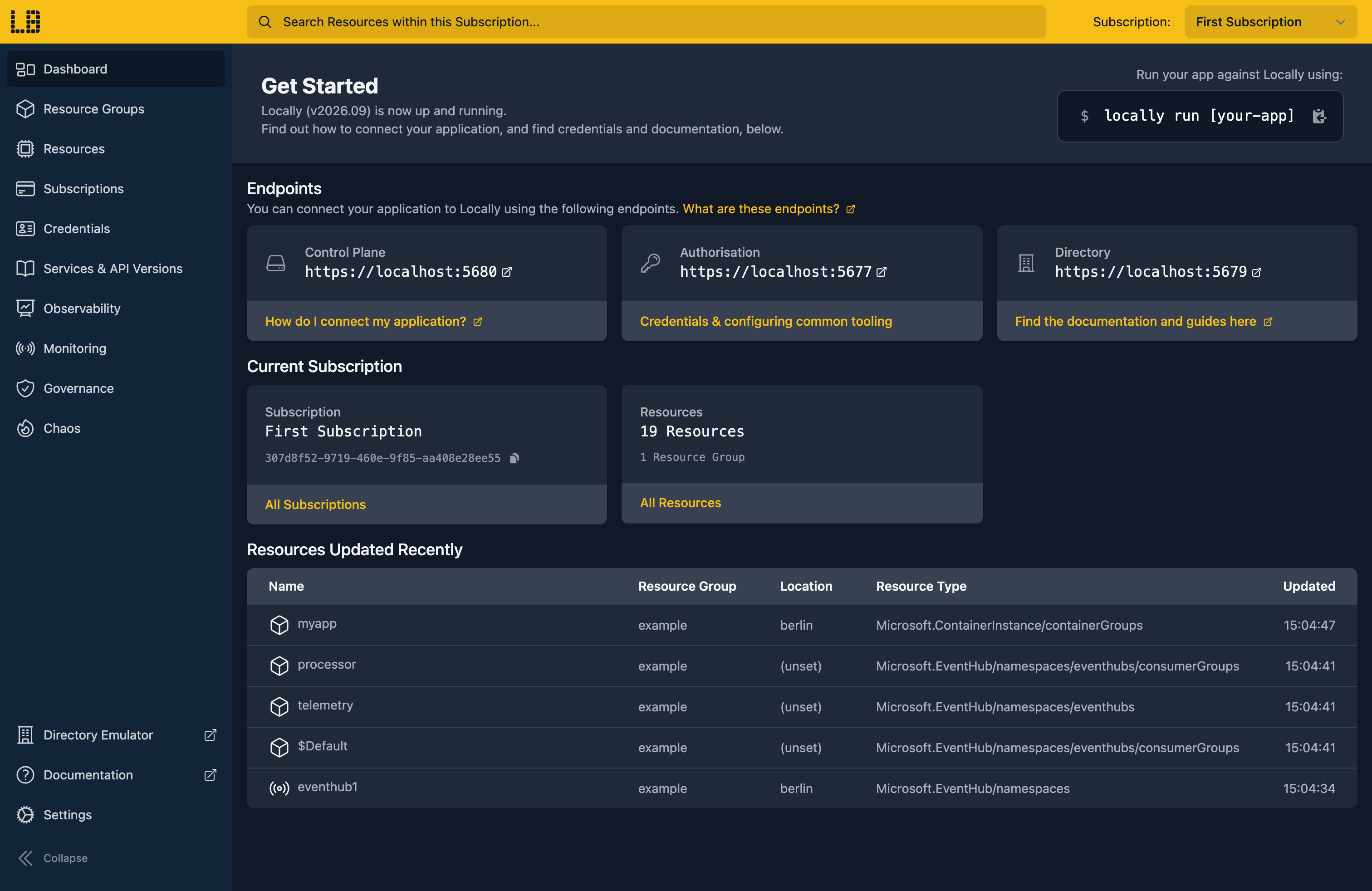
Once Locally has started, the Locally Dashboard will open automatically:
The az network firewall commands live in the azure-firewall Azure CLI extension, so let's add it:
                $


            locally run az extension add --name azure-firewall
It's added to Locally's own copy of the Azure CLI configuration, so your usual az setup isn't touched.
2. Create a Resource Group
Next we can create the Resource Group:
                $


            locally run az group create -n sample-firewall -l berlin
There's two things to note here:
- The Azure CLI supports Automatic Configuration, meaning that it can automatically be configured to work against Locally just by prefixing commands with
locally run. - Locally intentionally uses a different set of locations to Azure as a safety precaution, so that you can be confident you're deploying against Locally rather than regular Azure. You can also configure Locally to use the Azure locations too, but you'll want to be extra sure that you're prefixing commands with
locally runwhen you do.
3. Create the network
An Azure Firewall lives in its own subnet, which has to be called AzureFirewallSubnet and be at least a /26. We'll create a Virtual Network with that subnet:
                $


            locally run az network vnet create -g sample-firewall -n sample-vnet --address-prefixes 10.0.0.0/16 --subnet-name AzureFirewallSubnet --subnet-prefixes 10.0.0.0/26 --query "newVNet.subnets[].{name:name, prefix:addressPrefix}"
[
  {
    "name": "AzureFirewallSubnet",
    "prefix": "10.0.0.0/26"
  }
]
The firewall also needs a Standard Public IP Address:
                $


            locally run az network public-ip create -g sample-firewall -n sample-fw-pip --sku Standard --query "publicIp.{name:name, ipAddress:ipAddress, sku:sku.name}"
{
  "ipAddress": "127.1.0.2",
  "name": "sample-fw-pip",
  "sku": "Standard"
}
4. Create a Firewall Policy
The firewall's rules are kept in a Firewall Policy, which we'll create first:
                $


            locally run az network firewall policy create -g sample-firewall -n sample-fw-policy --sku Standard --threat-intel-mode Alert --query "{name:name, tier:sku.tier, threatIntelMode:threatIntelMode, state:provisioningState}"
{
  "name": "sample-fw-policy",
  "state": "Succeeded",
  "threatIntelMode": "Alert",
  "tier": "Standard"
}
5. Add some rules
Rules are grouped into rule collections, which in turn sit in a rule collection group. Let's create the group:
                $


            locally run az network firewall policy rule-collection-group create -g sample-firewall --policy-name sample-fw-policy -n sample-rules --priority 200 --query "{name:name, priority:priority, state:provisioningState}"
{
  "name": "sample-rules",
  "priority": 200,
  "state": "Succeeded"
}
A network rule matches on addresses, ports and protocols. This one lets the 10.0.1.0/24 range make DNS lookups against two public resolvers:
                $


            locally run az network firewall policy rule-collection-group collection add-filter-collection -g sample-firewall --policy-name sample-fw-policy --rcg-name sample-rules -n allow-dns --collection-priority 100 --action Allow --rule-type NetworkRule --rule-name dns --ip-protocols UDP --source-addresses 10.0.1.0/24 --destination-addresses 1.1.1.1 8.8.8.8 --destination-ports 53 --query "ruleCollections[].{name:name, priority:priority, action:action.type}"
[
  {
    "action": "Allow",
    "name": "allow-dns",
    "priority": 100
  }
]
An application rule matches on hostnames instead. This one allows HTTPS to GitHub:
                $


            locally run az network firewall policy rule-collection-group collection add-filter-collection -g sample-firewall --policy-name sample-fw-policy --rcg-name sample-rules -n allow-github --collection-priority 200 --action Allow --rule-type ApplicationRule --rule-name github --protocols Https=443 --source-addresses 10.0.1.0/24 --target-fqdns github.com '*.github.com' --query "ruleCollections[].{name:name, priority:priority, action:action.type}"
[
  {
    "action": "Allow",
    "name": "allow-dns",
    "priority": 100
  },
  {
    "action": "Allow",
    "name": "allow-github",
    "priority": 200
  }
]
6. Deploy the Azure Firewall
Now we can deploy the firewall into the subnet, using the Public IP Address and the Firewall Policy:
                $


            locally run az network firewall create -g sample-firewall -n sample-fw --sku AZFW_VNet --tier Standard --firewall-policy sample-fw-policy --vnet-name sample-vnet --conf-name fw-ipconfig --public-ip sample-fw-pip --query "{name:name, tier:sku.tier, privateIp:ipConfigurations[0].privateIPAddress, state:provisioningState}"
{
  "name": "sample-fw",
  "privateIp": "10.0.0.4",
  "state": "Succeeded",
  "tier": "Standard"
}
The firewall is given a private address in AzureFirewallSubnet, which is the address other subnets would send their traffic to with a Route Table.
Note
7. List the rules
To see the rule collections in the group:
                $


            locally run az network firewall policy rule-collection-group show -g sample-firewall --policy-name sample-fw-policy -n sample-rules --query "ruleCollections[].{Collection:name, Priority:priority, Action:action.type, Rule:rules[0].name, RuleType:rules[0].ruleType}" -o table
Collection    Priority    Action    Rule    RuleType
------------  ----------  --------  ------  ---------------
allow-dns     100         Allow     dns     NetworkRule
allow-github  200         Allow     github  ApplicationRule
And the Firewall Policy lists the firewalls using it:
                $


            locally run az network firewall policy show -g sample-firewall -n sample-fw-policy --query "{name:name, firewalls:firewalls[].id}"
{
  "firewalls": [
    "/subscriptions/0f766306-391f-4f66-b9ee-927fb2db629c/resourceGroups/sample-firewall/providers/Microsoft.Network/azureFirewalls/sample-fw"
  ],
  "name": "sample-fw-policy"
}
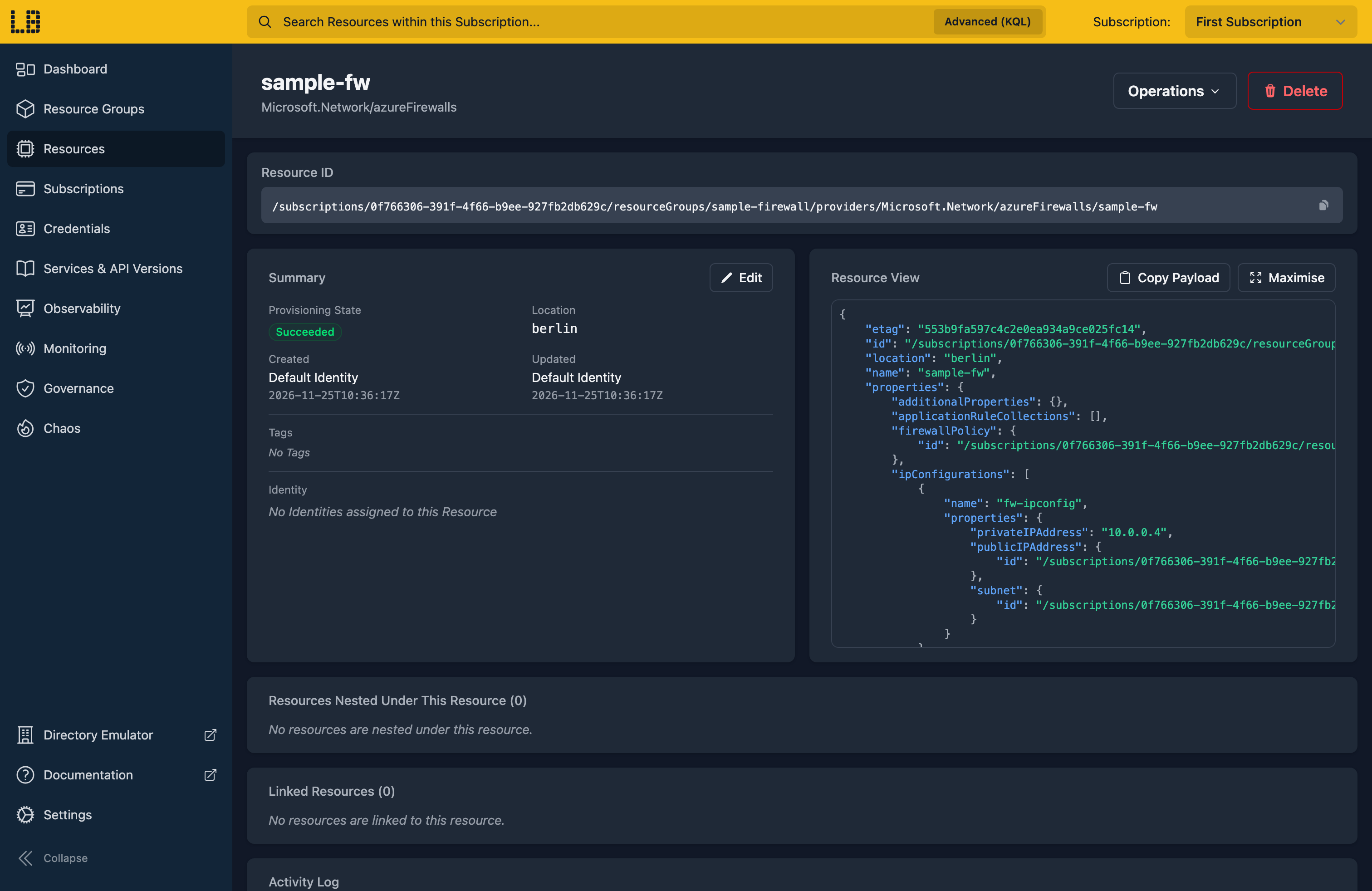
We can see the Azure Firewall in the Locally Dashboard too:
8. Tidy up
Finally, we can tidy up. We delete the firewall first:
                $


            locally run az network firewall delete -g sample-firewall -n sample-fw
Then remove the Resource Group and everything else within it, including the Firewall Policy and its rules:
                $


            locally run az group delete -n sample-firewall --yes
Doing this with other tooling
Whilst this guide used the Azure CLI, Azure Firewalls work the same way through any of the tooling that Locally supports - the Microsoft.Network/azureFirewalls, Microsoft.Network/firewallPolicies and Microsoft.Network/firewallPolicies/ruleCollectionGroups resources in HashiCorp Terraform or OpenTofu, Pulumi, Bicep or an ARM Template all provision against Locally in the same way, with only the location changed.
Next steps
To send a subnet's outbound traffic to the firewall, add a Route Table with a route to its private address. To control traffic within the network, see Network Security Group.
Should you encounter any issues, please take a look at the troubleshooting section, reach out in our Discord or open an issue and we'll take a look.
Resource types this guide uses
These are the Azure resource types this guide creates in Locally:
During Public Preview you can use the Team plan for free, and get an early-adopter discount at GA. Sign in
