During Public Preview you can use the Team plan for free, and get an early-adopter discount at GA. Sign in
Deploying an Application Gateway
This guide shows you how to deploy an Application Gateway against Locally, add a health probe, and route a second listener to a second backend pool. As with the other guides we're going to use the Azure CLI, but the same resources can be provisioned with HashiCorp Terraform, Pulumi or Bicep too.
Before you start
- The Azure CLI (
az) installed. - Locally installed, with Locally Setup completed.
1. Start Locally
Firstly, we need to launch Locally which we can do from a terminal by running:
                $


            locally build
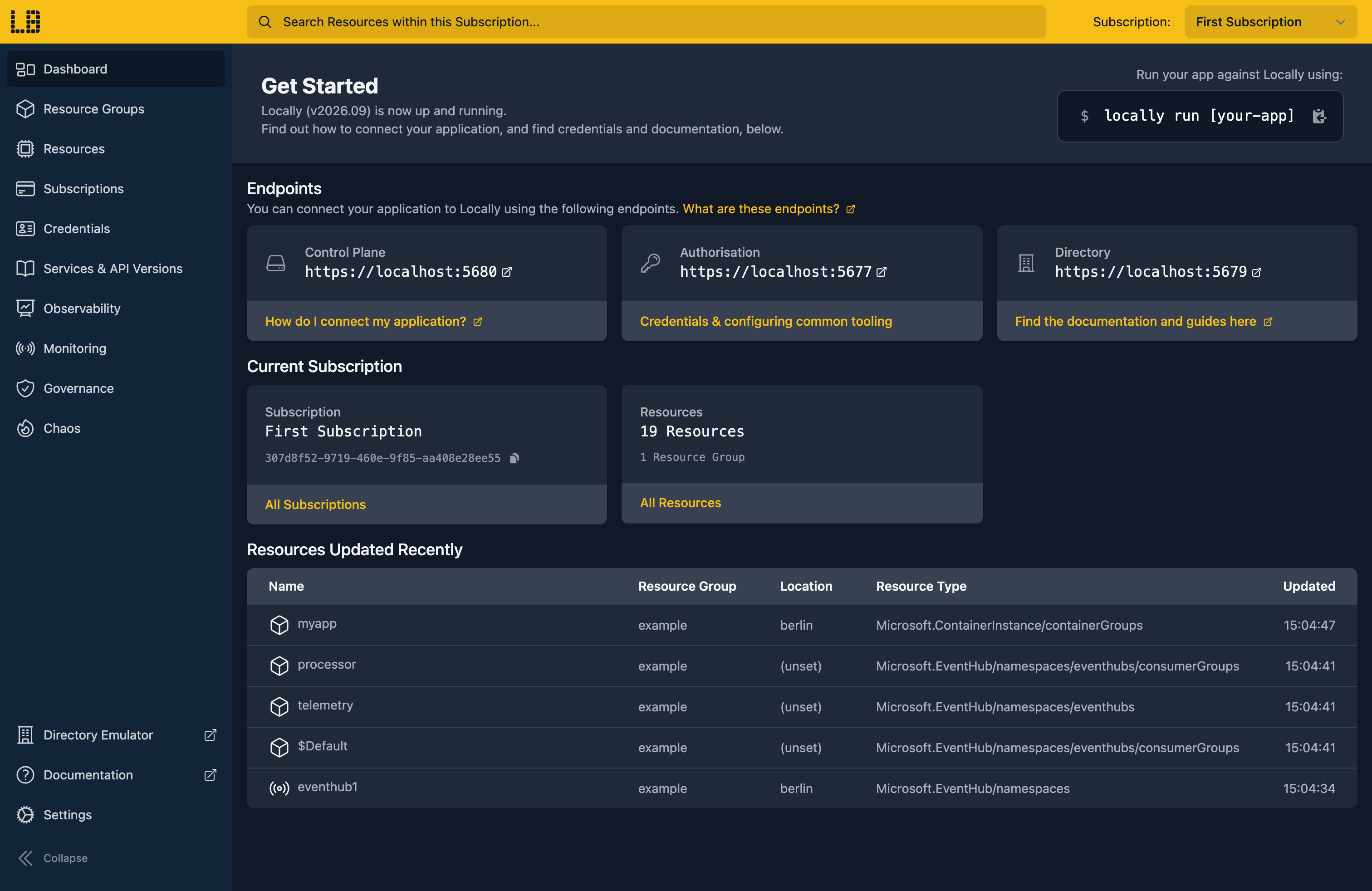
Once Locally has started, the Locally Dashboard will open automatically:
2. Create a Resource Group
Next we can create the Resource Group:
                $


            locally run az group create -n sample-appgw -l berlin
There's two things to note here:
- The Azure CLI supports Automatic Configuration, meaning that it can automatically be configured to work against Locally just by prefixing commands with
locally run. - Locally intentionally uses a different set of locations to Azure as a safety precaution, so that you can be confident you're deploying against Locally rather than regular Azure. You can also configure Locally to use the Azure locations too, but you'll want to be extra sure that you're prefixing commands with
locally runwhen you do.
3. Create the network
An Application Gateway needs a subnet of its own. Unlike Azure Firewall or Bastion, the subnet can have any name. We'll create a Virtual Network with a dedicated subnet for it:
                $


            locally run az network vnet create -g sample-appgw -n sample-vnet --address-prefixes 10.0.0.0/16 --subnet-name appgw --subnet-prefixes 10.0.1.0/24 --query "newVNet.{name:name, subnets:subnets[].{name:name, prefix:addressPrefix}}"
{
  "name": "sample-vnet",
  "subnets": [
    {
      "name": "appgw",
      "prefix": "10.0.1.0/24"
    }
  ]
}
And a Standard Public IP Address for its frontend:
                $


            locally run az network public-ip create -g sample-appgw -n sample-appgw-ip --sku Standard --query "publicIp.{name:name, sku:sku.name, ipAddress:ipAddress}"
{
  "ipAddress": "127.1.0.1",
  "name": "sample-appgw-ip",
  "sku": "Standard"
}
4. Create the Application Gateway
Now the gateway itself. This creates a Standard_v2 gateway with two instances, listening on port 80 and sending requests to a backend pool of two servers:
                $


            locally run az network application-gateway create -g sample-appgw -n sample-agw --sku Standard_v2 --capacity 2 --vnet-name sample-vnet --subnet appgw --public-ip-address sample-appgw-ip --servers 10.0.2.4 10.0.2.5 --priority 100 --query "applicationGateway.{sku:sku.name, capacity:sku.capacity, state:provisioningState}"
{
  "capacity": 2,
  "sku": "Standard_v2",
  "state": "Succeeded"
}
The CLI fills in the rest with default names: a frontend IP configuration, port, HTTP listener, backend pool, HTTP settings and a rule called rule1 joining them together.
Note
5. Add a health probe
Without a custom probe the gateway checks the root path of each backend. We'll add one that checks /healthz every 30 seconds instead:
                $


            locally run az network application-gateway probe create -g sample-appgw --gateway-name sample-agw -n health --protocol Http --host 127.0.0.1 --path /healthz --interval 30 --timeout 30 --threshold 3 --query "{name:name, protocol:protocol, path:path, interval:interval}"
{
  "interval": 30,
  "name": "health",
  "path": "/healthz",
  "protocol": "Http"
}
A probe is used through the HTTP settings, so we point the default HTTP settings at it:
                $


            locally run az network application-gateway http-settings update -g sample-appgw --gateway-name sample-agw -n appGatewayBackendHttpSettings --probe health --query "{name:name, port:port, probe:probe.id}"
{
  "name": "appGatewayBackendHttpSettings",
  "port": 80,
  "probe": "/subscriptions/0f766306-391f-4f66-b9ee-927fb2db629c/resourceGroups/sample-appgw/providers/Microsoft.Network/applicationGateways/sample-agw/probes/health"
}
6. Route a second listener
Next we'll send requests on port 8080 to a different set of servers. First a backend pool, this time using hostnames rather than IP addresses:
                $


            locally run az network application-gateway address-pool create -g sample-appgw --gateway-name sample-agw -n api-pool --servers api1.example.com api2.example.com --query "{name:name, backends:backendAddresses[].fqdn}"
{
  "backends": [
    "api1.example.com",
    "api2.example.com"
  ],
  "name": "api-pool"
}
Then a frontend port, and a listener on it:
                $


            locally run az network application-gateway frontend-port create -g sample-appgw --gateway-name sample-agw -n port-8080 --port 8080 --query "{name:name, port:port}"
{
  "name": "port-8080",
  "port": 8080
}
                $


            locally run az network application-gateway http-listener create -g sample-appgw --gateway-name sample-agw -n api-listener --frontend-port port-8080 --query "{name:name, protocol:protocol, frontendPort:frontendPort.id}"
{
  "frontendPort": "/subscriptions/0f766306-391f-4f66-b9ee-927fb2db629c/resourceGroups/sample-appgw/providers/Microsoft.Network/applicationGateways/sample-agw/frontendPorts/port-8080",
  "name": "api-listener",
  "protocol": "Http"
}
And finally a rule that connects the listener to the pool. Rules on a v2 gateway need a priority, and lower numbers are evaluated first:
                $


            locally run az network application-gateway rule create -g sample-appgw --gateway-name sample-agw -n api-rule --http-listener api-listener --address-pool api-pool --http-settings appGatewayBackendHttpSettings --priority 200 -o none
The gateway now has two rules:
                $


            locally run az network application-gateway rule list -g sample-appgw --gateway-name sample-agw --query "[].{Name:name, Priority:priority, Type:ruleType}" -o table
Name      Priority    Type
--------  ----------  ------
rule1     100         Basic
api-rule  200         Basic
7. List the backend pools
To see both backend pools and the servers in each:
                $


            locally run az network application-gateway address-pool list -g sample-appgw --gateway-name sample-agw --query "[].{Name:name, Backends:join(', ', backendAddresses[].[ipAddress, fqdn][])}" -o table
Name                   Backends
---------------------  ----------------------------------
api-pool               api1.example.com, api2.example.com
appGatewayBackendPool  10.0.2.4, 10.0.2.5
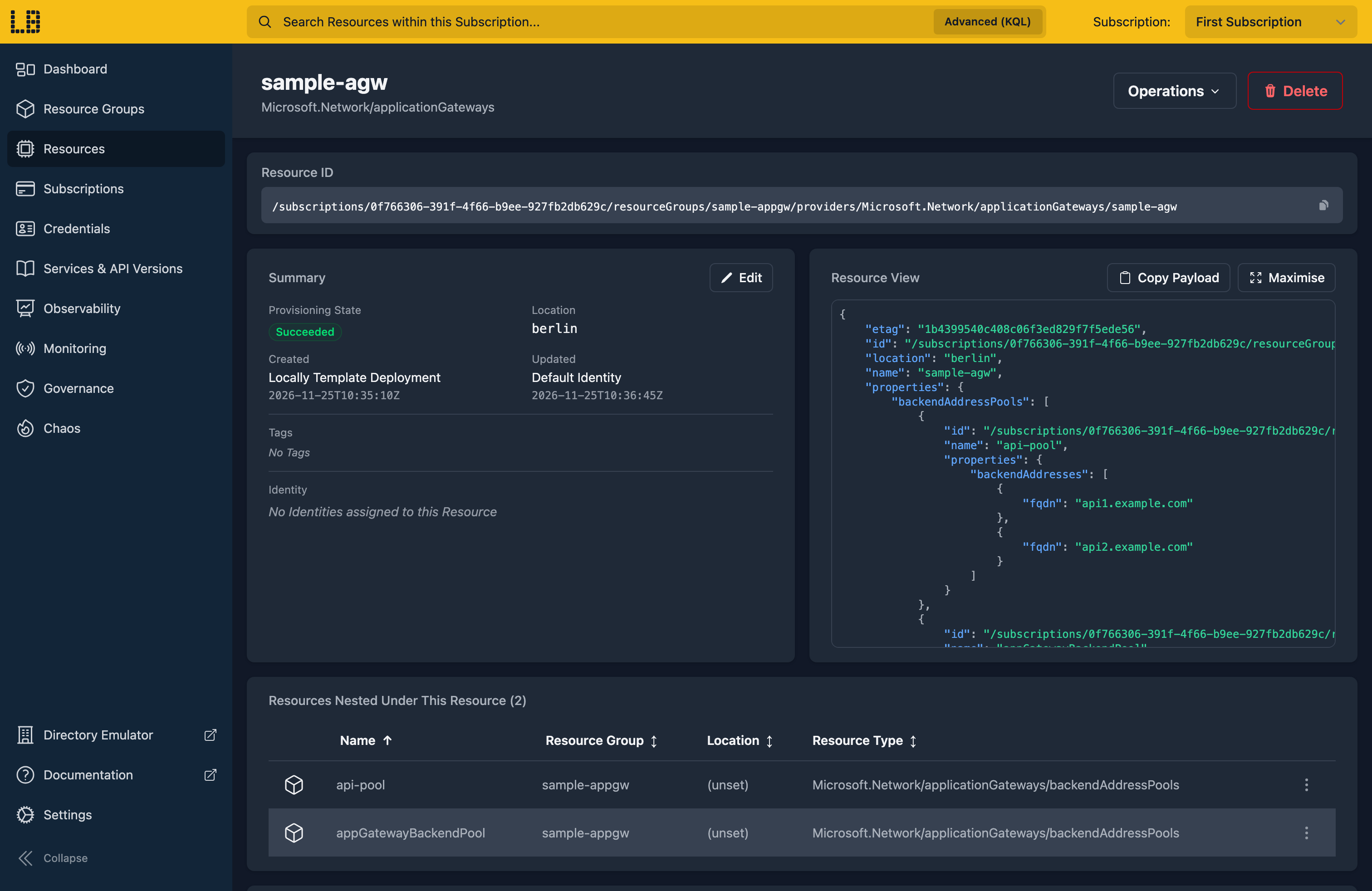
We can see the Application Gateway in the Locally Dashboard too:
Doing this with other tooling
Whilst this guide used the Azure CLI, Application Gateways work the same way through any of the tooling that Locally supports - a Microsoft.Network/applicationGateways resource in HashiCorp Terraform or OpenTofu, Pulumi, Bicep or an ARM Template all provision against Locally in the same way, with only the location changed.
Next steps
To balance TCP or UDP traffic rather than HTTP, see Load Balancer. To control what traffic reaches the backend subnet, add a Network Security Group.
Should you encounter any issues, please take a look at the troubleshooting section, reach out in our Discord or open an issue and we'll take a look.
Resource types this guide uses
These are the Azure resource types this guide creates in Locally:
During Public Preview you can use the Team plan for free, and get an early-adopter discount at GA. Sign in
