Automatic Configuration
Sign in during Public Preview to get the Team plan free, plus an early-adopter discount when we launch. Sign in
Automatic Configuration
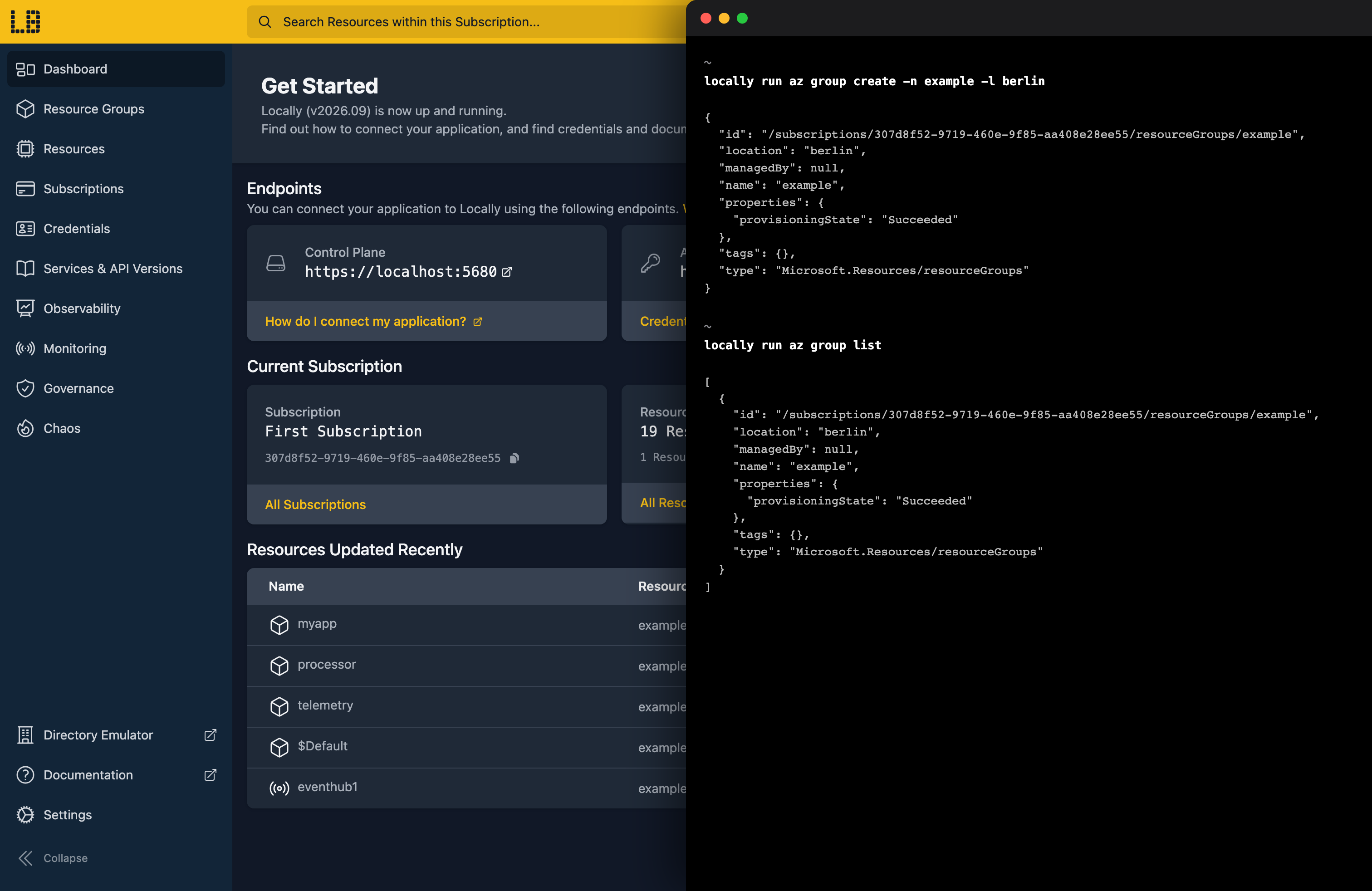
Locally supports the Automatic Configuration of common tooling, such as the Azure CLI, HashiCorp Terraform, Pulumi and more. This allows you to use these tools against both Locally and Azure without any additional configuration, by running the tools through locally run.
By default, Locally will target the first Subscription alphabetically and use Locally's Default Identity (which has full permissions) - but it's possible to specify which Subscription and identity (a Service Principal, Directory User or Managed Identity) should be used.
Custom applications built using the Azure SDK can be automatically configured to work with Locally, but at this time require a few lines of code to be able to do this. You can find out more in the Azure SDK section, but once this is added, you can run your custom applications against Locally by prefixing them with locally run too.
We've got dedicated guides for the Azure CLI, HashiCorp Terraform, OpenTofu, Pulumi and PowerShell, and a few examples below.
Example: Curl
To use Curl against Locally, you can run commands prefixed by locally run, for example:
                $


            locally run curl "https://localhost:5680/subscriptions?api-version=2022-12-01"
The same works against the Microsoft Graph endpoints - for example, listing users from the Directory (Entra ID) emulator:
                $


            locally run curl "https://localhost:5679/v1.0/users"
Note: Locally will automatically add an Authorization header to the request when run via locally run, if one isn't specified.
Example: HashiCorp Terraform
In order for HashiCorp Terraform to work with Locally, you'll need to ensure the provider block sources variables from Environment Credentials (or the Azure CLI) rather than being hard-coded.
This means that your provider block should look something like:
provider "azurerm" {
  features {}
}
If this is the case, you should be able to prefix commands to terraform with locally run to run them against Locally, for example:
                $


            locally run terraform plan
When run through locally run, Locally also sets the following Terraform variables:
| Variable | Value |
|---|---|
| environment_is_locally | true - so a configuration can tell it's running against Locally rather than Azure. |
| location | A region from this installation's location set (for example berlin). |
| primary_subscription_id | The ID of the Subscription being targeted (by default, the first Subscription alphabetically). |
| secondary_subscription_id | The ID of another Subscription, for configurations that span more than one. |
| ternary_subscription_id | The ID of a third Subscription. |
| locally_tls_certificate_path | The path to the TLS certificate Locally serves its endpoints with. |
| locally_tls_certificate_key_path | The path to that certificate's private key. |
You only need to declare the variables you use - and giving each one a default means the same configuration still works when it's run against Azure:
# Set by `locally run` - the default is used when running against Azure
variable "environment_is_locally" {
  type    = bool
  default = false
}
For example, you can use the Subscription variables in your provider blocks instead of hard-coding a subscription ID - which is handy when a configuration targets more than one Subscription:
variable "primary_subscription_id" {}
variable "secondary_subscription_id" {}

# Default provider - targets your primary subscription
provider "azurerm" {
  features {}

  subscription_id = var.primary_subscription_id
}

# A second, aliased provider - targets your secondary subscription
provider "azurerm" {
  alias    = "secondary"
  features {}

  subscription_id = var.secondary_subscription_id
}
Similarly, the location variable is set to a region from this installation's location set. Because Locally's region names are its own rather than Azure's, this lets one configuration run against both without hard-coding a region that only exists on one of them - declare the variable, and everything deployed into the resource group can inherit from it:
variable "location" {}

resource "azurerm_resource_group" "example" {
  name     = "example-resources"
  location = var.location
}

# Everything deployed into the group can inherit its location
# rather than naming a region again
resource "azurerm_storage_account" "example" {
  name                     = "examplestoracc"
  resource_group_name      = azurerm_resource_group.example.name
  location                 = azurerm_resource_group.example.location
  account_tier             = "Standard"
  account_replication_type = "LRS"
}
Example: PowerShell
You can launch an Azure PowerShell session which operates against Locally by running:
                $


            locally run pwsh
Within this session, Az-PowerShell commandlets will operate against Locally:
                $


            New-AzResourceGroup -Name "hello-powershell" -Location "berlin"
Heads up
locally run pwsh to be targeting Locally. A session opened any other way - from the Start Menu, Windows Terminal, or your editor - won't be, even with the Az module installed.Sign in during Public Preview to get the Team plan free, plus an early-adopter discount when we launch. Sign in
