Deploying an ARM Template
Sign in during Public Preview to get the Team plan free, plus an early-adopter discount when we launch. Sign in
Deploying an ARM Template
This guide walks through the lifecycle of an ARM Template deployment against Locally - validating a template, previewing it with what-if, deploying it, and then reading back its outputs and operations. For a quicker way to deploy a template, see Using Locally with ARM Templates or Using Locally with Bicep.
Before you start
- The Azure CLI (
az) installed. - Locally installed, with Locally Setup completed.
Deployments themselves are built into Locally, but the resources a template creates still need their own plugin. The template in this guide creates a Storage Account:
1. Start Locally
Firstly, we need to launch Locally which we can do from a terminal by running:
                $


            locally build
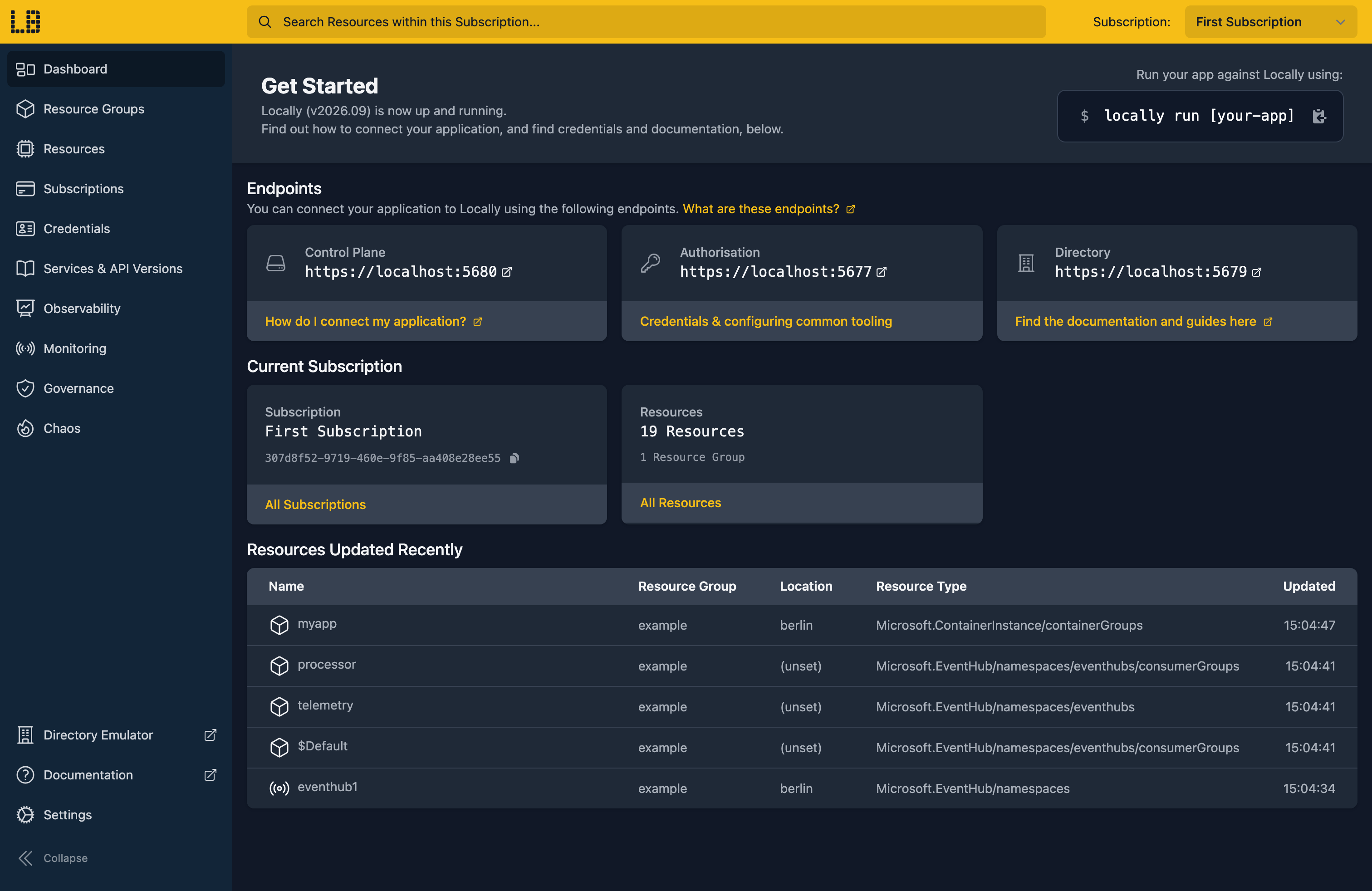
Once Locally has started, the Locally Dashboard will open automatically:
2. Create a Resource Group
Next we can create the Resource Group to deploy into:
                $


            locally run az group create -n sample-deployments -l berlin
There's two things to note here:
- The Azure CLI supports Automatic Configuration, meaning that it can automatically be configured to work against Locally just by prefixing commands with
locally run. - Locally intentionally uses a different set of locations to Azure as a safety precaution, so that you can be confident you're deploying against Locally rather than regular Azure. You can also configure Locally to use the Azure locations too, but you'll want to be extra sure that you're prefixing commands with
locally runwhen you do.
3. Write the template
Here's a small template that creates a Storage Account and a blob container inside it. It takes the account name as a parameter, and returns the account's blob endpoint as an output. Save it as template.json:
{
  "$schema": "https://schema.management.azure.com/schemas/2019-04-01/deploymentTemplate.json#",
  "contentVersion": "1.0.0.0",
  "parameters": {
    "storageAccountName": {
      "type": "string"
    }
  },
  "resources": [
    {
      "type": "Microsoft.Storage/storageAccounts",
      "apiVersion": "2023-05-01",
      "name": "[parameters('storageAccountName')]",
      "location": "[resourceGroup().location]",
      "kind": "StorageV2",
      "sku": {
        "name": "Standard_LRS"
      }
    },
    {
      "type": "Microsoft.Storage/storageAccounts/blobServices/containers",
      "apiVersion": "2023-05-01",
      "name": "[format('{0}/default/uploads', parameters('storageAccountName'))]",
      "dependsOn": [
        "[resourceId('Microsoft.Storage/storageAccounts', parameters('storageAccountName'))]"
      ]
    }
  ],
  "outputs": {
    "blobEndpoint": {
      "type": "string",
      "value": "[reference(parameters('storageAccountName')).primaryEndpoints.blob]"
    }
  }
}
The location comes from resourceGroup().location, so the same template deploys unchanged to Locally and to Azure.
4. Validate it
Before deploying anything, we can check the template and its parameters are valid:
                $


            locally run az deployment group validate -g sample-deployments --template-file template.json --parameters storageAccountName=armdocs1 --query properties.provisioningState -o tsv
SucceededNote
5. Preview it with what-if
What-if shows what a deployment would change, without changing anything:
                $


            locally run az deployment group what-if -g sample-deployments --template-file template.json --parameters storageAccountName=armdocs1
Since the Resource Group is empty, both resources show up as new:
Resource and property changes are indicated with this symbol:
  + Create

The deployment will update the following scope:

Scope: /subscriptions/307d8f52-9719-460e-9f85-aa408e28ee55/resourceGroups/sample-deployments

  + Microsoft.Storage/storageAccounts/armdocs1 [2023-05-01]

      apiVersion: "2023-05-01"
      kind:       "StorageV2"
      location:   "berlin"
      name:       "armdocs1"
      sku.name:   "Standard_LRS"
      type:       "Microsoft.Storage/storageAccounts"

  + Microsoft.Storage/storageAccounts/armdocs1/blobServices/default/containers/uploads [2023-05-01]

      apiVersion: "2023-05-01"
      dependsOn: [
        0: "/subscriptions/307d8f52-9719-460e-9f85-aa408e28ee55/resourceGroups/sample-deployments/providers/Microsoft.Storage/storageAccounts/armdocs1"
      ]
      name:       "armdocs1/default/uploads"
      type:       "Microsoft.Storage/storageAccounts/blobServices/containers"

Resource changes: 2 to create.
6. Deploy it
Happy with the preview, we can run the deployment for real. Naming it makes it easy to look up afterwards:
                $


            locally run az deployment group create -g sample-deployments --name sample-storage --template-file template.json --parameters storageAccountName=armdocs1
The response lists the resources the deployment created, along with its outputs:
{
  "note": "some fields skipped for brevity",

  "name": "sample-storage",
  "properties": {
    "outputResources": [
      {
        "id": "/subscriptions/307d8f52-9719-460e-9f85-aa408e28ee55/resourceGroups/sample-deployments/providers/Microsoft.Storage/storageAccounts/armdocs1"
      },
      {
        "id": "/subscriptions/307d8f52-9719-460e-9f85-aa408e28ee55/resourceGroups/sample-deployments/providers/Microsoft.Storage/storageAccounts/armdocs1/blobServices/default/containers/uploads"
      }
    ],
    "outputs": {
      "blobEndpoint": {
        "type": "string",
        "value": "https://armdocs1.blob.core.storage.locally:5660/"
      }
    },
    "provisioningState": "Succeeded"
  }
}
7. Read the outputs and operations
The deployment is kept in the Resource Group, so we can come back for its outputs at any point - handy for passing them into a script:
                $


            locally run az deployment group show -g sample-deployments -n sample-storage --query properties.outputs.blobEndpoint.value -o tsv
https://armdocs1.blob.core.storage.locally:5660/Each resource in the template is its own operation, which is the first place to look when a deployment fails:
                $


            locally run az deployment operation group list -g sample-deployments -n sample-storage --query "[].{Resource:properties.targetResource.resourceName, Type:properties.targetResource.resourceType, Operation:properties.provisioningOperation, State:properties.provisioningState}" -o table
Resource                  Type                                                       Operation    State
------------------------  ---------------------------------------------------------  -----------  ---------
armdocs1                  Microsoft.Storage/storageAccounts                          Create       Succeeded
armdocs1/default/uploads  Microsoft.Storage/storageAccounts/blobServices/containers  Create       Succeeded
And the container is really there in the Storage Emulator, ready to use:
                $


            locally run az storage container list --account-name armdocs1 --auth-mode key --query "[].name" -o tsv
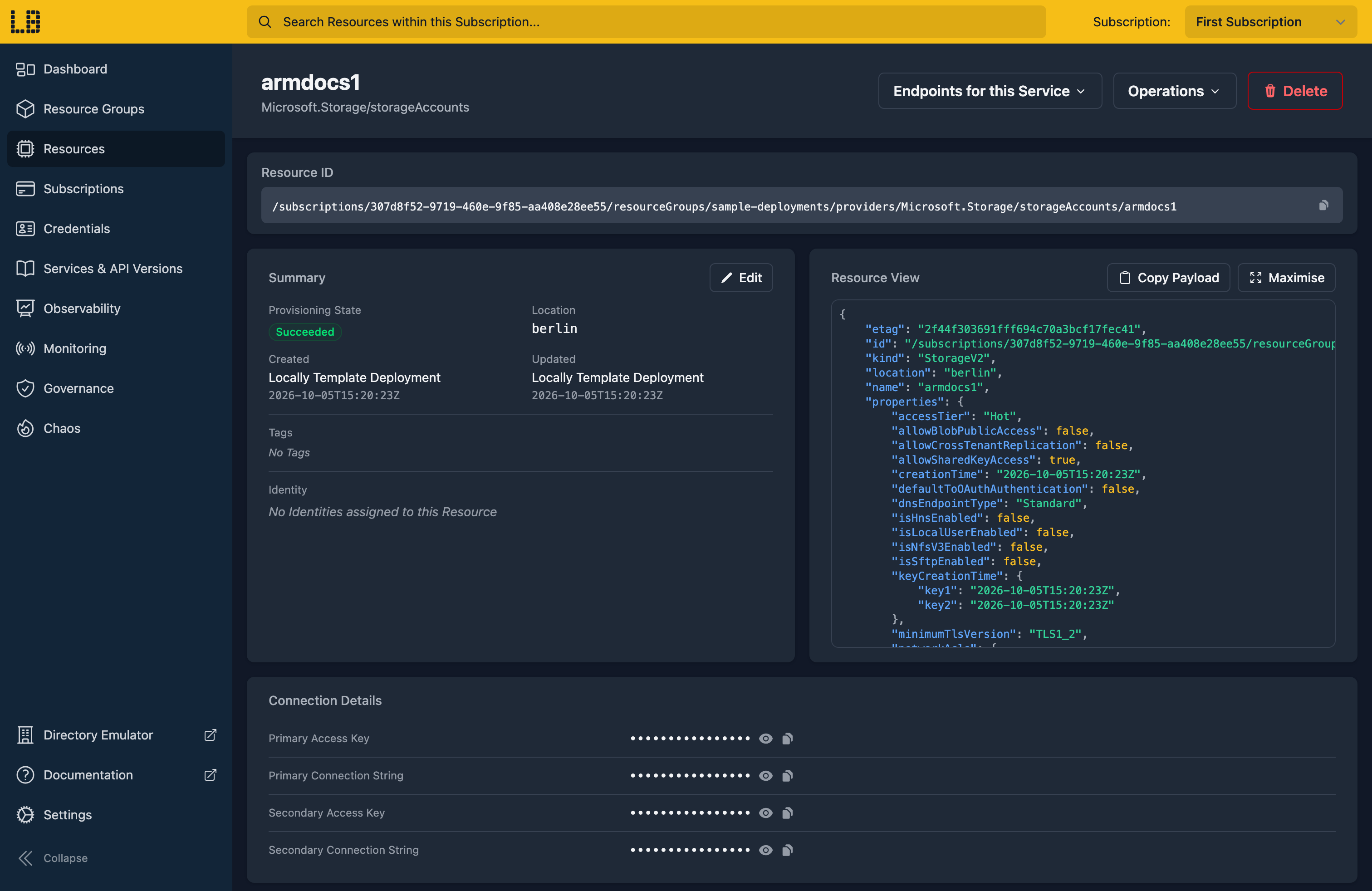
uploadsWe can see the Storage Account the deployment created in the Locally Dashboard too:
8. Tidy up
Finally, we can tidy up. Deleting the Resource Group removes the deployment along with the Storage Account and container it created:
                $


            locally run az group delete -n sample-deployments --yes
There's nothing billable to clean up, since everything ran on your machine, but it's still worth checking your teardown scripts work here before you run them against Azure.
Doing this with other tooling
The locally deploy command deploys the same template in one step, creating the Resource Group for you if needed - see Using Locally with ARM Templates. If you write Bicep, the az deployment group commands above take a .bicep file in place of the JSON, and validate, what-if and the operations list all work the same way.
Next steps
To have templates refused when they break your rules, see Azure Policy. To find what a deployment created, see Resource Graph.
Should you encounter any issues, please take a look at the troubleshooting section.
Sign in during Public Preview to get the Team plan free, plus an early-adopter discount when we launch. Sign in
