Querying with Resource Graph
Sign in during Public Preview to get the Team plan free, plus an early-adopter discount when we launch. Sign in
Querying with Resource Graph
This guide shows you how to query the resources in Locally with Azure Resource Graph. We'll create a couple of resources, then find them by Resource Group, by tag and by type - all with the Azure CLI.
Before you start
- The Azure CLI (
az) installed. Theaz graphcommands come from an extension, which the Azure CLI offers to install the first time you use them. - Locally installed, with Locally Setup completed.
Resource Graph is part of Locally's Control Plane, so there's no plugin to install for it. We'll need something to query though, so we'll use a Virtual Network and a Storage Account:
1. Start Locally
Firstly, we need to launch Locally which we can do from a terminal by running:
                $


            locally build
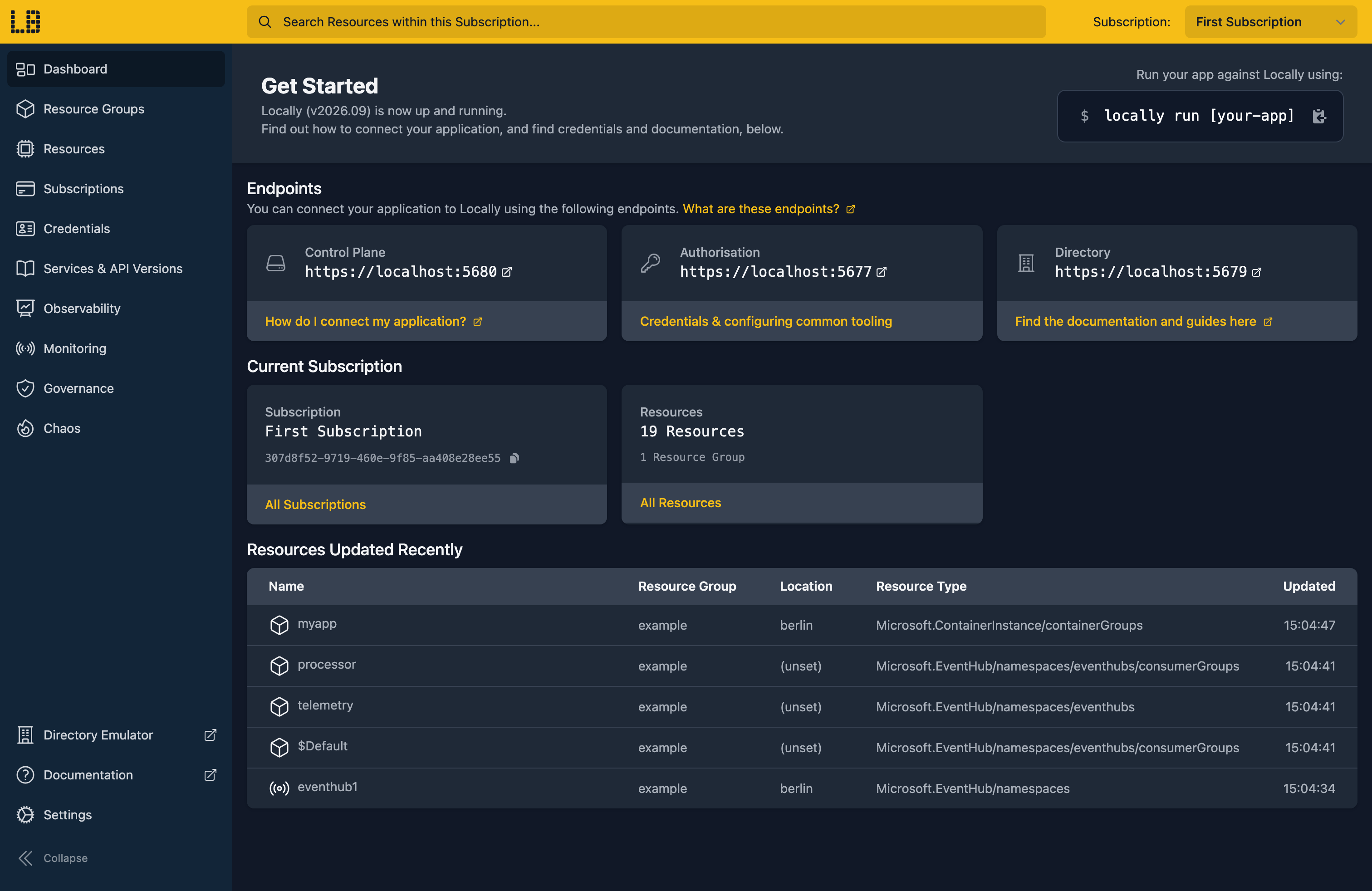
Once Locally has started, the Locally Dashboard will open automatically:
2. Create something to query
Let's create a Resource Group, tagged so we can find it again later:
                $


            locally run az group create -n sample-graph -l berlin --tags env=dev
There's two things to note here:
- The Azure CLI supports Automatic Configuration, meaning that it can automatically be configured to work against Locally just by prefixing commands with
locally run. - Locally intentionally uses a different set of locations to Azure as a safety precaution, so that you can be confident you're deploying against Locally rather than regular Azure. You can also configure Locally to use the Azure locations too, but you'll want to be extra sure that you're prefixing commands with
locally runwhen you do.
Then a Storage Account with the same tag:
                $


            locally run az storage account create -n samplegraphstore1 -g sample-graph -l berlin --sku Standard_LRS --tags env=dev
And a Virtual Network without one:
                $


            locally run az network vnet create -g sample-graph -n sample-graph-vnet --address-prefixes 10.0.0.0/16
3. Query by Resource Group
Resource Graph queries are written in the Kusto Query Language. Let's list everything in our Resource Group:
                $


            locally run az graph query -q "Resources | where resourceGroup == 'sample-graph' | project name, resourceType=type, location" --query data -o table
Location    Name               ResourceType
----------  -----------------  ---------------------------------
berlin      sample-graph-vnet  microsoft.network/virtualnetworks
berlin      samplegraphstore1  microsoft.storage/storageaccounts
Two things worth knowing about that command:
--query datapicks the rows out of the response. Without it the table only shows the row count.- The Azure CLI's table output hides any column called
type, which is why we rename it toresourceType.
4. Query by tag and by type
A query isn't limited to one Resource Group. This finds everything tagged env=dev across the subscription:
                $


            locally run az graph query -q "Resources | where tags.env == 'dev' | project name, resourceType=type" --query data -o table
Name               ResourceType
-----------------  ---------------------------------
samplegraphstore1  microsoft.storage/storageaccounts
Only the Storage Account comes back, since the Virtual Network isn't tagged. If you've created other tagged resources in Locally, you'll see those too.
We can also count what's in the Resource Group by type:
                $


            locally run az graph query -q "Resources | where resourceGroup == 'sample-graph' | summarize count() by resourceType=type" --query data -o table
Count_    ResourceType
--------  ---------------------------------
1         microsoft.network/virtualnetworks
1         microsoft.storage/storageaccounts
5. Query Resource Groups
Resource Groups and subscriptions live in the ResourceContainers table rather than Resources:
                $


            locally run az graph query -q "ResourceContainers | where type == 'microsoft.resources/subscriptions/resourcegroups' | where name == 'sample-graph' | project name, location, tags" --query data
[
  {
    "location": "berlin",
    "name": "sample-graph",
    "tags": {
      "env": "dev"
    }
  }
]
Note
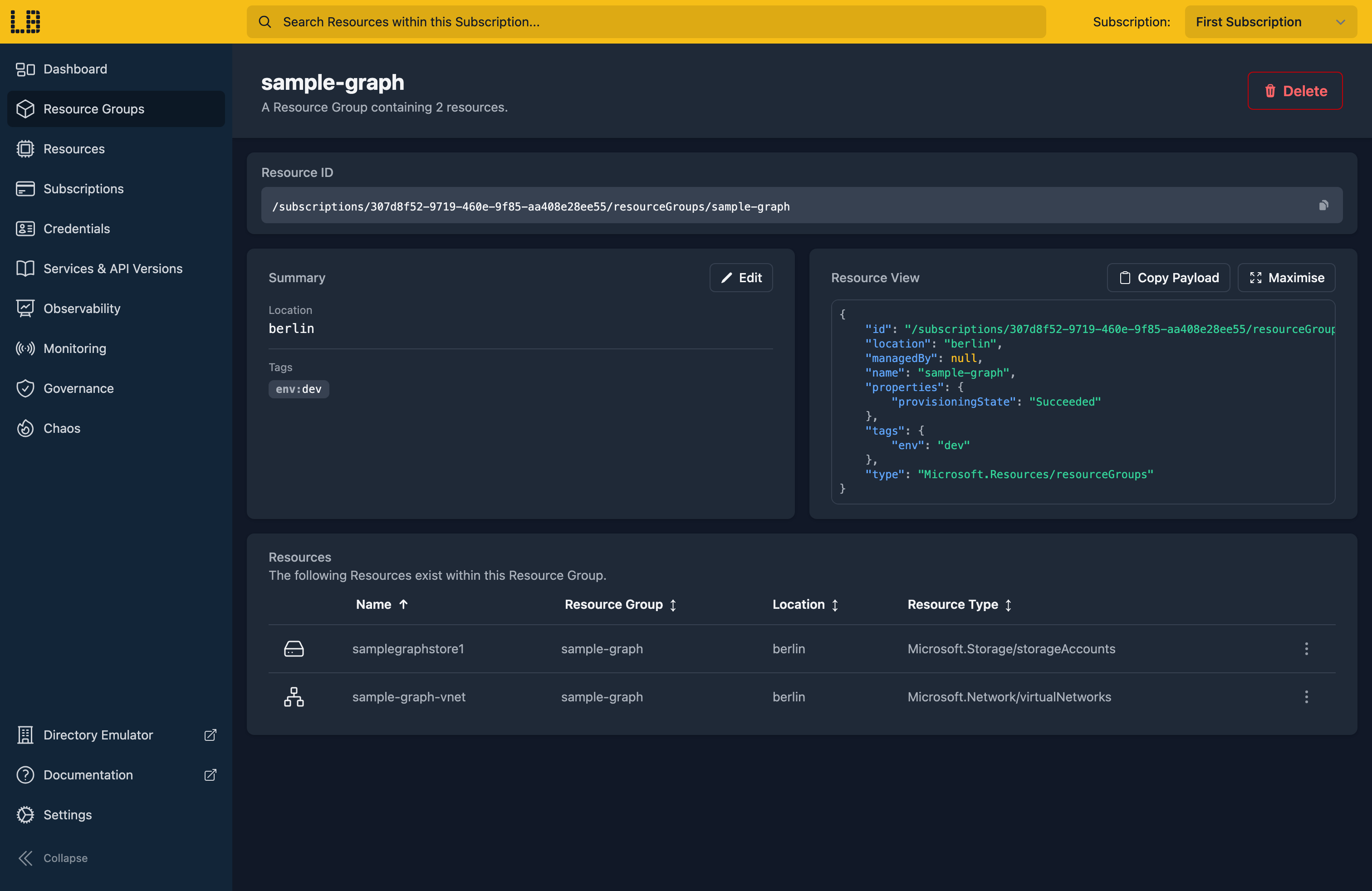
=~, which ignores case.We can see the Resource Group and the resources in it in the Locally Dashboard too:
Doing this with other tooling
Whilst this guide used the Azure CLI, the same queries work through anything that calls Resource Graph - the Azure SDKs, Azure PowerShell's Search-AzGraph, or a Terraform data source - since they all use the same API.
Next steps
To deploy a template and then query what it created, see ARM Deployments. You can also see what you've deployed as a diagram in the Locally Dashboard - see Architecture Diagrams.
Should you encounter any issues, please take a look at the troubleshooting section.
Sign in during Public Preview to get the Team plan free, plus an early-adopter discount when we launch. Sign in
