During Public Preview you can use the Team plan for free, and get an early-adopter discount at GA. Sign in
Provisioning an Azure SQL Database
This guide shows you how to provision an Azure SQL logical server and database against Locally, and then connect with sqlcmd to create and query a table. Locally runs a real SQL Server engine for it, so anything that talks to SQL Server can use it.
Before you start
- The Azure CLI (
az) installed. - Locally installed, with Locally Setup completed.
- Either Docker or Podman installed and running - Locally uses it to run the SQL Server engine.
sqlcmdinstalled, to connect to the database in step 6.
Locally runs Microsoft's SQL Server engine (Developer edition) for each server, so it won't start one until you've accepted Microsoft's licence for it. You're asked when the plugin is installed, and can check or change your answer with locally licence sql-server.
1. Start Locally
Firstly, we need to launch Locally which we can do from a terminal by running:
                $


            locally build
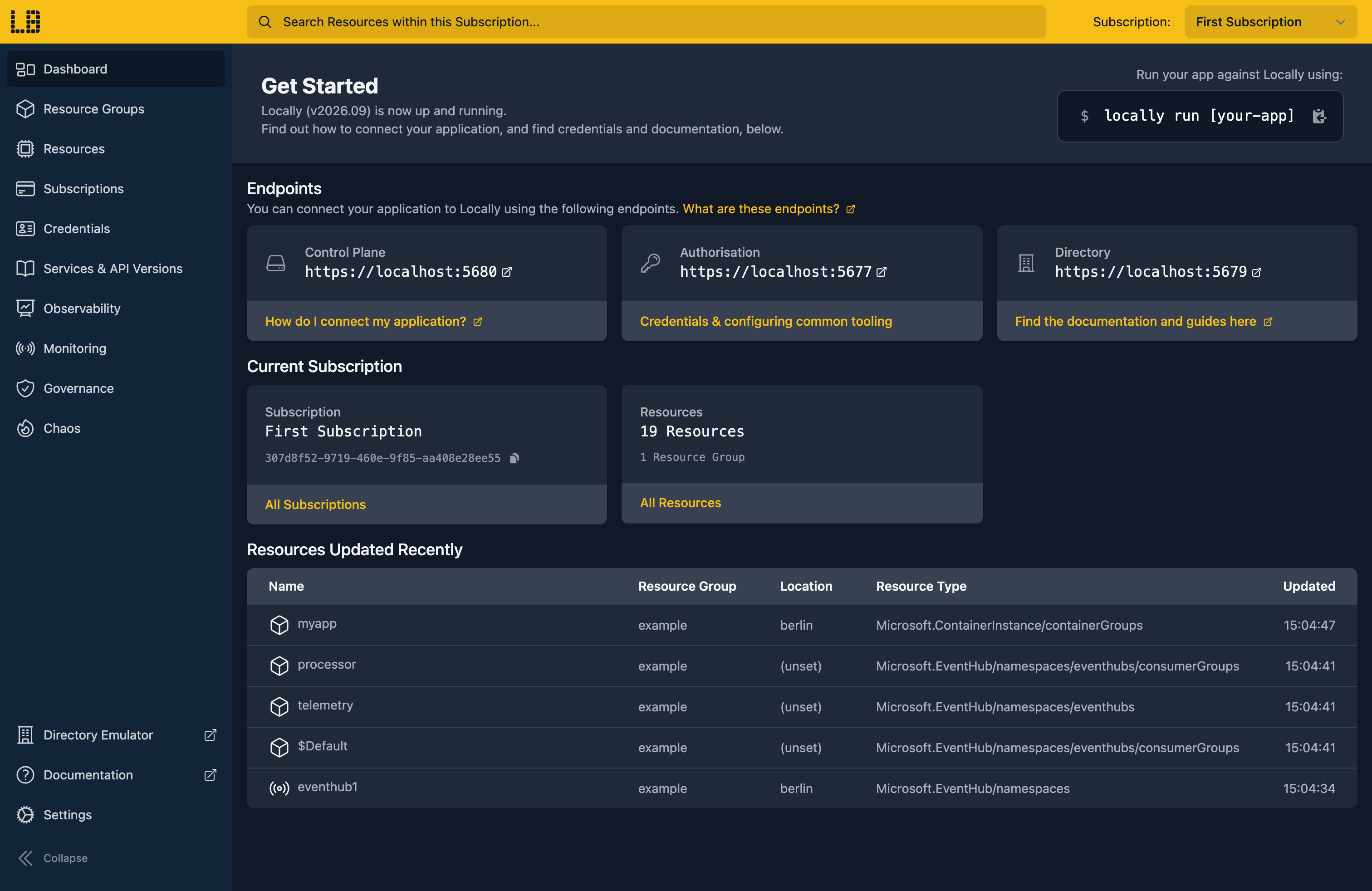
Once Locally has started, the Locally Dashboard will open automatically:
2. Create a Resource Group
Next we can create the Resource Group to hold the server:
                $


            locally run az group create -n sample-sql -l berlin
There's two things to note here:
- The Azure CLI supports Automatic Configuration, meaning that it can automatically be configured to work against Locally just by prefixing commands with
locally run. - Locally intentionally uses a different set of locations to Azure as a safety precaution, so that you can be confident you're deploying against Locally rather than regular Azure. You can also configure Locally to use the Azure locations too, but you'll want to be extra sure that you're prefixing commands with
locally runwhen you do.
3. Create the SQL Server
With the Resource Group in place, we can create the logical server, along with the admin login we'll connect with later:
                $


            locally run az sql server create -g sample-sql -n samplesqldocs1 -l berlin --admin-user sampleadmin --admin-password 'Sample-Passw0rd!'
Note
This takes a few seconds while Locally starts the SQL Server engine, and then returns:
{
  "note": "some fields skipped for brevity",

  "administratorLogin": "sampleadmin",
  "fullyQualifiedDomainName": "samplesqldocs1.gondola.locally,58692",
  "id": "/subscriptions/0f766306-391f-4f66-b9ee-927fb2db629c/resourceGroups/sample-sql/providers/Microsoft.Sql/servers/samplesqldocs1",
  "kind": "v12.0",
  "location": "berlin",
  "minimalTlsVersion": "1.2",
  "name": "samplesqldocs1",
  "publicNetworkAccess": "Enabled",
  "resourceGroup": "sample-sql",
  "state": "Ready",
  "type": "Microsoft.Sql/servers",
  "version": "12.0"
}
4. Create a database
To create a database called inventory on the server:
                $


            locally run az sql db create -g sample-sql -s samplesqldocs1 -n inventory
Which gives us:
{
  "note": "some fields skipped for brevity",

  "collation": "SQL_Latin1_General_CP1_CI_AS",
  "currentSku": {
    "name": "GP_Gen5_2",
    "tier": "GeneralPurpose"
  },
  "edition": "GeneralPurpose",
  "id": "/subscriptions/0f766306-391f-4f66-b9ee-927fb2db629c/resourceGroups/sample-sql/providers/Microsoft.Sql/servers/samplesqldocs1/databases/inventory",
  "name": "inventory",
  "resourceGroup": "sample-sql",
  "status": "Online",
  "type": "Microsoft.Sql/servers/databases"
}
We can list the databases on the server with:
                $


            locally run az sql db list -g sample-sql -s samplesqldocs1 --query "[].{Name:name, Edition:edition, Status:status}" -o table
Name       Edition         Status
---------  --------------  --------
inventory  GeneralPurpose  Online
master     System          Online
The master database comes with every server.
5. Find the server's address
To connect, we need the server's address, which is in fullyQualifiedDomainName:
                $


            locally run az sql server show -g sample-sql -n samplesqldocs1 --query "{name:name, state:state, version:version, admin:administratorLogin, fqdn:fullyQualifiedDomainName}"
Which gives us:
{
  "admin": "sampleadmin",
  "fqdn": "samplesqldocs1.gondola.locally,58692",
  "name": "samplesqldocs1",
  "state": "Ready",
  "version": "12.0"
}
There's one difference from Azure here. In Azure every server listens on port 1433, so fullyQualifiedDomainName is just a hostname. Locally gives each server its own port, picked when the server starts, so it adds the port to the end in SQL Server's own host,port form. The hostname itself is resolved by Locally's own DNS server.
Since the port can change, it's easiest to read the address into a variable rather than copy it:
                $


            export SQL_ENDPOINT=$(locally run az sql server show -g sample-sql -n samplesqldocs1 --query fullyQualifiedDomainName -o tsv)
And check what we got:
                $


            echo "$SQL_ENDPOINT"
samplesqldocs1.gondola.locally,586926. Connect with sqlcmd
sqlcmd understands the host,port form, so we can pass $SQL_ENDPOINT straight to -S. Let's create a table in the inventory database and add a couple of rows:
                $


            sqlcmd -S "$SQL_ENDPOINT" -U sampleadmin -P 'Sample-Passw0rd!' -d inventory -Q "CREATE TABLE items (id INT PRIMARY KEY, name NVARCHAR(50)); INSERT INTO items VALUES (1, 'widget'), (2, 'gadget');"
Then read them back:
                $


            sqlcmd -S "$SQL_ENDPOINT" -U sampleadmin -P 'Sample-Passw0rd!' -d inventory -W -Q "SELECT * FROM items;"
Which prints:
id name
-- ----
1 widget
2 gadget

(2 rows affected)
Note
Note
SELECT @@VERSION.Using other tools
This guide uses the Azure CLI, but you can create the same Microsoft.Sql/servers and Microsoft.Sql/servers/databases resources with Terraform, OpenTofu, Pulumi, Bicep or an ARM Template. You'll need to change the Location to one of the Locations that Locally supports.
To connect your app, use fullyQualifiedDomainName as the server name, since it includes the port. For the database in this guide, that's:
Server=samplesqldocs1.gondola.locally,58692;Database=inventory;User ID=sampleadmin;Password=Sample-Passw0rd!;Next steps
If you're using MySQL or PostgreSQL instead, see MySQL Flexible Server or PostgreSQL Flexible Server. To host an app that connects to the database, see Web App.
Should you encounter any issues, please take a look at the troubleshooting section, reach out in our Discord or open an issue and we'll take a look.
Resource types this guide uses
These are the Azure resource types this guide creates in Locally:
- Microsoft.Sql/servers
- Microsoft.Sql/servers/databases
During Public Preview you can use the Team plan for free, and get an early-adopter discount at GA. Sign in
