Container Instances Emulator
Sign in during Public Preview to get the Team plan free, plus an early-adopter discount when we launch. Sign in
Container Instances Emulator
Azure Container Instances runs containers on demand - without you managing the servers (or an orchestrator) they run on.
Locally supports both provisioning Container Groups and running their containers for real in Docker or Podman - pulling the image, and starting the containers with the environment variables, command and ports you gave them.
When you provision a Container Group with a DNS name label in Locally, it's available at <label>-<location>.gondola.locally - with each port published on the same port number if it's free, and another port if it isn't.
Docker or Podman also needs to be running - without a container runtime, Container Groups are still created, but there's nothing behind them.
Finding the Emulator
Once a Container Group has been created, you can find the address of each of its ports on its resource page within the Locally Dashboard:
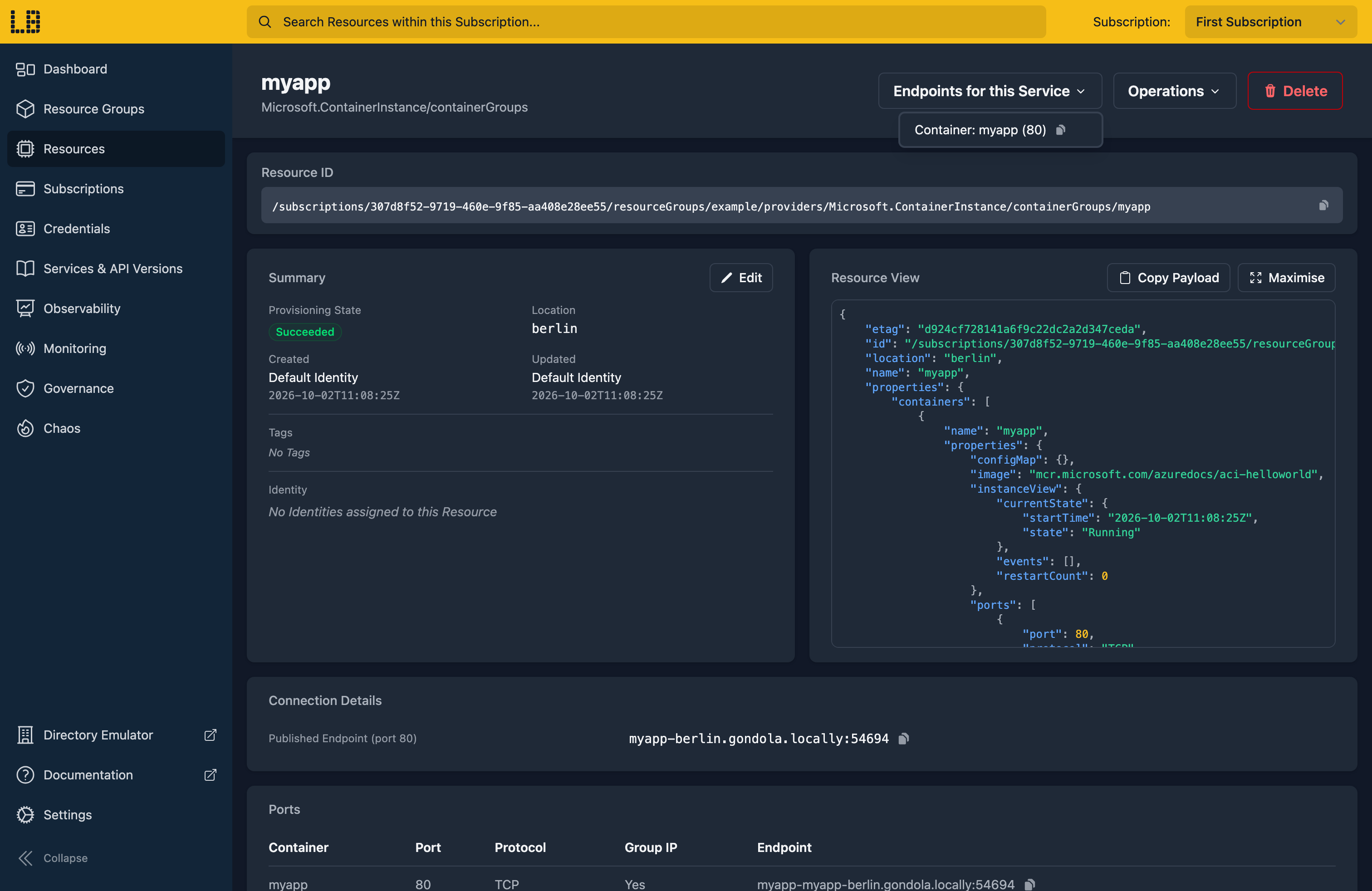
The Container Instances Emulator
Container Instances doesn't have a UI of its own - instead, a Container Group's resource page lists each container's ports, and the port each one was published on:
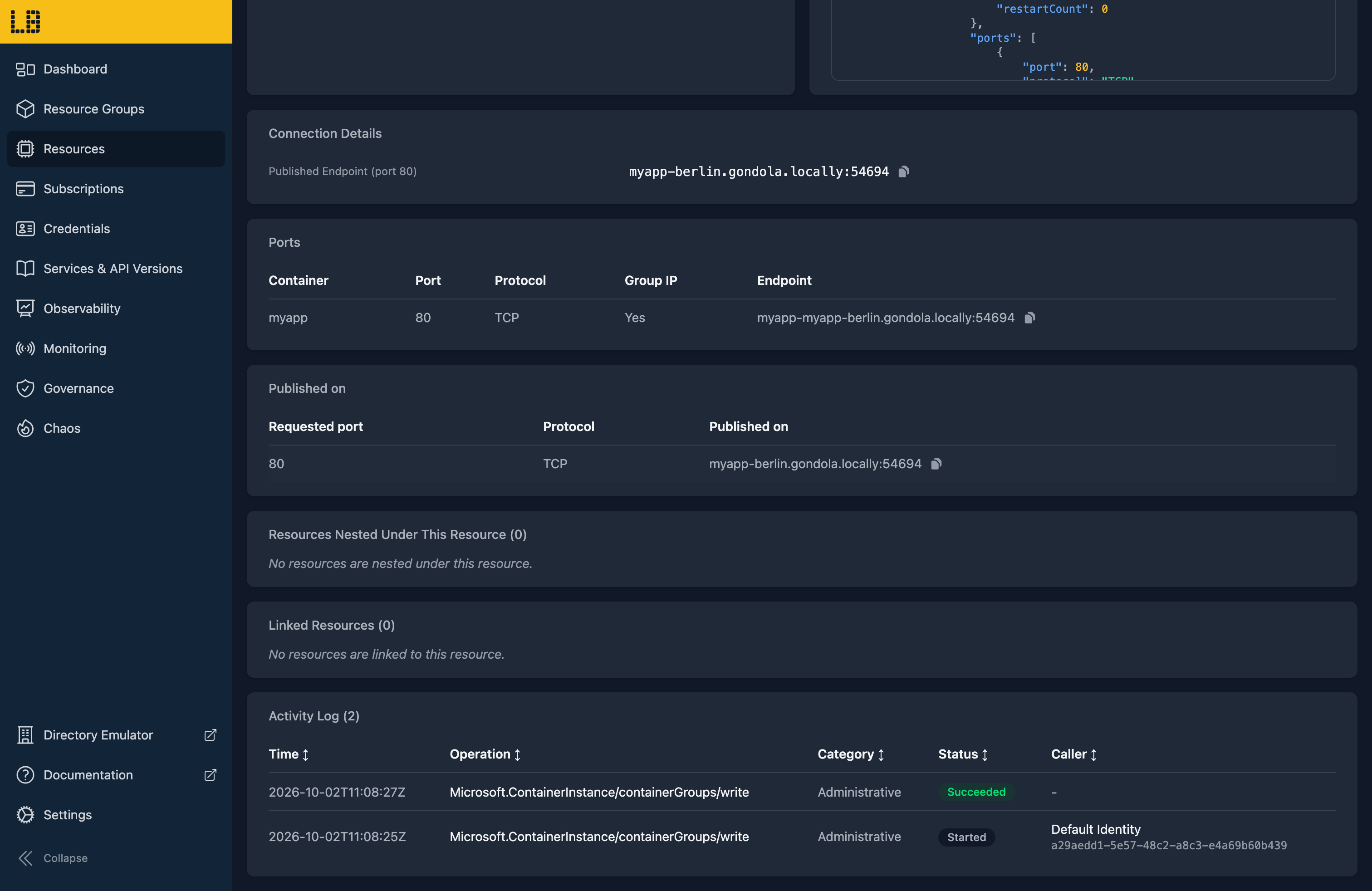
The containers also show up in docker ps or podman ps like any other, so the tools you already use for containers work with them too.
What's Supported
The Container Instances emulator supports:
Private images are pulled using the group's imageRegistryCredentials - and if an image can't be pulled, the group ends up Failed, as it would in Azure.
az container logs returns the container's real output, and az container exec opens a terminal inside it. A group with more than one container shares one network, so its containers can reach each other on localhost.
On Docker Desktop, containers resolve *.locally through a DNS forwarder which Locally starts - see Networking & Proxies.
Container Instances also works with Locally's other emulators, as you'd expect - for example:
- Images can be pulled from the Container Registry Emulator.
- Containers can reach the other emulators by their
*.locallyhostnames.
Examples
These end-to-end examples use the Container Instances emulator, and have everything you need to run them against Locally:
Differences from Azure
As of Locally v2026.09.02, the Container Instances emulator has the following differences from Azure:
- Only Linux containers run. A Windows Container Group is created and reports success, but nothing runs.
- Volumes (Azure Files, secrets, empty directories and Git repos) are saved on the group, but aren't mounted into the containers.
- CPU and memory requests are saved, but the containers aren't limited to match. Liveness and readiness probes don't run.
- Init containers are recorded, but don't run before the group's other containers.
- A managed identity can be assigned to a group, but there's no identity endpoint inside its containers to get a token from.
az container attachisn't supported - useaz container logsorexecinstead.- Virtual network integration, GPUs, confidential containers and Log Analytics diagnostics are accepted, but have no effect on the running containers. NGroups can be created, but don't run anything.
Should you encounter any issues, please take a look at the troubleshooting section.
Sign in during Public Preview to get the Team plan free, plus an early-adopter discount when we launch. Sign in
