During Public Preview you can use the Team plan for free, and get an early-adopter discount at GA. Sign in
Configuring Autoscale
This guide shows you how to configure Autoscale against Locally, so that an App Service Plan adds instances when a Service Bus queue backs up. As with the other guides we're going to use the Azure CLI, but the same resources can be provisioned with HashiCorp Terraform, Pulumi or Bicep too.
Before you start
- The Azure CLI (
az) installed. - Locally installed, with Locally Setup completed.
Plugins required
Locally v2026.10+ automatically installs these Resource Provider plugins when their Resource Providers are registered, but you can also install them via:
1. Start Locally
Firstly, we need to launch Locally which we can do from a terminal by running:
                $


            locally build
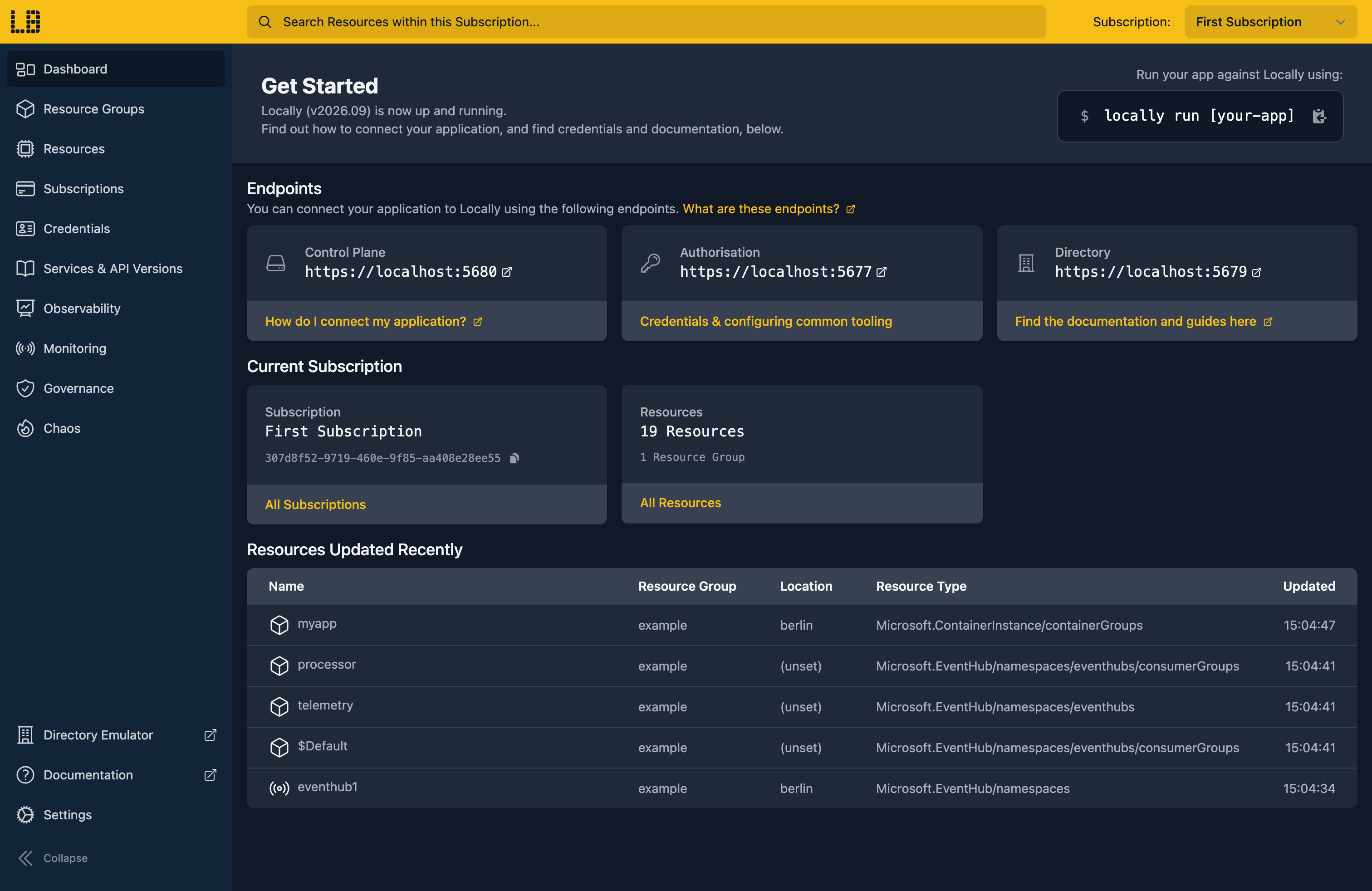
Once Locally has started, the Locally Dashboard will open automatically:
2. Create a Resource Group
Next we can create the Resource Group:
                $


            locally run az group create -n sample-autoscale -l berlin
There's two things to note here:
- The Azure CLI supports Automatic Configuration, meaning that it can automatically be configured to work against Locally just by prefixing commands with
locally run. - Locally intentionally uses a different set of locations to Azure as a safety precaution, so that you can be confident you're deploying against Locally rather than regular Azure. You can also configure Locally to use the Azure locations too, but you'll want to be extra sure that you're prefixing commands with
locally runwhen you do.
3. Create an App Service Plan and a queue
Autoscale needs something to scale. We'll use an App Service Plan, which starts with a single instance:
                $


            locally run az appservice plan create -g sample-autoscale -n sample-plan --sku S1 --is-linux --query "{name:name, sku:sku.name, instances:sku.capacity}"
{
  "instances": 1,
  "name": "sample-plan",
  "sku": "S1"
}
And something to scale on. We'll scale on the length of a Service Bus queue, so we'll create a namespace:
                $


            locally run az servicebus namespace create -g sample-autoscale -n sampleautoscalebus -l berlin --query "{name:name, state:provisioningState}"
{
  "name": "sampleautoscalebus",
  "state": "Succeeded"
}
And a queue within it:
                $


            locally run az servicebus queue create -g sample-autoscale --namespace-name sampleautoscalebus -n orders --query "{name:name, status:status}"
{
  "name": "orders",
  "status": "Active"
}
4. Create the Autoscale setting
The Autoscale setting keeps the App Service Plan between 1 and 3 instances:
                $


            locally run az monitor autoscale create -g sample-autoscale --resource sample-plan --resource-type Microsoft.Web/serverfarms -n sample-autoscale --min-count 1 --max-count 3 --count 1 --query "{name:name, enabled:enabled, capacity:profiles[0].capacity}"
{
  "capacity": {
    "default": "1",
    "maximum": "3",
    "minimum": "1"
  },
  "enabled": true,
  "name": "sample-autoscale"
}
5. Add the rules
Then we can add a rule that adds an instance when the namespace averages more than 10 active messages over 5 minutes:
                $


            locally run az monitor autoscale rule create -g sample-autoscale --autoscale-name sample-autoscale --resource sampleautoscalebus --resource-type Microsoft.ServiceBus/namespaces --condition "ActiveMessages > 10 avg 5m" --scale out 1 --query "{metric:metricTrigger.metricName, operator:metricTrigger.operator, threshold:metricTrigger.threshold, scale:scaleAction.direction, by:scaleAction.value}"
{
  "by": "1",
  "metric": "ActiveMessages",
  "operator": "GreaterThan",
  "scale": "Increase",
  "threshold": 10.0
}
And a matching rule that removes one again once it's averaged fewer than 2 over 10 minutes:
                $


            locally run az monitor autoscale rule create -g sample-autoscale --autoscale-name sample-autoscale --resource sampleautoscalebus --resource-type Microsoft.ServiceBus/namespaces --condition "ActiveMessages < 2 avg 10m" --scale in 1 --query "{metric:metricTrigger.metricName, operator:metricTrigger.operator, threshold:metricTrigger.threshold, scale:scaleAction.direction, by:scaleAction.value}"
{
  "by": "1",
  "metric": "ActiveMessages",
  "operator": "LessThan",
  "scale": "Decrease",
  "threshold": 2.0
}
To see both rules:
                $


            locally run az monitor autoscale rule list -g sample-autoscale --autoscale-name sample-autoscale --query "[].{Metric:metricTrigger.metricName, Operator:metricTrigger.operator, Threshold:metricTrigger.threshold, Window:metricTrigger.timeWindow, Direction:scaleAction.direction, By:scaleAction.value}" -o table
Metric          Operator     Threshold    Window    Direction    By
--------------  -----------  -----------  --------  -----------  ----
ActiveMessages  GreaterThan  10.0         PT5M      Increase     1
ActiveMessages  LessThan     2.0          PT10M     Decrease     1
6. Watch it scale out
Now let's back the queue up with 20 messages:
                $


            locally servicebus queue send --namespace sampleautoscalebus --name orders --body '{"orderId": 1}' --count 20
Sent 20 messages to queue "orders" (sequence 1-20).Locally checks Autoscale settings once a minute, so give it a minute and the App Service Plan's instance count goes up to 2:
                $


            locally run az appservice plan show -g sample-autoscale -n sample-plan --query "{name:name, instances:sku.capacity}"
{
  "instances": 2,
  "name": "sample-plan"
}
Each scale action is recorded in the Activity Log, along with the rule that triggered it:
                $


            locally run az monitor activity-log list -g sample-autoscale --offset 1h --query "[?operationName.value=='Microsoft.Insights/AutoscaleSettings/Scaleup/Action' && status.value=='Succeeded'].properties.{From:OldInstancesCount, To:NewInstancesCount, Reason:detail}" -o table
From    To    Reason
------  ----  -----------------------------------------------
1       2     a scale-out rule of profile "default" triggered
The queue is still backed up, so once the rule's 5 minute cooldown has passed it goes up to 3, the maximum the setting allows.
Note
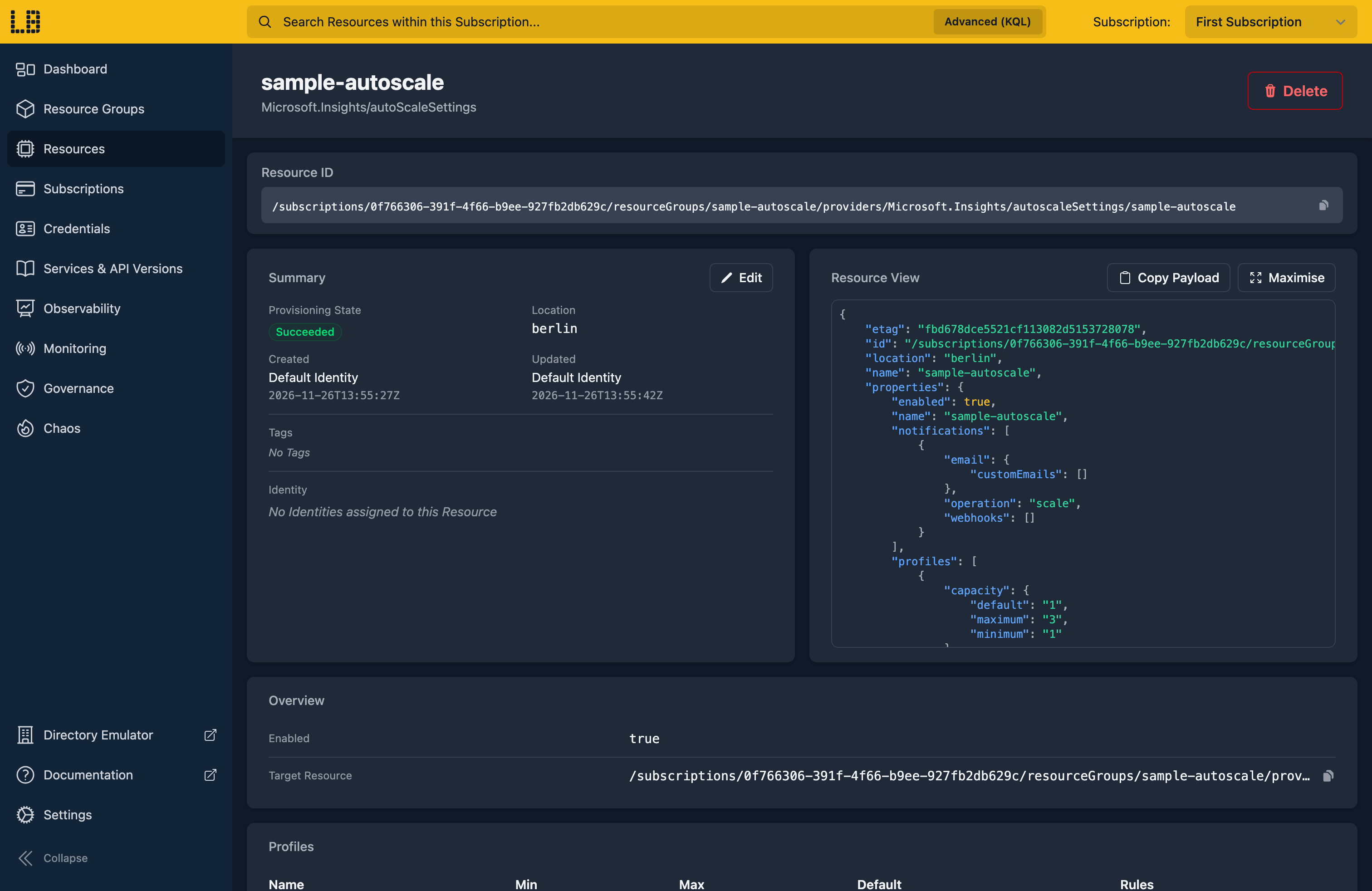
We can see the Autoscale setting in the Locally Dashboard too:
7. Tidy up
To delete the Autoscale setting, which leaves the App Service Plan at whatever size it had reached:
                $


            locally run az monitor autoscale delete -g sample-autoscale -n sample-autoscale
Or to remove the Resource Group and everything within it in one go:
                $


            locally run az group delete -n sample-autoscale --yes
Doing this with other tooling
Whilst this guide used the Azure CLI, Autoscale works the same way through any of the tooling that Locally supports - a Microsoft.Insights/autoscaleSettings resource in HashiCorp Terraform or OpenTofu, Pulumi, Bicep or an ARM Template all provision against Locally in the same way, with only the location changed.
Next steps
To be told when a metric crosses a threshold rather than act on it, see Alerts.
Should you encounter any issues, please take a look at the troubleshooting section, reach out in our Discord or open an issue and we'll take a look.
Resource types this guide uses
These are the Azure resource types this guide creates in Locally:
During Public Preview you can use the Team plan for free, and get an early-adopter discount at GA. Sign in
