During Public Preview you can use the Team plan for free, and get an early-adopter discount at GA. Sign in
Locally Snapshots
Getting Locally into the right state for a piece of work can take a while (since you'll need to deploy your infrastructure, seed some data and so on) - as such a Locally Snapshot saves all of this, so that you can load it back later, compare it against what's changed or share it with someone on your team.
A snapshot contains everything in your Local Cloud Environment - which includes Subscriptions and Resources, the directory, role assignments and policy, Chaos settings and the data within the Data Plane Emulators (including any applications you've deployed and databases running in containers).
Note
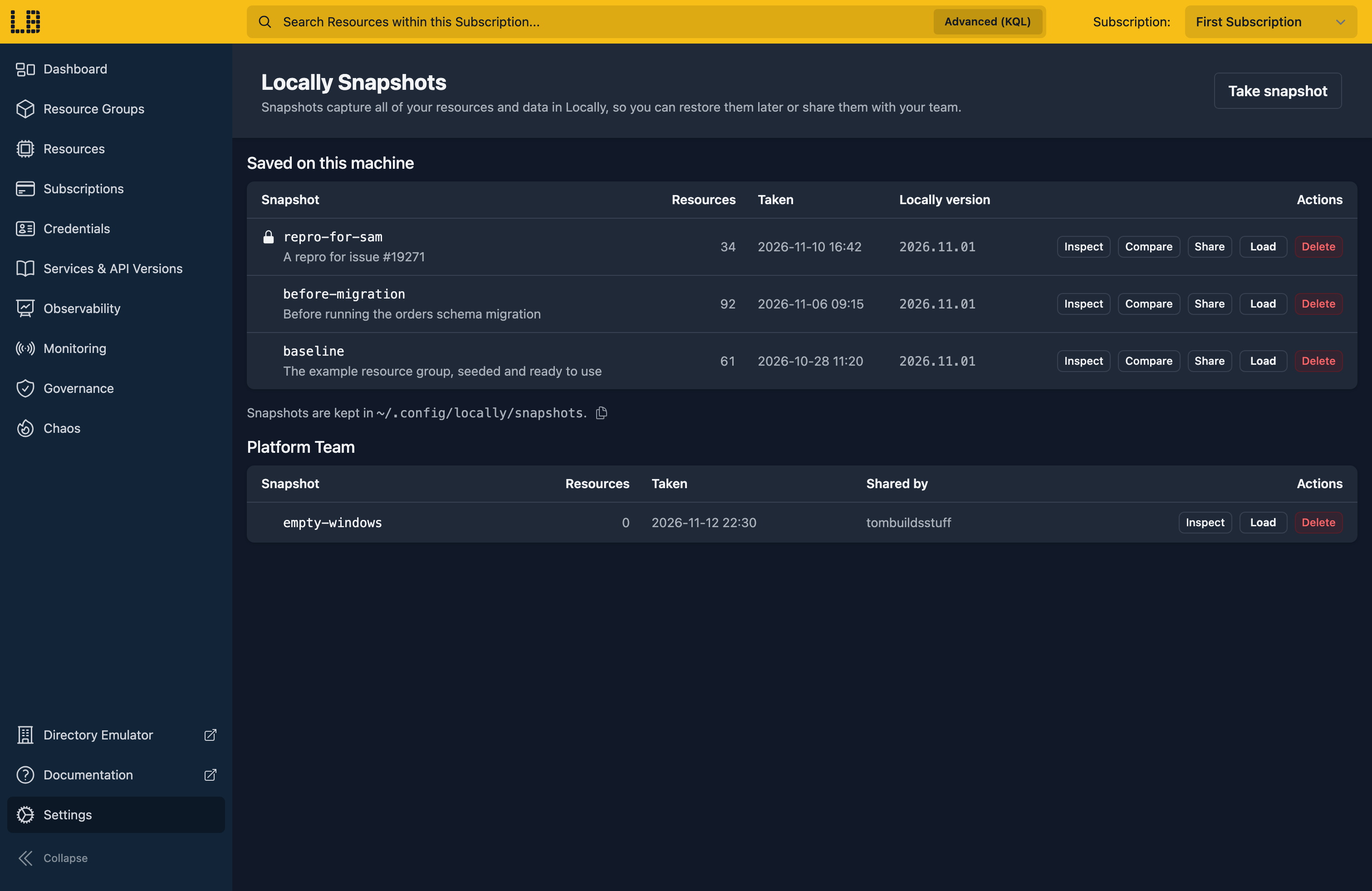
Snapshots can be managed using either locally snapshot or from Settings > Locally Snapshots in the Locally Dashboard:
Saving and loading
To save a snapshot you can run the following command - where --name is optional (and defaults to the current date and time):
                $


            locally snapshot save --name before-v2
Whilst the snapshot's being taken changes to Locally are paused - meaning that requests will get a 503 (which the Azure SDKs and tools will retry automatically), although anything that's already running is allowed to finish first. You can also use --description to describe what the snapshot contains and why it was taken.
Then to put everything back as it was, you can load the snapshot:
                $


            locally snapshot load before-v2
Loading a snapshot replaces all of your resources and data - however if any part of the snapshot can't be loaded then Locally's left exactly as it was. If the snapshot needs a plugin which isn't installed, Locally will install it first.
You can see your snapshots using locally snapshot list and remove one using locally snapshot delete - these are stored in the snapshots folder within your config directory.
Note
locally build --persist loads a snapshot when it starts and saves it whilst it's running, see State Persistence for more information.Comparing
To see what's changed since a snapshot was taken, you can use locally snapshot diff:
                $


            locally snapshot diff before-v2
You can also pass a second snapshot to compare the two. Resources are matched by their Resource ID and compared based on what a client would read back - whilst everything else (such as blobs, directory users and queues) is compared record by record. Where a key or secret has changed this is reported as changed, but the value isn't shown.
Since timestamps, etags, the Activity Log, delivered events and issued tokens change on their own, these are ignored unless --all is specified. You can also use --json to output the differences as JSON, and --exit-code to exit with 1 when there are any differences - which is useful in CI to fail a step when a test leaves something behind:
                $


            locally snapshot diff baseline --exit-code
locally snapshot inspect validates a snapshot in the same way that loading it would (without actually loading it) - showing what it contains, which plugins it needs and whether loading it would be refused.
Sharing with your team
Snapshots can be shared with your Locally Team, which allows someone else on your team to start from the same environment:
                $


            locally snapshot share repro-for-sam
Once it's shared, anyone on your team will see it in locally snapshot list and can either load it directly using locally snapshot load repro-for-sam --team <team> or download it first using locally snapshot download. Shared snapshots can be up to 500 MiB.
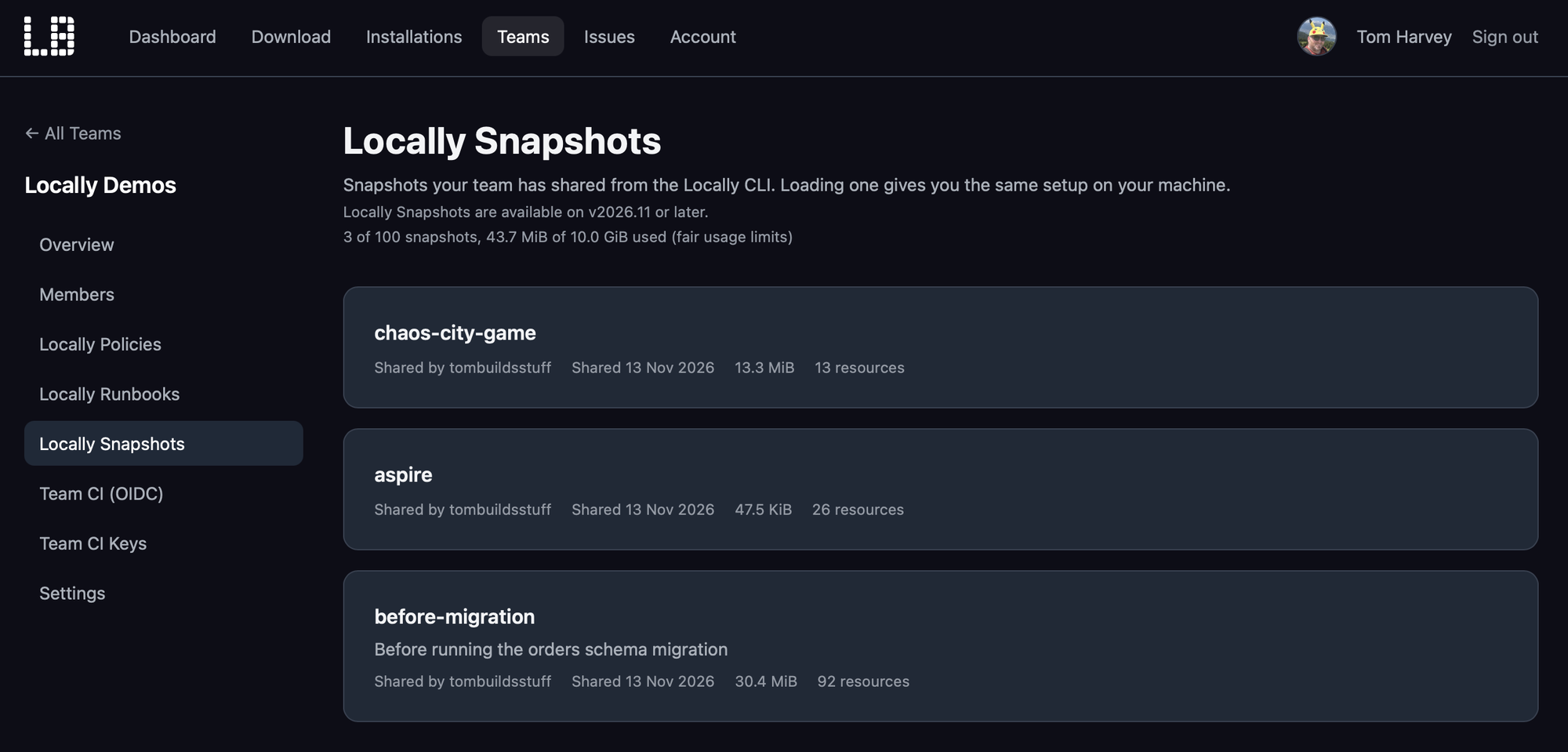
The snapshots which have been shared with your team are also listed in your Locally Account under Teams > [Name] > Locally Snapshots - where you can see what each one contains and download it:
It's also possible to load a snapshot from a file, by passing the path to locally snapshot load.
Credentials and encryption
Snapshots contain the credentials from your Local Cloud Environment (such as Key Vault secrets and keys, access keys and passwords) - as such we'd recommend encrypting a snapshot with a passphrase before sharing it:
                $


            locally snapshot save --name repro-for-sam --passphrase
You'll be prompted for the passphrase (unless it's set via LOCALLY_SNAPSHOT_PASSPHRASE) - and you'll need to provide it again when loading the snapshot.
Plans
Saving and loading snapshots requires the Standard plan or above, whilst sharing them requires the Team plan. If a snapshot uses more than your plan allows (e.g. more Subscriptions, Chaos settings or custom Regions) then loading it is refused rather than loading a subset of it - and locally snapshot inspect will tell you why.
Related
- State Persistence - keeping your resources across restarts with
--persist. - Locally Teams - sharing with your team.
During Public Preview you can use the Team plan for free, and get an early-adopter discount at GA. Sign in
