Logging
Sign in during Public Preview to get the Team plan free, plus an early-adopter discount when we launch. Sign in
Logging
Locally logs the HTTP requests made to it, and its responses - so when something doesn't behave the way you expect, you can see exactly what your tooling sent, and what came back.
You can find these in the Locally Dashboard, under Observability → Logging, which updates as requests come in:
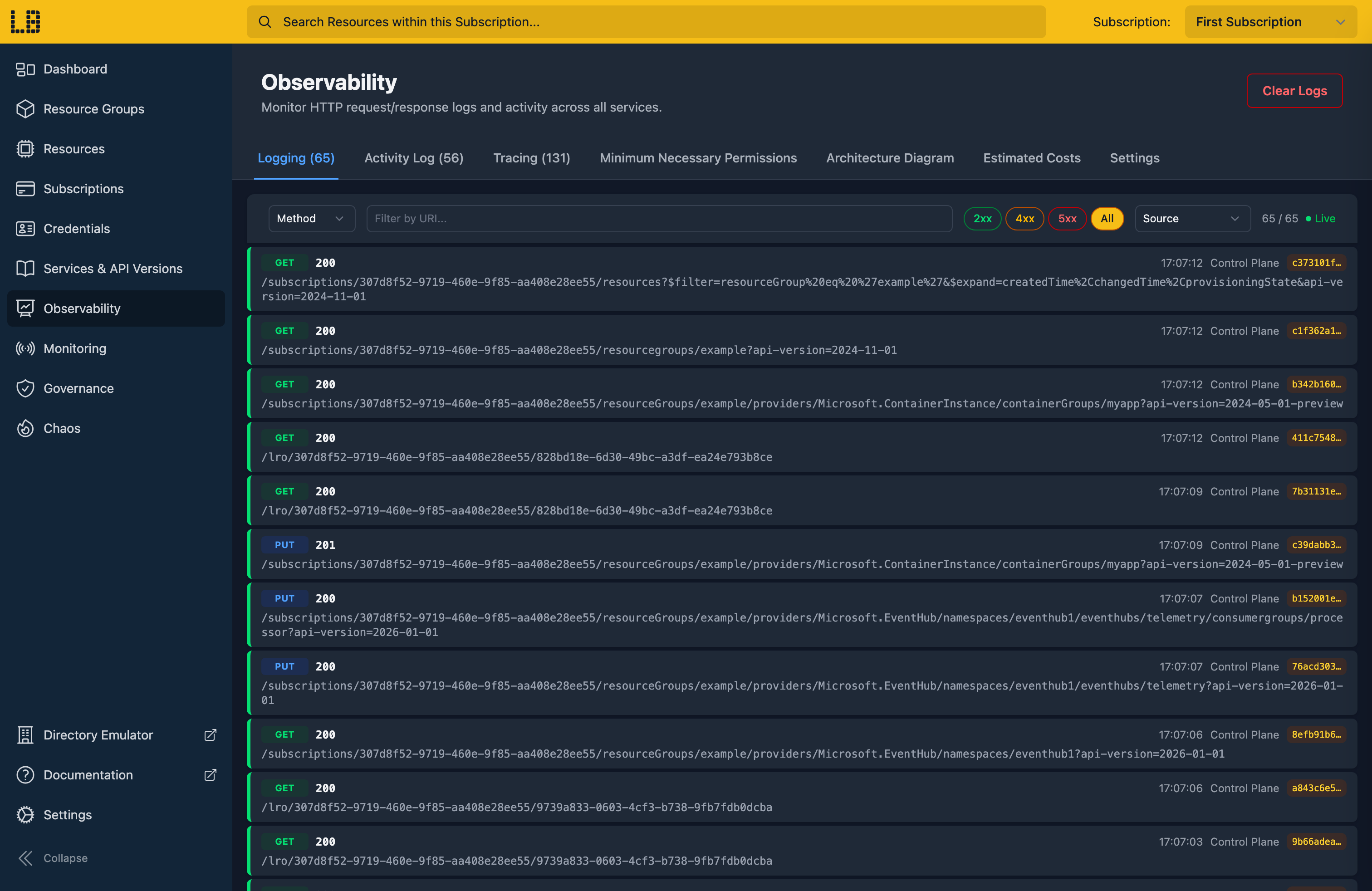
You can filter these by HTTP method, status code, URI or source - such as the Control Plane, the Directory, or a Data Plane Emulator like Storage, Key Vault or Cosmos DB. Service Bus, Event Hubs and IoT Hub requests made over HTTP are shown as Messaging, while those made over AMQP or MQTT aren't logged.
Request details
Selecting a request shows its details - including the headers and body of both the request and the response, its correlation IDs, and any error returned:
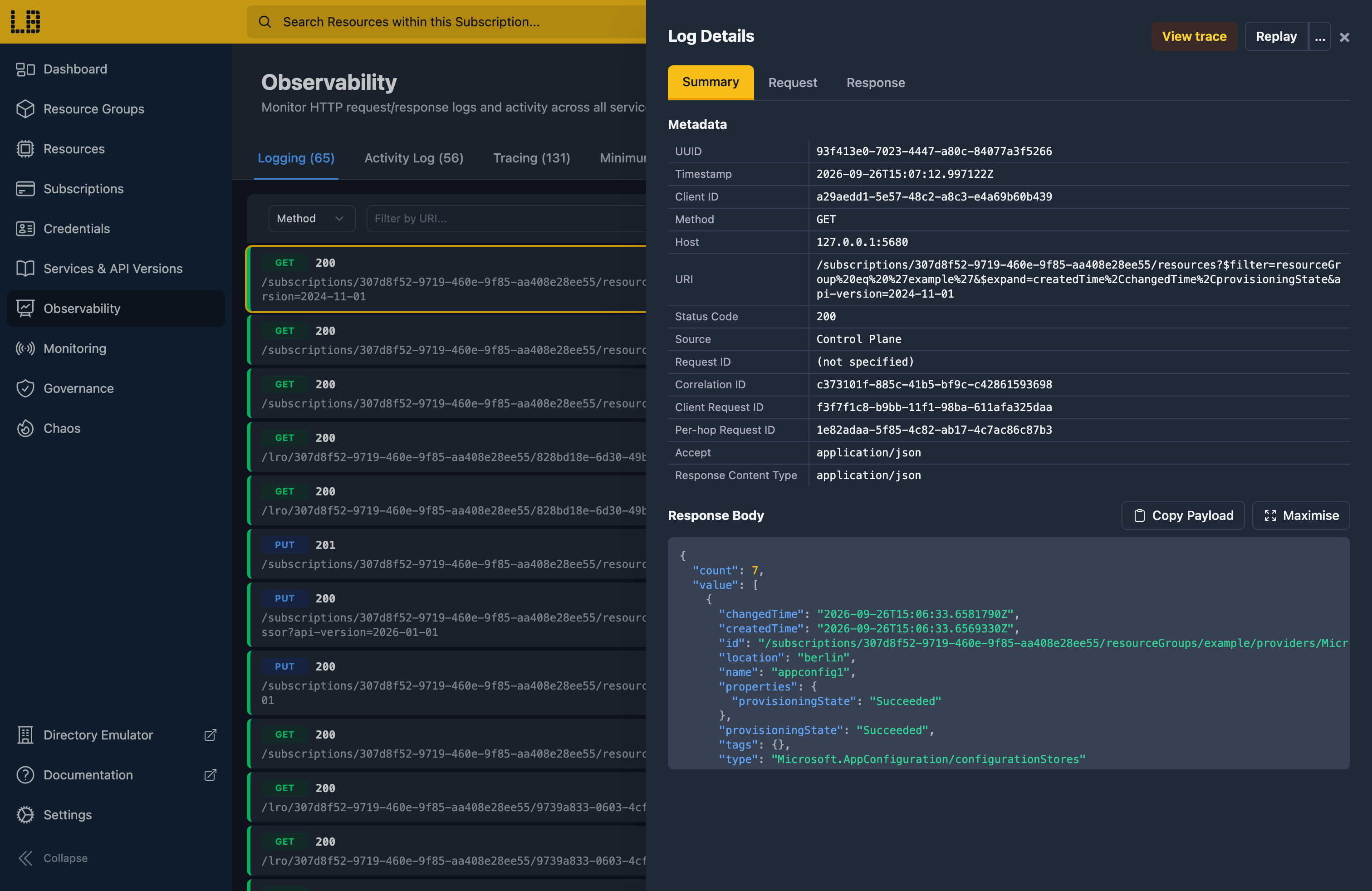
From here you can:
- Replay - send the request again, without re-running your tooling.
- Replay as a Different Managed Identity - to see how permissions affect the result. This is shown when you have two or more Managed Identities.
- View trace - see how this request fits into the wider operation, using Tracing.
Sensitive values
Locally redacts sensitive values before they're logged - such as Authorization and api-key headers, SAS signatures, access tokens, passwords, account keys, connection strings and Key Vault secrets. The Client ID of the caller is still shown, so you can tell who made each request.
Anything else is logged as it was sent, and request and response bodies are cut off at 256 KiB.
Retention
Locally keeps the last 15 minutes of requests by default, but you can change this in the Locally Dashboard, under Observability → Settings.
You can keep requests for as many minutes as you like, or keep a set number of the most recent requests instead - handy if you're working through a bigger deployment.
You can also clear the logs whenever you want to start afresh, using the Clear Logs button - or turn logging off entirely, which clears them too.
From the Locally CLI
You can also view the logs using the Locally CLI, which you can filter as you type:
                $


            locally logs
Adding --json outputs them as JSON instead, which is handy for scripts. And you can clear them by running:
                $


            locally logs clear
The Locally Agent Skills teach your AI agent how to use these too - so it can check the logs itself when something isn't working, such as to see what your tooling actually sent.
Should you encounter any issues, please take a look at the troubleshooting section.
Sign in during Public Preview to get the Team plan free, plus an early-adopter discount when we launch. Sign in
