Provisioning an API Management Service
Sign in during Public Preview to get the Team plan free, plus an early-adopter discount when we launch. Sign in
Provisioning an API Management Service
This guide shows you how to provision an API Management service against Locally, publish an API through a product, and call it through the gateway with a subscription key. As with the other guides we're going to use the Azure CLI, but the same resources can be provisioned with HashiCorp Terraform, Pulumi or Bicep too.
Before you start
- The Azure CLI (
az) installed. curlinstalled, to call the gateway.- Locally installed, with Locally Setup completed.
1. Start Locally
Firstly, we need to launch Locally which we can do from a terminal by running:
                $


            locally build
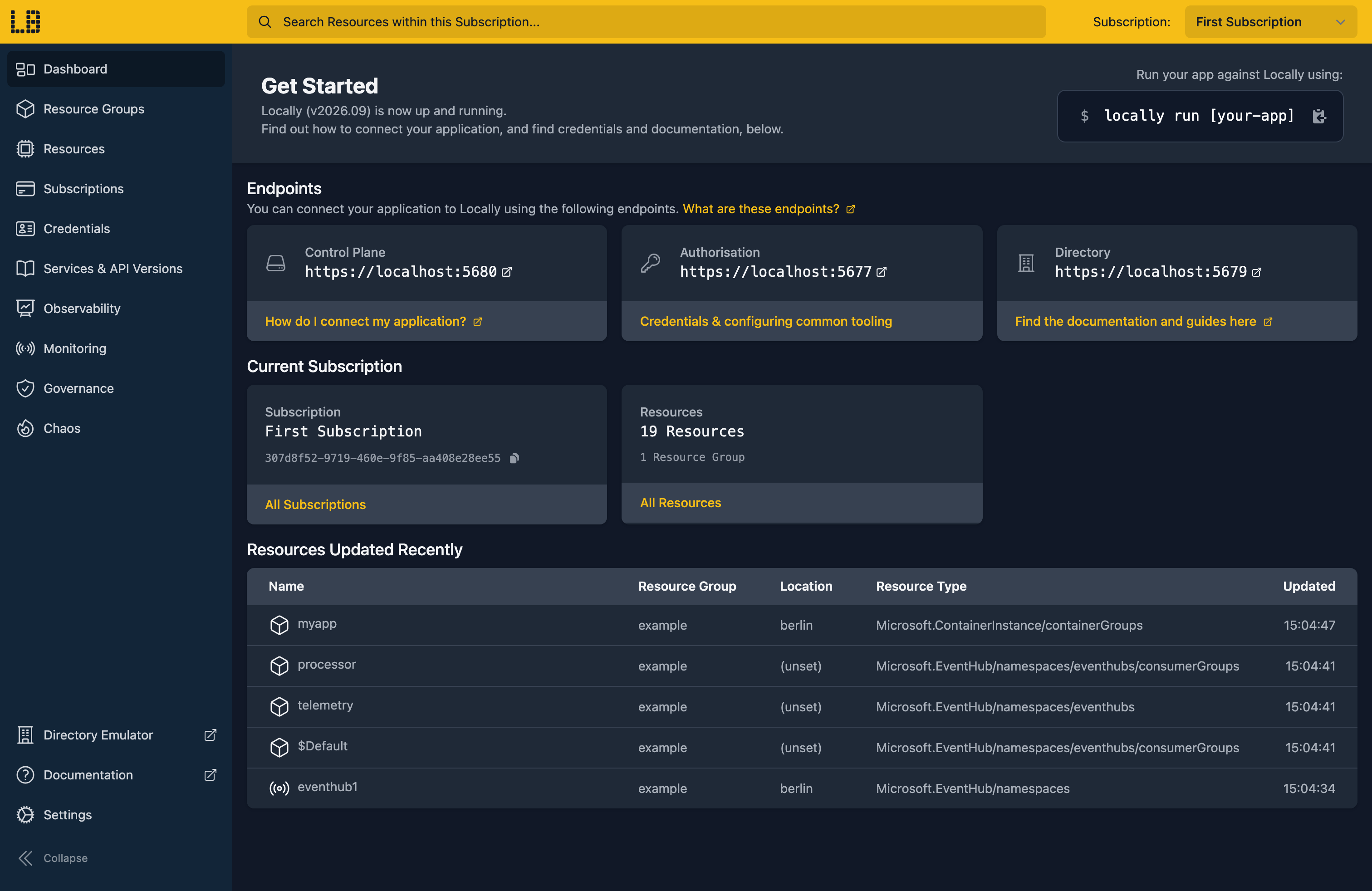
Once Locally has started, the Locally Dashboard will open automatically:
2. Create a Resource Group
Next we can create the Resource Group to hold the service:
                $


            locally run az group create -n sample-apim -l berlin
There's two things to note here:
- The Azure CLI supports Automatic Configuration, meaning that it can automatically be configured to work against Locally just by prefixing commands with
locally run. - Locally intentionally uses a different set of locations to Azure as a safety precaution, so that you can be confident you're deploying against Locally rather than regular Azure. You can also configure Locally to use the Azure locations too, but you'll want to be extra sure that you're prefixing commands with
locally runwhen you do.
3. Create the API Management service
With the Resource Group in place, we can create the service. We'll use the Developer tier:
                $


            locally run az apim create --name sampleapimdocs1 --resource-group sample-apim --location berlin --publisher-name Contoso --publisher-email [email protected] --sku-name Developer --query "{name:name, sku:sku.name, gatewayUrl:gatewayUrl, developerPortalUrl:developerPortalUrl, provisioningState:provisioningState}"
Note
In Azure this can take half an hour or more. In Locally it takes a few seconds:
{
  "developerPortalUrl": "https://sampleapimdocs1-developer.switchboard.locally:5670",
  "gatewayUrl": "https://sampleapimdocs1.switchboard.locally:5670",
  "name": "sampleapimdocs1",
  "provisioningState": "Succeeded",
  "sku": "Developer"
}
The switchboard.locally hostnames are served by Locally's own DNS server, and point at the API Management Emulator running on your machine. The gatewayUrl is where your API's callers send their requests.
4. Add an API and an operation
A service on its own doesn't serve anything, so next we'll add an Orders API under the /orders path:
                $


            locally run az apim api create --service-name sampleapimdocs1 --resource-group sample-apim --api-id orders --display-name Orders --path orders --protocols https --subscription-required true --query "{name:name, path:path, protocols:protocols, subscriptionRequired:subscriptionRequired}"
{
  "name": "orders",
  "path": "orders",
  "protocols": [
    "https"
  ],
  "subscriptionRequired": true
}
Note
api_id will be ignored. That comes from the CLI itself, which does the same against Azure, and the API is still created with the ID you gave it.The Azure CLI creates APIs that don't need a subscription key unless you pass --subscription-required true, so we've done that here. Then an operation to fetch an order by its ID:
                $


            locally run az apim api operation create --service-name sampleapimdocs1 --resource-group sample-apim --api-id orders --operation-id get-order --display-name "Get order" --method GET --url-template "/{orderId}" --template-parameters name=orderId type=string required=true --query "{name:name, method:method, urlTemplate:urlTemplate}"
{
  "method": "GET",
  "name": "get-order",
  "urlTemplate": "/{orderId}"
}
5. Answer from the gateway
Normally the gateway forwards each request to your backend. We don't have one yet, so we'll give the operation a return-response policy and let the gateway answer for itself. Save this as policy.json:
{
  "properties": {
    "format": "rawxml",
    "value": "<policies><inbound><base /><return-response><set-status code=\"200\" reason=\"OK\" /><set-header name=\"Content-Type\" exists-action=\"override\"><value>application/json</value></set-header><set-body>{\"status\": \"shipped\"}</set-body></return-response></inbound><backend><base /></backend><outbound><base /></outbound><on-error><base /></on-error></policies>"
  }
}
The Azure CLI doesn't have a command for policies, so we'll send it with az rest, which fills in {subscriptionId} for us:
                $


            locally run az rest --method put --url "/subscriptions/{subscriptionId}/resourceGroups/sample-apim/providers/Microsoft.ApiManagement/service/sampleapimdocs1/apis/orders/operations/get-order/policies/policy?api-version=2024-05-01" --body @policy.json -o none
6. Publish it through a product
Callers get access to APIs through products. Let's create a published product that needs a subscription:
                $


            locally run az apim product create --service-name sampleapimdocs1 --resource-group sample-apim --product-id partners --product-name Partners --subscription-required true --approval-required false --state published --query "{name:name, state:state, subscriptionRequired:subscriptionRequired}"
{
  "name": "partners",
  "state": "published",
  "subscriptionRequired": true
}
Then add the Orders API to it:
                $


            locally run az apim product api add --service-name sampleapimdocs1 --resource-group sample-apim --product-id partners --api-id orders -o none
And finally a subscription to the product, which is what holds the keys. There's no Azure CLI command for this either, so it's az rest again:
                $


            locally run az rest --method put --url "/subscriptions/{subscriptionId}/resourceGroups/sample-apim/providers/Microsoft.ApiManagement/service/sampleapimdocs1/subscriptions/sample-app?api-version=2024-05-01" --body '{"properties": {"displayName": "Sample app", "scope": "/products/partners", "state": "active"}}' --query "{name:name, scope:properties.scope, state:properties.state}"
{
  "name": "sample-app",
  "scope": "/subscriptions/0f766306-391f-4f66-b9ee-927fb2db629c/resourceGroups/sample-apim/providers/Microsoft.ApiManagement/service/sampleapimdocs1/products/partners",
  "state": "active"
}
7. Call the API through the gateway
Now we can call the API. First without a key:
                $


            curl -i https://sampleapimdocs1.switchboard.locally:5670/orders/123
The gateway turns it away:
HTTP/1.1 401 Unauthorized
Content-Type: application/json
Www-Authenticate: AzureApiManagementKey realm="https://sampleapimdocs1.switchboard.locally:5670/orders",name="Ocp-Apim-Subscription-Key",type="header"
Date: Fri, 23 Oct 2026 08:47:18 GMT
Content-Length: 147

{"statusCode":401,"message":"Access denied due to missing subscription key. Make sure to include subscription key when making requests to an API."}
So let's get the subscription's primary key:
                $


            export APIM_KEY=$(locally run az rest --method post --url "/subscriptions/{subscriptionId}/resourceGroups/sample-apim/providers/Microsoft.ApiManagement/service/sampleapimdocs1/subscriptions/sample-app/listSecrets?api-version=2024-05-01" --query primaryKey -o tsv)
And send it in the Ocp-Apim-Subscription-Key header:
                $


            curl -i -H "Ocp-Apim-Subscription-Key: $APIM_KEY" https://sampleapimdocs1.switchboard.locally:5670/orders/123
HTTP/1.1 200 OK
Content-Length: 21
Content-Type: application/json
Date: Fri, 23 Oct 2026 08:47:20 GMT

{"status": "shipped"}
Note
curl commands aren't prefixed with locally run, since they're calling the gateway directly rather than the Azure APIs. Every az command still needs the prefix.When you're trying things out, locally apim curl saves a step. It finds an active subscription key for you and sends the request through the gateway:
                $


            locally apim curl sampleapimdocs1 GET /orders/123
{"status": "shipped"}We can see the service, its API, product and subscription in the Locally Dashboard too:
8. Tidy up
Finally, we can tidy up. To remove the Resource Group and everything within it:
                $


            locally run az group delete -n sample-apim --yes
There's nothing billable to clean up, since everything ran on your machine, but it's still worth checking your teardown scripts work here before you run them against Azure.
Doing this with other tooling
Whilst this guide used the Azure CLI, API Management works the same way through any of the tooling that Locally supports - a Microsoft.ApiManagement/service resource and its APIs, products and subscriptions in HashiCorp Terraform or OpenTofu, Pulumi, Bicep or an ARM Template all provision against Locally in the same way, with only the location changed. Those tools also have resources for policies and subscriptions, so you won't need az rest.
Next steps
To import an API from an OpenAPI file and have the gateway enforce a rate limit, see Importing an API and Applying Policies. The API Management Emulator page covers what the gateway supports, including versions, revisions, gRPC APIs and the developer portal.
Should you encounter any issues, please take a look at the troubleshooting section.
Sign in during Public Preview to get the Team plan free, plus an early-adopter discount when we launch. Sign in
