Working with the Directory (Entra)
Sign in during Public Preview to get the Team plan free, plus an early-adopter discount when we launch. Sign in
Working with the Directory (Entra)
This guide shows you how to work with users, groups and applications in a directory against Locally. Unlike most of the other guides, this one isn't about ARM resources at all - the directory is Microsoft Graph rather than the Azure Control Plane, so there's no Resource Group involved and everything here is scoped to the tenant.
Before you start
- The Azure CLI (
az) installed. - Locally installed, with Locally Setup completed.
Note
1. Start Locally
Firstly, we need to launch Locally which we can do from a terminal by running:
                $


            locally build
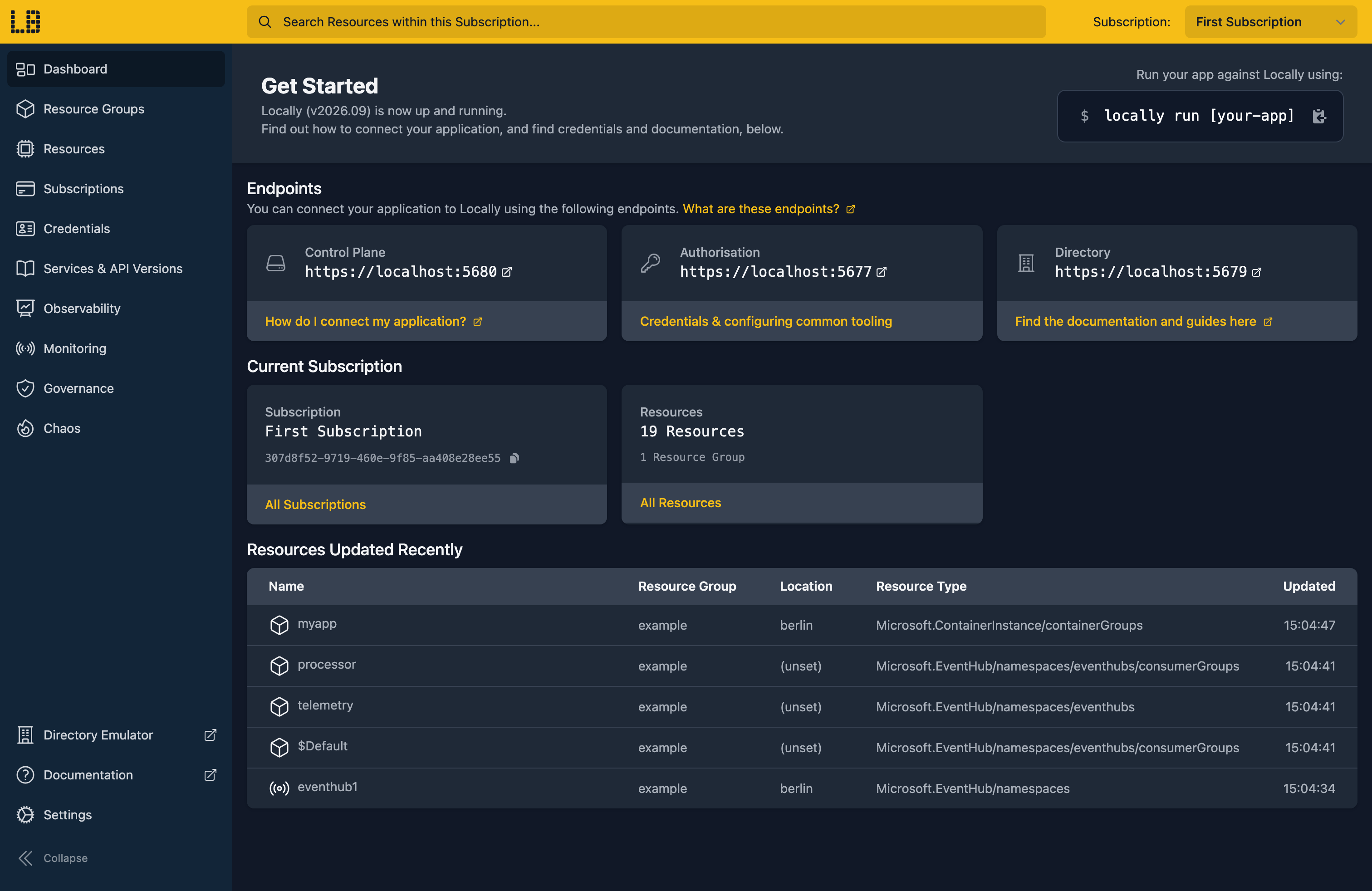
Once Locally has started, the Locally Dashboard will open automatically:
2. Explore the directory
The az ad commands talk to Microsoft Graph, and Automatic Configuration points them at Locally's directory the same way it points az at the Control Plane - so we can start by asking who we're signed in as:
                $


            locally run az ad sp show --id $(locally run az account show --query user.name -o tsv)
{
  "@odata.type": "#microsoft.graph.servicePrincipal",
  "accountEnabled": true,
  "alternativeNames": [],
  "appDisplayName": "Default Identity",
  "appId": "a29aedd1-5e57-48c2-a8c3-e4a69b60b439",
  "appRoles": [],
  "displayName": "Default Identity",
  "id": "a6db608b-2065-4991-b351-6b70706372c3",
  "servicePrincipalNames": [
    "a29aedd1-5e57-48c2-a8c3-e4a69b60b439"
  ],
  "servicePrincipalType": "ManagedIdentity",
  "tags": []
}
locally run signs the Azure CLI in as Locally's default Managed Identity, which is a service principal rather than a user. That's why we look it up with az ad sp show - az ad signed-in-user show only works for a user sign-in, the same as in Azure.
Unlike a Resource Group, a directory isn't empty when you start - Locally seeds the tenant with placeholder data so that queries behave like they would against a populated tenant rather than returning nothing:
                $


            locally run az ad user list --query "[].{Name:displayName, UPN:userPrincipalName}" -o table
Name                UPN
------------------  ------------------------------------------
Dennis Ritchie      [email protected]
Grace Hopper        [email protected]
Edsger Dijkstra     [email protected]
Katherine Johnson   [email protected]
Ada Lovelace        [email protected]
Note
default.tenants.locally. It's worth getting used to the domain being part of the name.3. Create a user
Next let's add a user of our own:
                $


            locally run az ad user create --display-name "Grace Demo" --user-principal-name [email protected] --password 'Sample-Passw0rd!'
{
  "note": "some fields skipped for brevity",

  "accountEnabled": true,
  "displayName": "Grace Demo",
  "id": "899dcb90-ecb5-407e-a14c-33934f970dc8",
  "mailNickname": "grace.demo",
  "userPrincipalName": "[email protected]",
  "userType": "Member"
}
We can read the user back by their user principal name:
                $


            locally run az ad user show --id [email protected] --query "{displayName:displayName, upn:userPrincipalName, enabled:accountEnabled}"
{
  "displayName": "Grace Demo",
  "enabled": true,
  "upn": "[email protected]"
}
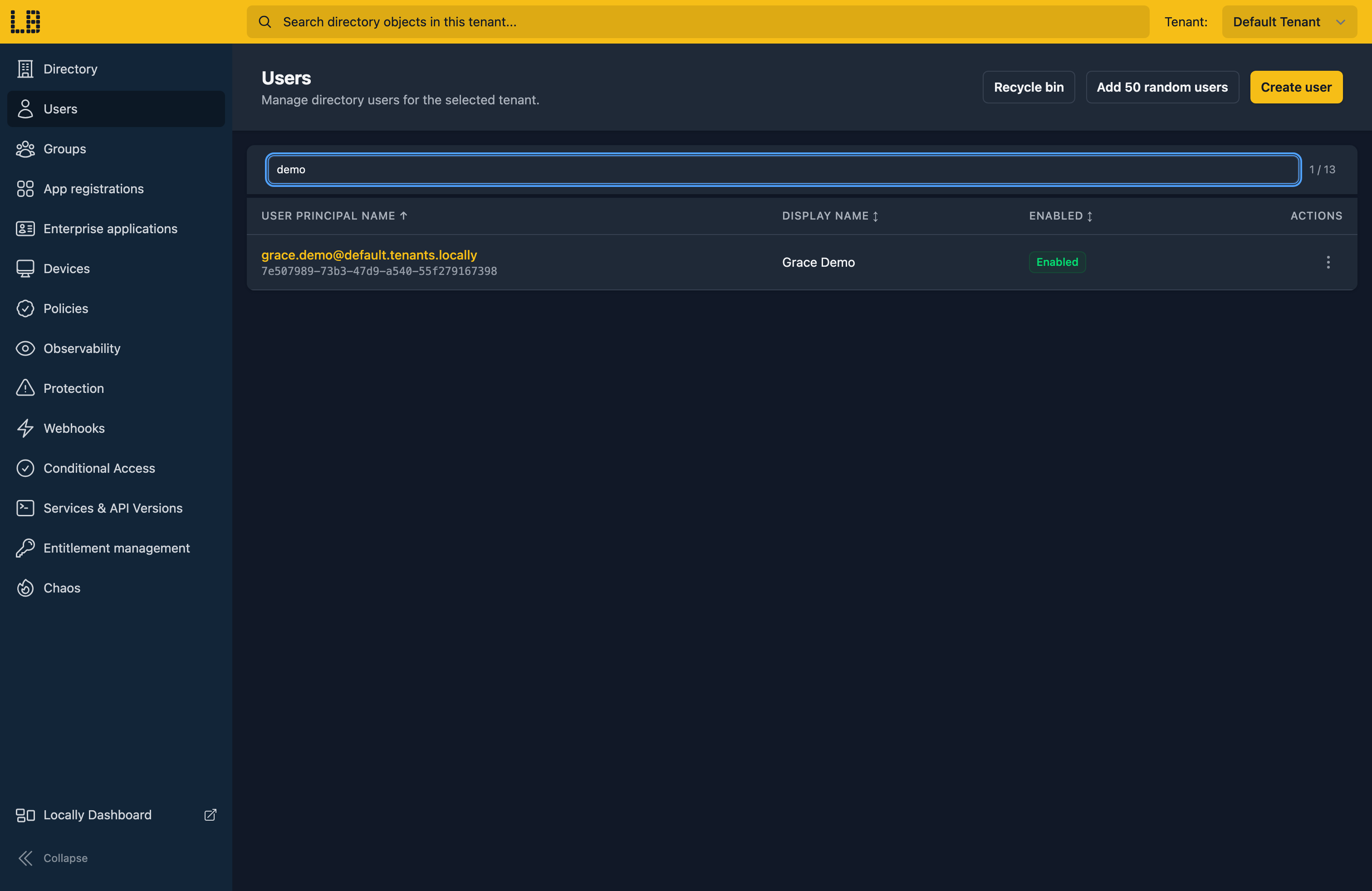
We can see the new user in the Directory Emulator too:
4. Create a group and add the user
Users on their own aren't much use, so next we'll create a group and put our user in it:
                $


            locally run az ad group create --display-name "Locally Demo Team" --mail-nickname locally-demo-team
{
  "note": "some fields skipped for brevity",

  "displayName": "Locally Demo Team",
  "id": "48b26cdf-5003-4c66-b994-3a2592db94a4",
  "mailEnabled": false,
  "mailNickname": "locally-demo-team",
  "securityEnabled": true
}
Adding a member is done by object ID rather than by name, so we'll look the user's up and keep it to hand:
                $


            export USER_ID=$(locally run az ad user show --id [email protected] --query id -o tsv)
                $


            locally run az ad group member add --group "Locally Demo Team" --member-id "$USER_ID"
A successful add produces no output, so we can confirm it by listing the group's members:
                $


            locally run az ad group member list --group "Locally Demo Team" --query "[].{Name:displayName, UPN:userPrincipalName}" -o table
Name        UPN
----------  ----------------------------------
Grace Demo  [email protected]
Or, if you just want a yes/no answer for one member:
                $


            locally run az ad group member check --group "Locally Demo Team" --member-id "$USER_ID"
{
  "value": true
}
5. Register an application
The other thing you'll commonly want from a directory is an application registration and its service principal - the identity your application authenticates as.
First the app registration, capturing its application (client) ID:
                $


            export APP_ID=$(locally run az ad app create --display-name locally-demo-app --query appId -o tsv)
Then the service principal for it:
                $


            locally run az ad sp create --id "$APP_ID" --query "{appId:appId, displayName:displayName, type:servicePrincipalType}"
{
  "appId": "6146de7a-c3d4-4648-a622-cc35ea925e8a",
  "displayName": "locally-demo-app",
  "type": "Application"
}
Note
6. Tidy up
Finally, we can tidy up after ourselves. There's no Resource Group to delete here, so each object is removed individually:
                $


            locally run az ad app delete --id "$APP_ID"
                $


            locally run az ad group delete --group "Locally Demo Team"
                $


            locally run az ad user delete --id [email protected]
The placeholder users and groups the tenant started with are left alone - only the objects we created are removed.
Doing this with other tooling
Whilst this guide used the Azure CLI, the directory is plain Microsoft Graph, so anything that speaks Graph works against Locally in the same way - including the Microsoft Graph SDKs for .NET, Go, Python and JavaScript. Point them at the tenant Locally serves and your application reads and writes directory objects exactly as it would against Entra.
Locally's directory serves both the v1.0 and beta Graph APIs, and the beta endpoint can be turned off if you want to prove your application only depends on stable Graph.
Next steps
To give a service principal access to resources, see Role Assignments. For identities your apps use without credentials, see Managed Identity.
Should you encounter any issues, please take a look at the troubleshooting section.
Sign in during Public Preview to get the Team plan free, plus an early-adopter discount when we launch. Sign in
