During Public Preview you can use the Team plan for free, and get an early-adopter discount at GA. Sign in
Deploying a Data Collection Rule
This guide shows you how to deploy a Data Collection Rule against Locally, send your own log records through it with the Logs Ingestion API, and query them back from a Log Analytics workspace. As with the other guides we're going to use the Azure CLI, but the same resources can be provisioned with HashiCorp Terraform, Pulumi or Bicep too.
Before you start
- The Azure CLI (
az) installed. - Locally installed, with Locally Setup completed.
1. Start Locally
Firstly, we need to launch Locally which we can do from a terminal by running:
                $


            locally build
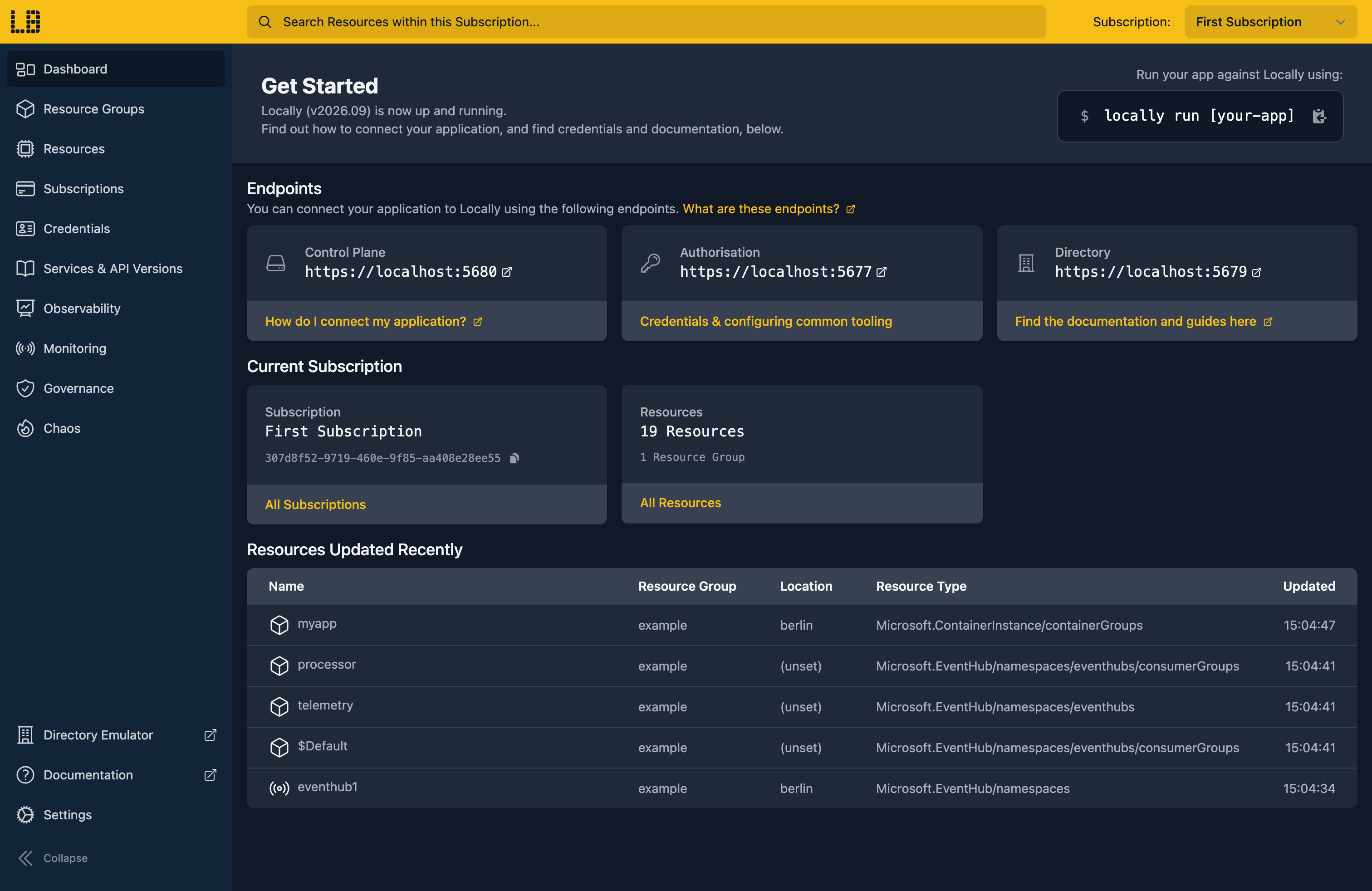
Once Locally has started, the Locally Dashboard will open automatically:
2. Create a Resource Group
Next we can create the Resource Group:
                $


            locally run az group create -n sample-dcr -l berlin
There's two things to note here:
- The Azure CLI supports Automatic Configuration, meaning that it can automatically be configured to work against Locally just by prefixing commands with
locally run. - Locally intentionally uses a different set of locations to Azure as a safety precaution, so that you can be confident you're deploying against Locally rather than regular Azure. You can also configure Locally to use the Azure locations too, but you'll want to be extra sure that you're prefixing commands with
locally runwhen you do.
3. Create a workspace and a custom table
The records end up in a Log Analytics workspace, so we'll create one of those first:
                $


            locally run az monitor log-analytics workspace create -g sample-dcr -n sample-dcr-workspace -l berlin --query "{name:name, customerId:customerId, retentionInDays:retentionInDays}"
{
  "customerId": "f2a497a7-c454-488a-9072-c97f3d9ae698",
  "name": "sample-dcr-workspace",
  "retentionInDays": 30
}
The rule needs the workspace's resource ID, so we'll keep that in a variable:
                $


            export WORKSPACE_ID=$(locally run az monitor log-analytics workspace show -g sample-dcr -n sample-dcr-workspace --query id -o tsv)
Then a custom table for the records to land in. Custom table names end in _CL:
                $


            locally run az monitor log-analytics workspace table create -g sample-dcr --workspace-name sample-dcr-workspace -n AppEvents_CL --columns TimeGenerated=datetime Message=string Level=string --query "{name:name, columns:schema.columns[].name}"
{
  "columns": [
    "TimeGenerated",
    "Message",
    "Level"
  ],
  "name": "AppEvents_CL"
}
4. Create a Data Collection Endpoint
The Data Collection Endpoint is the address your application sends records to:
                $


            locally run az monitor data-collection endpoint create -g sample-dcr -n sample-dce -l berlin --public-network-access Enabled --query "{name:name, logsIngestion:logsIngestion.endpoint, state:provisioningState}"
{
  "logsIngestion": "https://sample-dce-a2df8a27.ingest.monitor.locally:5668",
  "name": "sample-dce",
  "state": "Succeeded"
}
The logsIngestion endpoint is an ingest.monitor.locally hostname served by Locally's own DNS server, so records sent to it stay on your machine. We'll need the endpoint's resource ID for the rule:
                $


            export DCE_ID=$(locally run az monitor data-collection endpoint show -g sample-dcr -n sample-dce --query id -o tsv)
5. Create the Data Collection Rule
The rule declares the shape of the records we'll send (the Custom-AppEvents stream), and sends them to the AppEvents_CL table in our workspace:
                $


            locally run az monitor data-collection rule create -g sample-dcr -n sample-dcr-rule -l berlin --endpoint-id "$DCE_ID" --stream-declarations "{Custom-AppEvents:{columns:[{name:TimeGenerated,type:datetime},{name:Message,type:string},{name:Level,type:string}]}}" --destinations "{logAnalytics:[{name:workspace,workspaceResourceId:$WORKSPACE_ID}]}" --data-flows "[{streams:[Custom-AppEvents],destinations:[workspace],transformKql:source,outputStream:Custom-AppEvents_CL}]" --query "{name:name, immutableId:immutableId, streams:keys(streamDeclarations), outputStream:dataFlows[0].outputStream, state:provisioningState}"
{
  "immutableId": "dcr-05221140e57aec5e4d86413f400c30c0",
  "name": "sample-dcr-rule",
  "outputStream": "Custom-AppEvents_CL",
  "state": "Succeeded",
  "streams": [
    "Custom-AppEvents"
  ]
}
The Azure CLI warns that Custom-AppEvents isn't one of its built-in stream names, which is expected for a custom stream. The immutableId is how the Logs Ingestion API refers to the rule.
Note
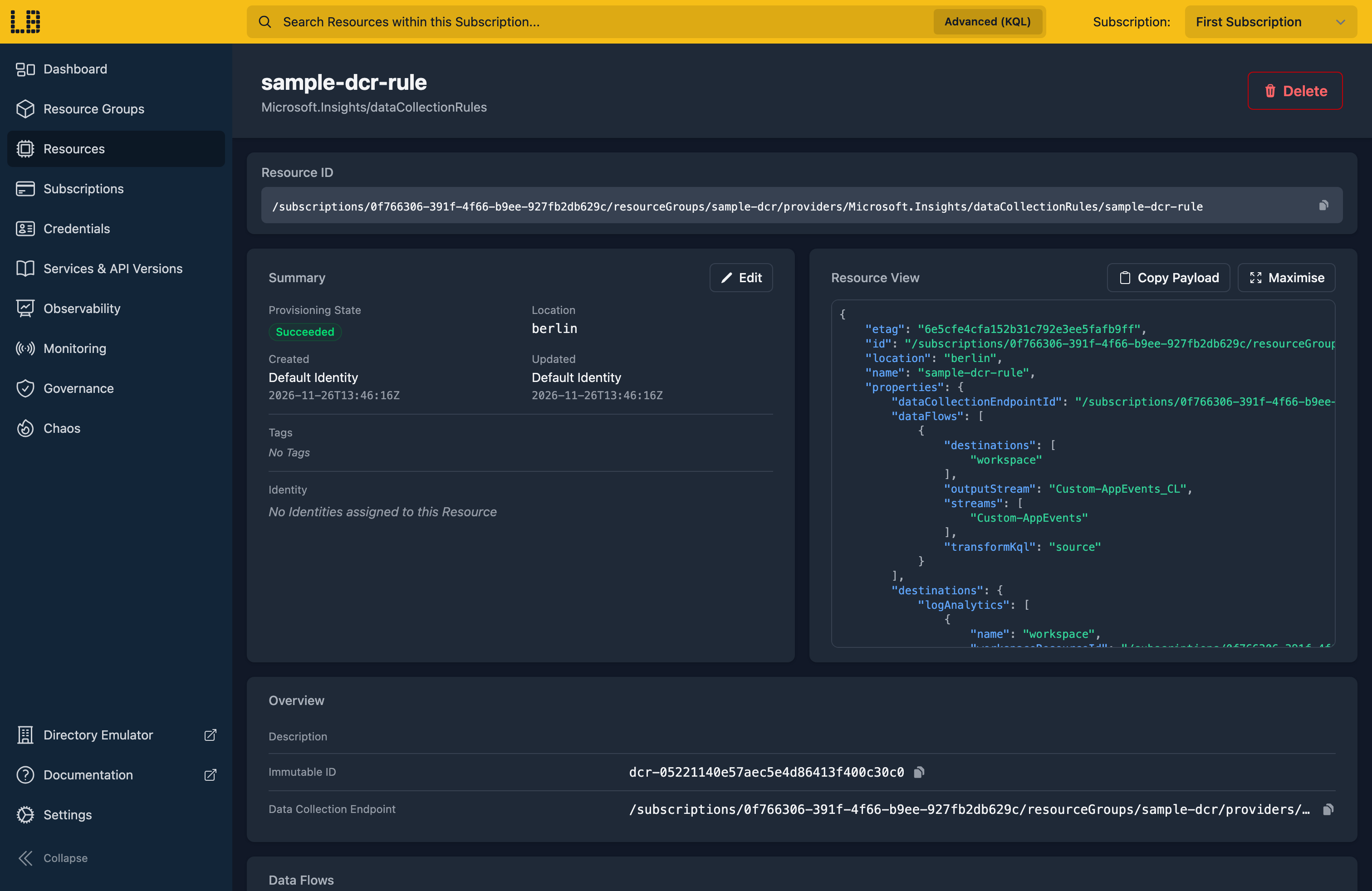
transformKql that refers to the stream's columns, such as source | where Level != "Debug", with a ValidationError. Use source to pass records through as they are. We will fix this in a future release.We can see the rule in the Locally Dashboard too:
6. Send some records
To send records we need the rule's immutableId, the endpoint's address and an access token for Azure Monitor:
                $


            export DCR_IMMUTABLE_ID=$(locally run az monitor data-collection rule show -g sample-dcr -n sample-dcr-rule --query immutableId -o tsv)
                $


            export DCE_ENDPOINT=$(locally run az monitor data-collection endpoint show -g sample-dcr -n sample-dce --query logsIngestion.endpoint -o tsv)
                $


            export TOKEN=$(locally run az account get-access-token --resource https://monitor.azure.com --query accessToken -o tsv)
Then we can post two records to the stream, the same request the Azure Monitor Ingestion SDKs make:
                $


            curl -sk -w "HTTP %{http_code}\n" -X POST "$DCE_ENDPOINT/dataCollectionRules/$DCR_IMMUTABLE_ID/streams/Custom-AppEvents?api-version=2023-01-01" -H "Authorization: Bearer $TOKEN" -H "Content-Type: application/json" -d "[{\"TimeGenerated\":\"$(date -u +%Y-%m-%dT%H:%M:%SZ)\",\"Level\":\"Information\",\"Message\":\"Order 1042 placed\"},{\"TimeGenerated\":\"$(date -u +%Y-%m-%dT%H:%M:%SZ)\",\"Level\":\"Error\",\"Message\":\"Payment for order 1043 declined\"}]"
HTTP 204An HTTP 204 No Content means the records were accepted. A stream the rule doesn't declare is refused, so a typo fails while you're still writing the code:
                $


            curl -sk -w "\nHTTP %{http_code}\n" -X POST "$DCE_ENDPOINT/dataCollectionRules/$DCR_IMMUTABLE_ID/streams/Custom-Orders?api-version=2023-01-01" -H "Authorization: Bearer $TOKEN" -H "Content-Type: application/json" -d "[{\"Message\":\"Order 1044 placed\"}]"
{"error":{"code":"NotFound","message":"stream is not declared on this data collection rule"}}

HTTP 404
Note
curl commands here aren't prefixed with locally run - they talk to the ingestion endpoint directly rather than to the Azure APIs. Every az command still needs the prefix.7. Query the records
Queries take the workspace's customerId rather than its resource ID:
                $


            export WORKSPACE_GUID=$(locally run az monitor log-analytics workspace show -g sample-dcr -n sample-dcr-workspace --query customerId -o tsv)
Then we can read the records back from the custom table:
                $


            locally run az monitor log-analytics query -w "$WORKSPACE_GUID" --analytics-query "AppEvents_CL | project TimeGenerated, Level, Message" --query "[].{Time:TimeGenerated, Level:Level, Message:Message}" -o table
Time                  Level        Message
--------------------  -----------  -------------------------------
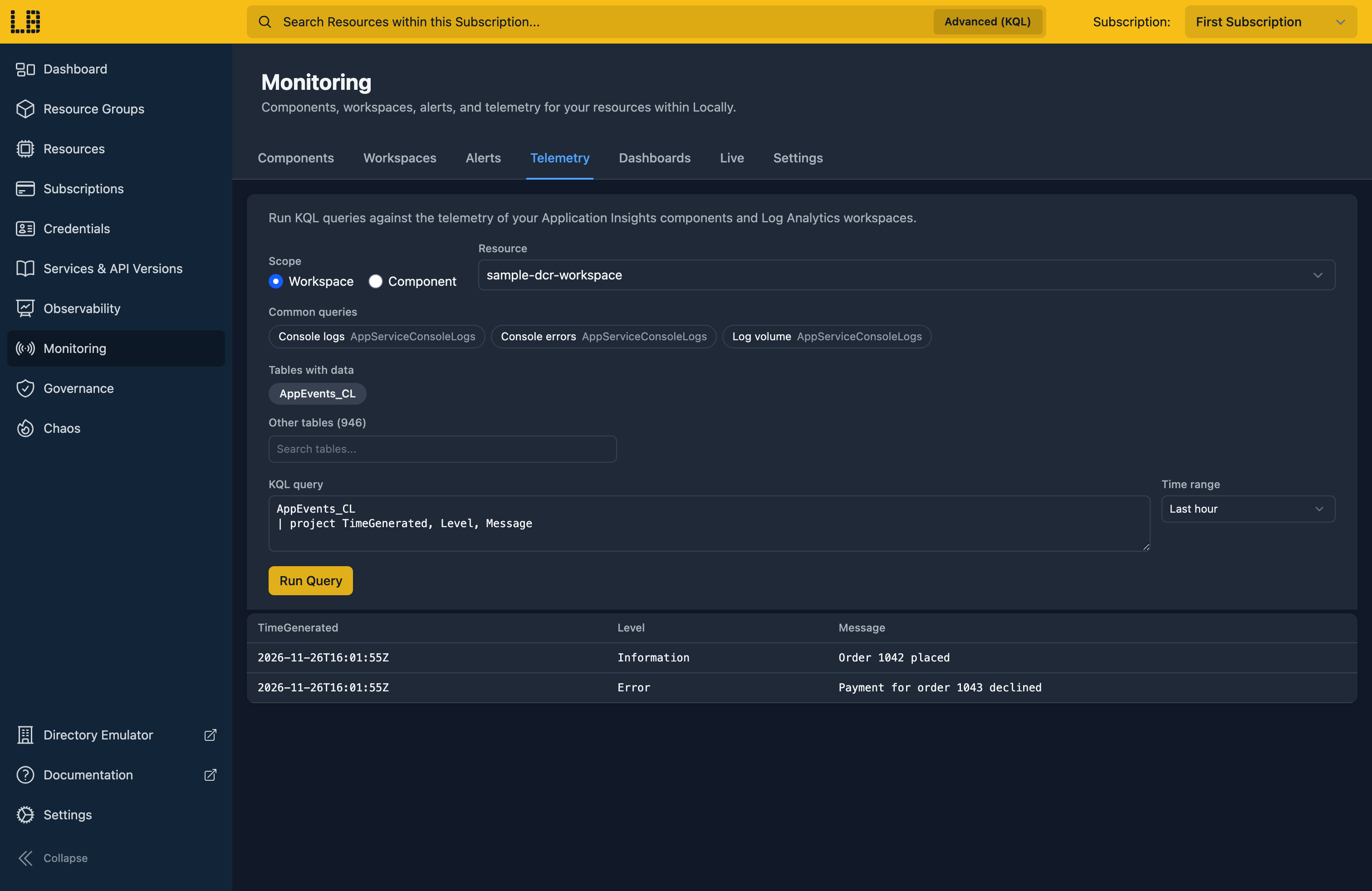
2026-11-26T13:46:22Z  Information  Order 1042 placed
2026-11-26T13:46:22Z  Error        Payment for order 1043 declined
Or run the same query from Monitoring › Telemetry in the Locally Dashboard:
Doing this with other tooling
Whilst this guide used the Azure CLI, Data Collection Rules and Endpoints work the same way through any of the tooling that Locally supports - Microsoft.Insights/dataCollectionRules and Microsoft.Insights/dataCollectionEndpoints resources in HashiCorp Terraform or OpenTofu, Pulumi, Bicep or an ARM Template all provision against Locally in the same way, with only the location changed.
Next steps
To send an Azure resource's own logs to the workspace, see Diagnostic Settings. To be told when a record like the error above turns up, see Alerts.
Should you encounter any issues, please take a look at the troubleshooting section, reach out in our Discord or open an issue and we'll take a look.
Resource types this guide uses
These are the Azure resource types this guide creates in Locally:
During Public Preview you can use the Team plan for free, and get an early-adopter discount at GA. Sign in
