Using a Managed Identity
Sign in during Public Preview to get the Team plan free, plus an early-adopter discount when we launch. Sign in
Using a Managed Identity
This guide shows you how to create a user-assigned Managed Identity against Locally, give it access to a Key Vault, and have a Function App read a secret as that identity - with no credentials in the app at all. As with the other guides we're going to use the Azure CLI.
Before you start
- The Azure CLI (
az) installed. - Locally installed, with Locally Setup completed.
Managed Identities are built into Locally. The Key Vault, Storage Account and Function App used in this guide come from plugins:
1. Start Locally
Firstly, we need to launch Locally which we can do from a terminal by running:
                $


            locally build
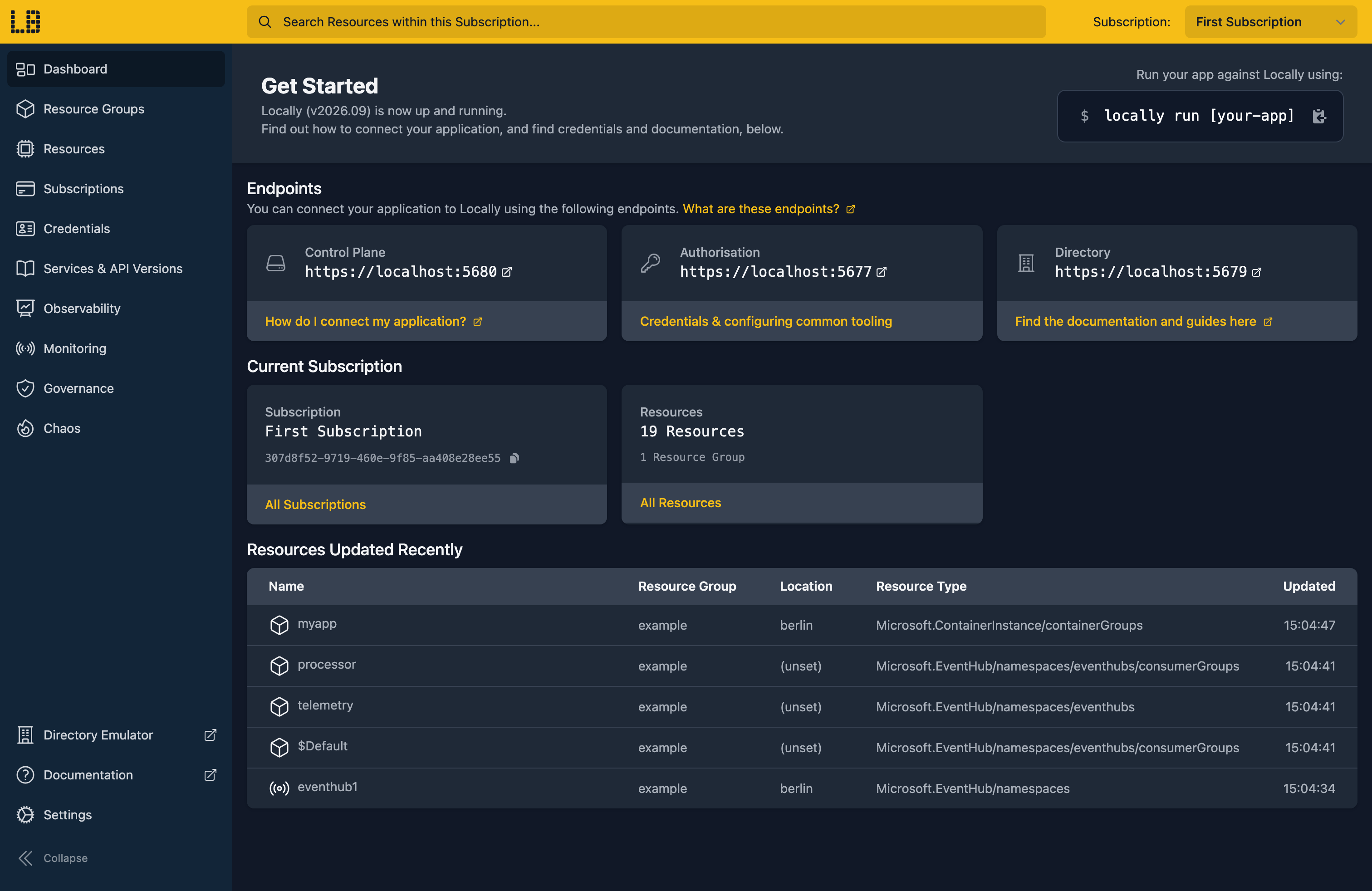
Once Locally has started, the Locally Dashboard will open automatically:
2. Create a Resource Group
Next we can create the Resource Group to hold everything:
                $


            locally run az group create -n sample-identity -l berlin
There's two things to note here:
- The Azure CLI supports Automatic Configuration, meaning that it can automatically be configured to work against Locally just by prefixing commands with
locally run. - Locally intentionally uses a different set of locations to Azure as a safety precaution, so that you can be confident you're deploying against Locally rather than regular Azure. You can also configure Locally to use the Azure locations too, but you'll want to be extra sure that you're prefixing commands with
locally runwhen you do.
3. Create the Managed Identity
A user-assigned identity is a resource in its own right, so it can be created before anything uses it:
                $


            locally run az identity create -g sample-identity -n sample-func-identity -l berlin
{
  "note": "some fields skipped for brevity",

  "clientId": "e17ff4a6-8106-4eac-a9d7-160615f36e7c",
  "id": "/subscriptions/307d8f52-9719-460e-9f85-aa408e28ee55/resourceGroups/sample-identity/providers/Microsoft.ManagedIdentity/userAssignedIdentities/sample-func-identity",
  "location": "berlin",
  "name": "sample-func-identity",
  "principalId": "6f0b6de2-55f9-4c20-a184-1428be832fd9",
  "resourceGroup": "sample-identity",
  "tenantId": "59e01520-e049-4dfa-8a7d-1a847fc07763",
  "type": "Microsoft.ManagedIdentity/userAssignedIdentities"
}
The principalId is the identity's object in the directory, which is what roles get assigned to. We'll need it, and the identity's resource ID, in a few places - so let's keep both in variables:
                $


            export IDENTITY_ID=$(locally run az identity show -g sample-identity -n sample-func-identity --query id -o tsv)
                $


            export PRINCIPAL_ID=$(locally run az identity show -g sample-identity -n sample-func-identity --query principalId -o tsv)
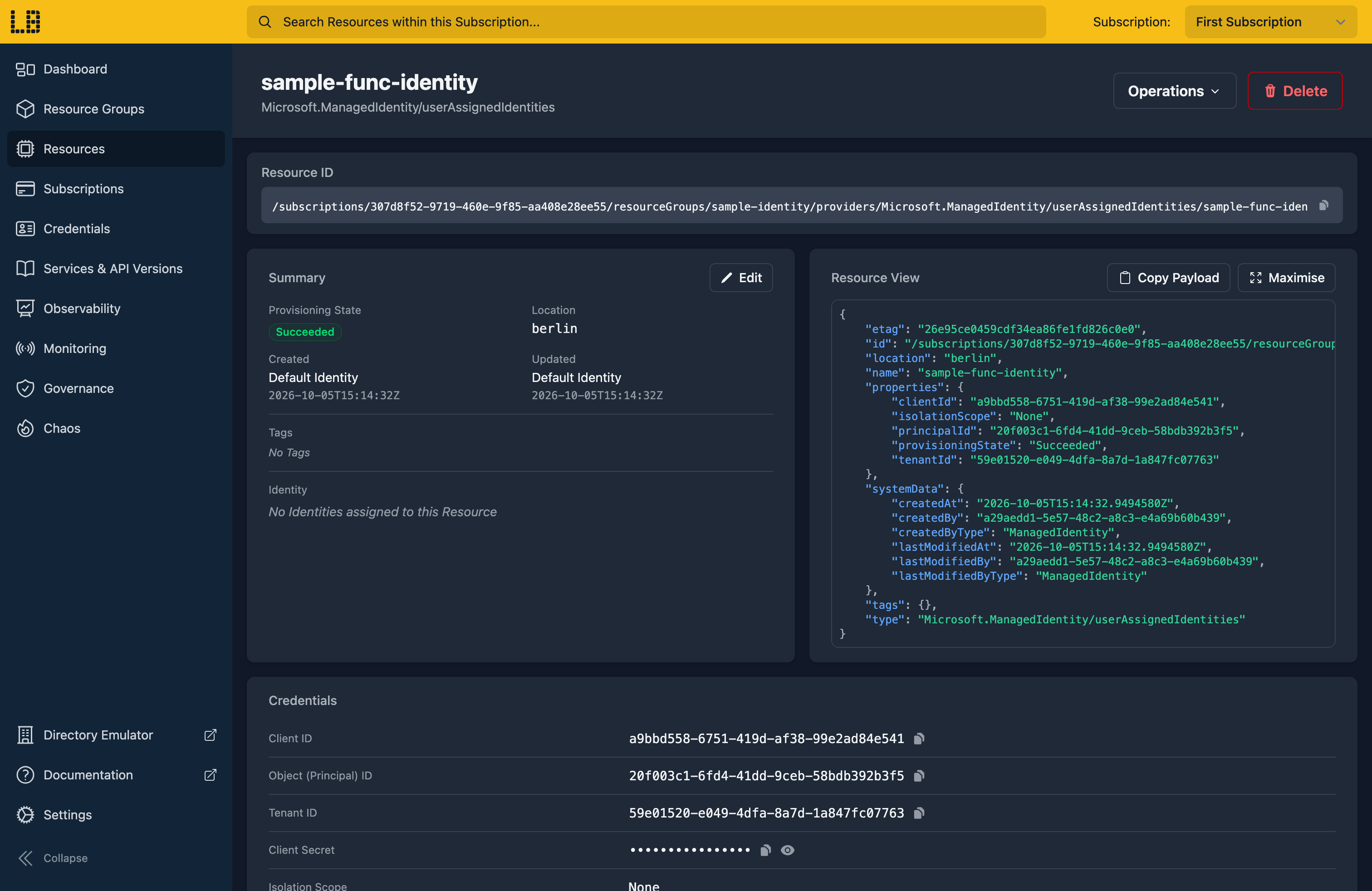
We can see the Managed Identity in the Locally Dashboard too:
4. Create a Key Vault and a secret
Next, a Key Vault that uses Azure RBAC for access, rather than access policies:
                $


            locally run az keyvault create -n sampleidkv1 -g sample-identity -l berlin --enable-rbac-authorization true
{
  "note": "some fields skipped for brevity",

  "location": "berlin",
  "name": "sampleidkv1",
  "properties": {
    "enableRbacAuthorization": true,
    "provisioningState": "Succeeded",
    "vaultUri": "https://sampleidkv1.vault.locally:5661/"
  },
  "resourceGroup": "sample-identity",
  "type": "Microsoft.KeyVault/vaults"
}
Note
And a secret for the app to read:
                $


            locally run az keyvault secret set --vault-name sampleidkv1 --name database-password --value 'correct-horse-battery-staple'
The Key Vault guide covers the vault's data plane in more detail.
5. Give the identity access to the vault
The identity can't read anything yet. Assigning it the Key Vault Secrets User role, scoped to just this vault, lets it read secret values and nothing else:
                $


            locally run az role assignment create --assignee-object-id $PRINCIPAL_ID --assignee-principal-type ServicePrincipal --role "Key Vault Secrets User" --scope $(locally run az keyvault show -n sampleidkv1 -g sample-identity --query id -o tsv)
{
  "note": "some fields skipped for brevity",

  "principalId": "6f0b6de2-55f9-4c20-a184-1428be832fd9",
  "principalType": "ServicePrincipal",
  "roleDefinitionId": "/subscriptions/307d8f52-9719-460e-9f85-aa408e28ee55/providers/Microsoft.Authorization/roleDefinitions/4633458b-17de-408a-b874-0445c86b69e6",
  "scope": "/subscriptions/307d8f52-9719-460e-9f85-aa408e28ee55/resourceGroups/sample-identity/providers/Microsoft.KeyVault/vaults/sampleidkv1",
  "type": "Microsoft.Authorization/roleAssignments"
}
6. Create a Function App that uses the identity
A Function App keeps its state in a Storage Account, so that comes first:
                $


            locally run az storage account create -g sample-identity -n sampleidfnstore1 -l berlin --sku Standard_LRS
Then the Function App itself:
                $


            locally run az functionapp create -g sample-identity -n sampleidfuncapp1 --storage-account sampleidfnstore1 --consumption-plan-location berlin --runtime node --functions-version 4
{
  "note": "some fields skipped for brevity",

  "defaultHostName": "sampleidfuncapp1.furnace.locally:5663",
  "kind": "functionapp",
  "location": "berlin",
  "name": "sampleidfuncapp1",
  "resourceGroup": "sample-identity",
  "state": "Running",
  "type": "Microsoft.Web/sites"
}
Note
Now we can assign the identity to the app:
                $


            locally run az functionapp identity assign -g sample-identity -n sampleidfuncapp1 --identities $IDENTITY_ID
{
  "note": "some fields skipped for brevity",

  "type": "UserAssigned",
  "userAssignedIdentities": {
    "/subscriptions/307d8f52-9719-460e-9f85-aa408e28ee55/resourceGroups/sample-identity/providers/Microsoft.ManagedIdentity/userAssignedIdentities/sample-func-identity": {
      "clientId": "e17ff4a6-8106-4eac-a9d7-160615f36e7c",
      "principalId": "6f0b6de2-55f9-4c20-a184-1428be832fd9"
    }
  }
}
An app can have several identities, so we also need to tell it which one to use for Key Vault references. Without this it would use a system-assigned identity, which this app doesn't have:
                $


            locally run az functionapp update -g sample-identity -n sampleidfuncapp1 --set keyVaultReferenceIdentity=$IDENTITY_ID --query keyVaultReferenceIdentity
"/subscriptions/307d8f52-9719-460e-9f85-aa408e28ee55/resourceGroups/sample-identity/providers/Microsoft.ManagedIdentity/userAssignedIdentities/sample-func-identity"7. Reference the secret from an app setting
Rather than putting the password in the app's settings, we put a Key Vault reference there instead. When the app starts, the reference is swapped for the secret's value, read as the app's identity:
                $


            locally run az functionapp config appsettings set -g sample-identity -n sampleidfuncapp1 --settings "[email protected](VaultName=sampleidkv1;SecretName=database-password)" -o none
To see it working we need a function that reads the setting. A Function App package is a zip of your project's files, so we can build a small one by hand. First the host configuration and package.json:
                $


            echo '{ "version": "2.0" }' > host.json
                $


            echo '{ "name": "sample-function", "version": "1.0.0", "main": "secret/index.js" }' > package.json
Then a function called secret, with an anonymous HTTP trigger:
                $


            mkdir -p secret
{
  "bindings": [
    { "authLevel": "anonymous", "type": "httpTrigger", "direction": "in", "name": "req", "methods": ["get"] },
    { "type": "http", "direction": "out", "name": "res" }
  ]
}
                $


            echo '{ "bindings": [ { "authLevel": "anonymous", "type": "httpTrigger", "direction": "in", "name": "req", "methods": ["get"] }, { "type": "http", "direction": "out", "name": "res" } ] }' > secret/function.json
And a handler that returns the setting, so we can see what the app was given:
module.exports = async function (context, req) {
  context.res = { body: process.env.DATABASE_PASSWORD };
};
                $


            echo 'module.exports = async function (context, req) { context.res = { body: process.env.DATABASE_PASSWORD }; };' > secret/index.js
Note
Then zip it up:
                $


            zip -qr app.zip host.json package.json secret
8. Deploy and read the secret
We can deploy the package with the Azure CLI's zip deploy:
                $


            locally run az functionapp deployment source config-zip -g sample-identity -n sampleidfuncapp1 --src app.zip
{
  "active": true,
  "complete": true,
  "id": "18fab220-d7f4-40fd-8955-162bc125626a",
  "log_url": "https://sampleidfuncapp1-scm.furnace.locally:5663/api/deployments/18fab220-d7f4-40fd-8955-162bc125626a/log",
  "received_time": "2026-10-05T09:22:46Z",
  "status": 4,
  "status_text": "",
  "url": "https://sampleidfuncapp1-scm.furnace.locally:5663/api/deployments/18fab220-d7f4-40fd-8955-162bc125626a"
}
Note
locally function deploy, since it's the path that applies the app's settings - and so resolves the Key Vault reference.And then call the function:
                $


            locally function invoke --name sampleidfuncapp1 --endpoint /api/secret
HTTP 200 OK
X-Ms-Request-Id: 6d55c0c9-4fa7-469f-b4f5-0338cbe538f7
Date: Thu, 01 Oct 2026 09:22:51 GMT
Content-Length: 28
Content-Type: text/plain; charset=utf-8
X-Ms-Correlation-Id: 56a7540c-30e6-4c39-8f0c-6c350dc49ced

correct-horse-battery-staple
That's the secret from the vault. The app never held a password or a connection string - it was given the value because its identity has the role on the vault.
To prove it's the role doing the work, we can take it away again:
                $


            locally run az role assignment delete --assignee $PRINCIPAL_ID --role "Key Vault Secrets User" --scope $(locally run az keyvault show -n sampleidkv1 -g sample-identity --query id -o tsv)
Redeploy, so the app starts up again:
                $


            locally run az functionapp deployment source config-zip -g sample-identity -n sampleidfuncapp1 --src app.zip -o none
And call it again:
                $


            locally function invoke --name sampleidfuncapp1 --endpoint /api/secret
HTTP 200 OK
X-Ms-Correlation-Id: ee9c75b4-905e-4fed-833d-d2b9bbe00a55
X-Ms-Request-Id: 4fef8c43-a2fe-4274-a429-45ddbd0cada2
Date: Thu, 01 Oct 2026 09:24:01 GMT
Content-Length: 71
Content-Type: text/plain; charset=utf-8

@Microsoft.KeyVault(VaultName=sampleidkv1;SecretName=database-password)
This time the identity isn't allowed to read the secret, so the app gets the reference itself rather than the value - which is what Azure does too.
9. Tidy up
Finally, we can tidy up. To remove the Resource Group and everything within it:
                $


            locally run az group delete -n sample-identity --yes
As in Azure, deleting a Key Vault soft-deletes it rather than removing it outright, so the name sampleidkv1 stays reserved. To free it up for next time, purge it:
                $


            locally run az keyvault purge --name sampleidkv1
There's nothing billable to clean up, since everything ran on your machine, but it's still worth checking your teardown scripts work here before you run them against Azure.
Doing this with other tooling
Whilst this guide used the Azure CLI, the same setup works through any of the tooling that Locally supports - a Microsoft.ManagedIdentity/userAssignedIdentities resource, a role assignment and a Function App with keyVaultReferenceIdentity set provision in the same way with HashiCorp Terraform or OpenTofu, Pulumi, Bicep or an ARM Template.
For more on how Function Apps run on your machine, see the Function App guide and the Function App Emulator.
Next steps
Role Assignments covers how Locally enforces the roles you give an identity. To go further with the vault, see Key Vault Keys and Certificates.
Should you encounter any issues, please take a look at the troubleshooting section.
Sign in during Public Preview to get the Team plan free, plus an early-adopter discount when we launch. Sign in
