Provisioning an Automation Account
Sign in during Public Preview to get the Team plan free, plus an early-adopter discount when we launch. Sign in
Provisioning an Automation Account
This guide shows you how to provision an Azure Automation account against Locally, then add a runbook, publish it and give it a schedule. As with the other guides we're going to use the Azure CLI, but the same resources can be provisioned with HashiCorp Terraform, Pulumi or Bicep too.
Note
Before you start
- The Azure CLI (
az) installed. Theaz automationcommands come from an extension, which the Azure CLI offers to install the first time you use them. - Locally installed, with Locally Setup completed.
1. Start Locally
Firstly, we need to launch Locally which we can do from a terminal by running:
                $


            locally build
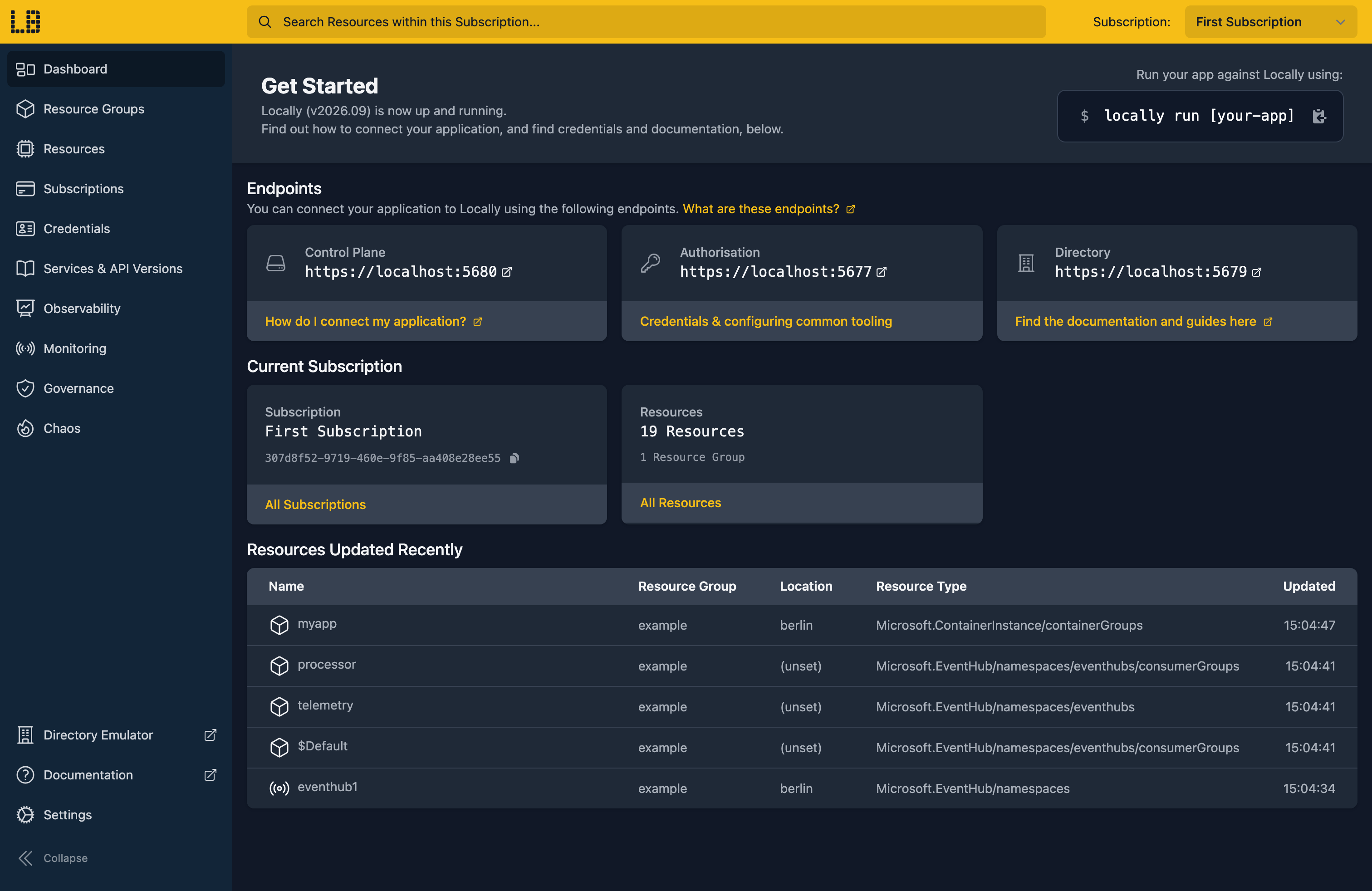
Once Locally has started, the Locally Dashboard will open automatically:
2. Create a Resource Group
Next we can create the Resource Group:
                $


            locally run az group create -n sample-resources -l berlin
There's two things to note here:
- The Azure CLI supports Automatic Configuration, meaning that it can automatically be configured to work against Locally just by prefixing commands with
locally run. - Locally intentionally uses a different set of locations to Azure as a safety precaution, so that you can be confident you're deploying against Locally rather than regular Azure. You can also configure Locally to use the Azure locations too, but you'll want to be extra sure that you're prefixing commands with
locally runwhen you do.
3. Create the Automation account
With the Resource Group in place, we can create the account:
                $


            locally run az automation account create -n sample-automation -g sample-resources -l berlin --sku Basic
{
  "note": "some fields skipped for brevity",

  "id": "/subscriptions/307d8f52-9719-460e-9f85-aa408e28ee55/resourceGroups/sample-resources/providers/Microsoft.Automation/automationAccounts/sample-automation",
  "location": "berlin",
  "name": "sample-automation",
  "sku": {
    "name": "Basic"
  },
  "state": "Ok",
  "type": "Microsoft.Automation/automationAccounts"
}
The Azure CLI warns that the az automation commands are experimental. That warning comes from the Azure CLI itself, and you'll see it against Azure too.
4. Add a runbook
First we'll write a small PowerShell script to use as the runbook:
                $


            printf 'Write-Output "Hello from Locally"\n' > hello.ps1
Which gives us a hello.ps1 containing:
Write-Output "Hello from Locally"Then create the runbook in the account:
                $


            locally run az automation runbook create --automation-account-name sample-automation -g sample-resources -n hello --type PowerShell -l berlin --query "{name:name, type:runbookType, state:state}"
{
  "name": "hello",
  "state": "New",
  "type": "PowerShell"
}
A new runbook is empty, so next we upload the script as its draft. The Azure CLI has az automation runbook replace-content for this, but it currently fails with name 'response' is not defined - against Azure as well as Locally - so we'll call the API directly with az rest:
                $


            locally run az rest --method put --url "/subscriptions/{subscriptionId}/resourceGroups/sample-resources/providers/Microsoft.Automation/automationAccounts/sample-automation/runbooks/hello/draft/content?api-version=2023-11-01" --headers Content-Type=text/powershell --body @hello.ps1
az rest fills in {subscriptionId} for us. Now we can publish the draft:
                $


            locally run az automation runbook publish --automation-account-name sample-automation -g sample-resources -n hello
And check it's been published:
                $


            locally run az automation runbook show --automation-account-name sample-automation -g sample-resources -n hello --query "{name:name, type:runbookType, state:state}"
{
  "name": "hello",
  "state": "Published",
  "type": "PowerShell"
}
The published content is our script:
                $


            locally run az rest --method get --url "/subscriptions/{subscriptionId}/resourceGroups/sample-resources/providers/Microsoft.Automation/automationAccounts/sample-automation/runbooks/hello/content?api-version=2023-11-01"
Write-Output "Hello from Locally"5. Add a schedule
Runbooks usually run on a schedule, so let's create a daily one:
                $


            locally run az automation schedule create --automation-account-name sample-automation -g sample-resources -n nightly --frequency Day --interval 1 --start-time 2030-01-01T02:00:00+00:00 --time-zone UTC --query "{name:name, frequency:frequency, interval:interval, nextRun:nextRun, enabled:isEnabled}"
{
  "enabled": true,
  "frequency": "Day",
  "interval": 1,
  "name": "nightly",
  "nextRun": "2030-01-01T02:00:00+00:00"
}
6. Start the runbook
We can start the runbook, which creates a job:
                $


            locally run az automation runbook start --automation-account-name sample-automation -g sample-resources -n hello --query "{runbook:runbook.name, status:status, exception:exception}"
{
  "exception": "Locally does not execute runbooks, so this job was recorded but the runbook did not run.",
  "runbook": "hello",
  "status": "Failed"
}
As mentioned at the start, Locally doesn't run runbooks yet, so the job fails and says so rather than pretending to succeed. The job is still recorded:
                $


            locally run az automation job list --automation-account-name sample-automation -g sample-resources --query "[].{Runbook:runbook.name, Status:status}" -o table
Runbook    Status
---------  --------
hello      Failed
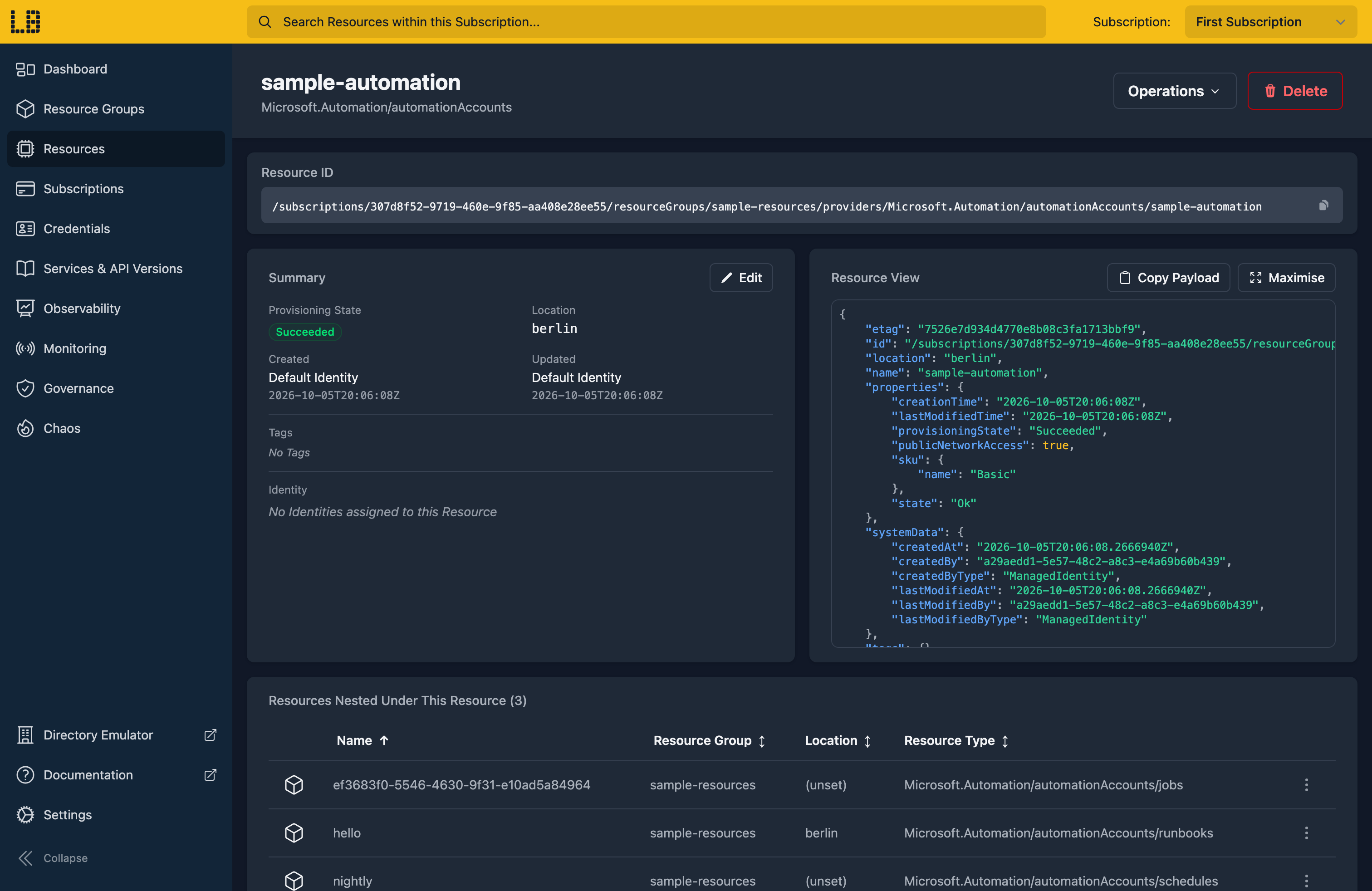
We can see the Automation account in the Locally Dashboard too:
Doing this with other tooling
Whilst this guide used the Azure CLI, Automation works the same way through any of the tooling that Locally supports - Microsoft.Automation/automationAccounts and its runbooks and schedules in HashiCorp Terraform or OpenTofu, Pulumi, Bicep or an ARM Template all provision against Locally in the same way, with only the location changed.
Next steps
Since runbooks don't run in Locally yet, a Function App with a timer trigger is the way to run scheduled code today - the Function App Emulator shows each invocation.
Should you encounter any issues, please take a look at the troubleshooting section.
Sign in during Public Preview to get the Team plan free, plus an early-adopter discount when we launch. Sign in
