During Public Preview you can use the Team plan for free, and get an early-adopter discount at GA. Sign in
Deploying an Availability Test
This guide shows you how to deploy an Availability Test against Locally and link it to an Application Insights component. As with the other guides we're going to use the Azure CLI, but the same resources can be provisioned with HashiCorp Terraform, Pulumi or Bicep too.
This covers the control plane only. Locally stores the test and its settings, but doesn't run it yet, so no availability results are recorded.
Before you start
- The Azure CLI (
az) installed. - Locally installed, with Locally Setup completed.
1. Start Locally
Firstly, we need to launch Locally which we can do from a terminal by running:
                $


            locally build
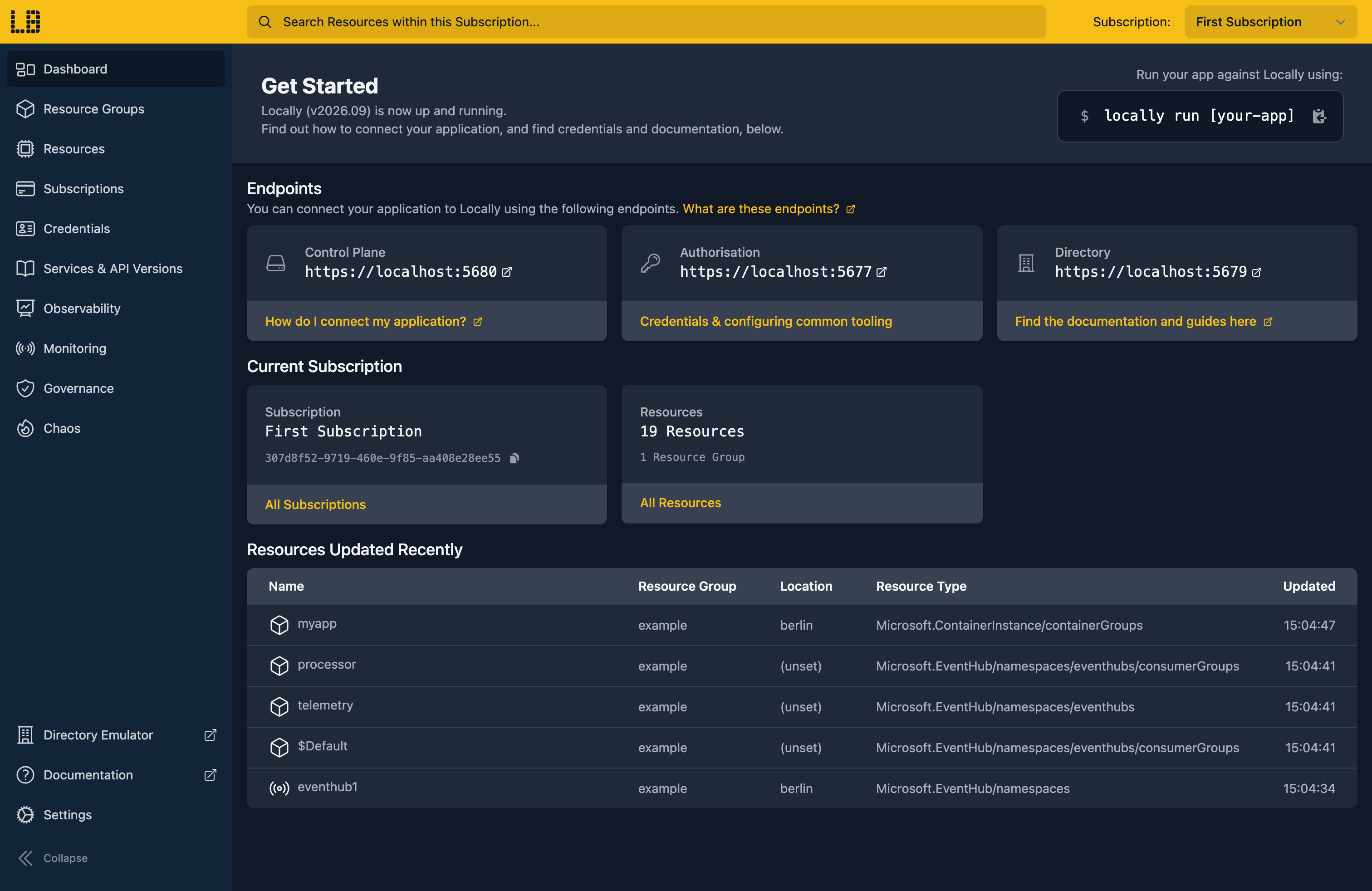
Once Locally has started, the Locally Dashboard will open automatically:
2. Create a Resource Group
Next we can create the Resource Group:
                $


            locally run az group create -n sample-webtest -l berlin
There's two things to note here:
- The Azure CLI supports Automatic Configuration, meaning that it can automatically be configured to work against Locally just by prefixing commands with
locally run. - Locally intentionally uses a different set of locations to Azure as a safety precaution, so that you can be confident you're deploying against Locally rather than regular Azure. You can also configure Locally to use the Azure locations too, but you'll want to be extra sure that you're prefixing commands with
locally runwhen you do.
3. Create an Application Insights component
An Availability Test reports its results to an Application Insights component, so we'll create one of those first:
                $


            locally run az monitor app-insights component create -g sample-webtest -a samplewebtest1 -l berlin --application-type web --query "{name:name, appId:appId, state:provisioningState}"
{
  "appId": "36d23c5d-5a53-46f8-8df8-20b13bedcffe",
  "name": "samplewebtest1",
  "state": "Succeeded"
}
4. Deploy the Availability Test
We'll deploy a standard test from an ARM template. Save this as webtest.json:
{
  "$schema": "https://schema.management.azure.com/schemas/2019-04-01/deploymentTemplate.json#",
  "contentVersion": "1.0.0.0",
  "parameters": {
    "componentName": { "type": "string" },
    "url": { "type": "string" },
    "enabled": { "type": "bool", "defaultValue": true }
  },
  "resources": [
    {
      "type": "Microsoft.Insights/webtests",
      "apiVersion": "2022-06-15",
      "name": "[concat('homepage-', parameters('componentName'))]",
      "location": "[resourceGroup().location]",
      "kind": "standard",
      "tags": {
        "[concat('hidden-link:', resourceId('Microsoft.Insights/components', parameters('componentName')))]": "Resource"
      },
      "properties": {
        "SyntheticMonitorId": "[concat('homepage-', parameters('componentName'))]",
        "Name": "Homepage",
        "Kind": "standard",
        "Enabled": "[parameters('enabled')]",
        "Frequency": 300,
        "Timeout": 30,
        "RetryEnabled": true,
        "Locations": [
          { "Id": "emea-nl-ams-azr" },
          { "Id": "us-va-ash-azr" }
        ],
        "Request": {
          "RequestUrl": "[parameters('url')]",
          "HttpVerb": "GET"
        },
        "ValidationRules": {
          "ExpectedHttpStatusCode": 200,
          "SSLCheck": true,
          "SSLCertRemainingLifetimeCheck": 7
        }
      }
    }
  ]
}
The hidden-link tag is what ties the test to the component, and the template builds it from the component's resource ID. Then deploy it:
                $


            locally run az deployment group create -g sample-webtest -n homepage-test --template-file webtest.json --parameters componentName=samplewebtest1 url=https://www.example.com --query properties.provisioningState -o tsv
SucceededNote
az monitor app-insights web-test create and update commands don't work against Locally yet: create records a standard test as a URL ping test, and update uses an API version Locally doesn't support. We will fix this in a future release. show, list and delete work as normal.5. Read the test back
The test's name comes from the component's, so we can read it back with:
                $


            locally run az monitor app-insights web-test show -g sample-webtest -n homepage-samplewebtest1 --query "{name:name, kind:webTestKind, enabled:enabled, frequency:frequency, url:request.requestUrl, locations:locations[].location, component:keys(tags)[0]}"
{
  "component": "hidden-link:/subscriptions/0f766306-391f-4f66-b9ee-927fb2db629c/resourceGroups/sample-webtest/providers/Microsoft.Insights/components/samplewebtest1",
  "enabled": true,
  "frequency": 300,
  "kind": "standard",
  "locations": [
    "emea-nl-ams-azr",
    "us-va-ash-azr"
  ],
  "name": "homepage-samplewebtest1",
  "url": "https://www.example.com"
}
Note
www.example.com from the test locations, so nothing turns up in the component's availability results.6. Disable the test
To pause the test, deploy the template again with enabled set to false:
                $


            locally run az deployment group create -g sample-webtest -n homepage-test --template-file webtest.json --parameters componentName=samplewebtest1 url=https://www.example.com enabled=false --query properties.provisioningState -o tsv
SucceededListing the tests in the Resource Group shows it's now disabled:
                $


            locally run az monitor app-insights web-test list -g sample-webtest --query "[].{Name:name, Kind:webTestKind, Enabled:enabled, Frequency:frequency}" -o table
Name                     Kind      Enabled    Frequency
-----------------------  --------  ---------  -----------
homepage-samplewebtest1  standard  False      300
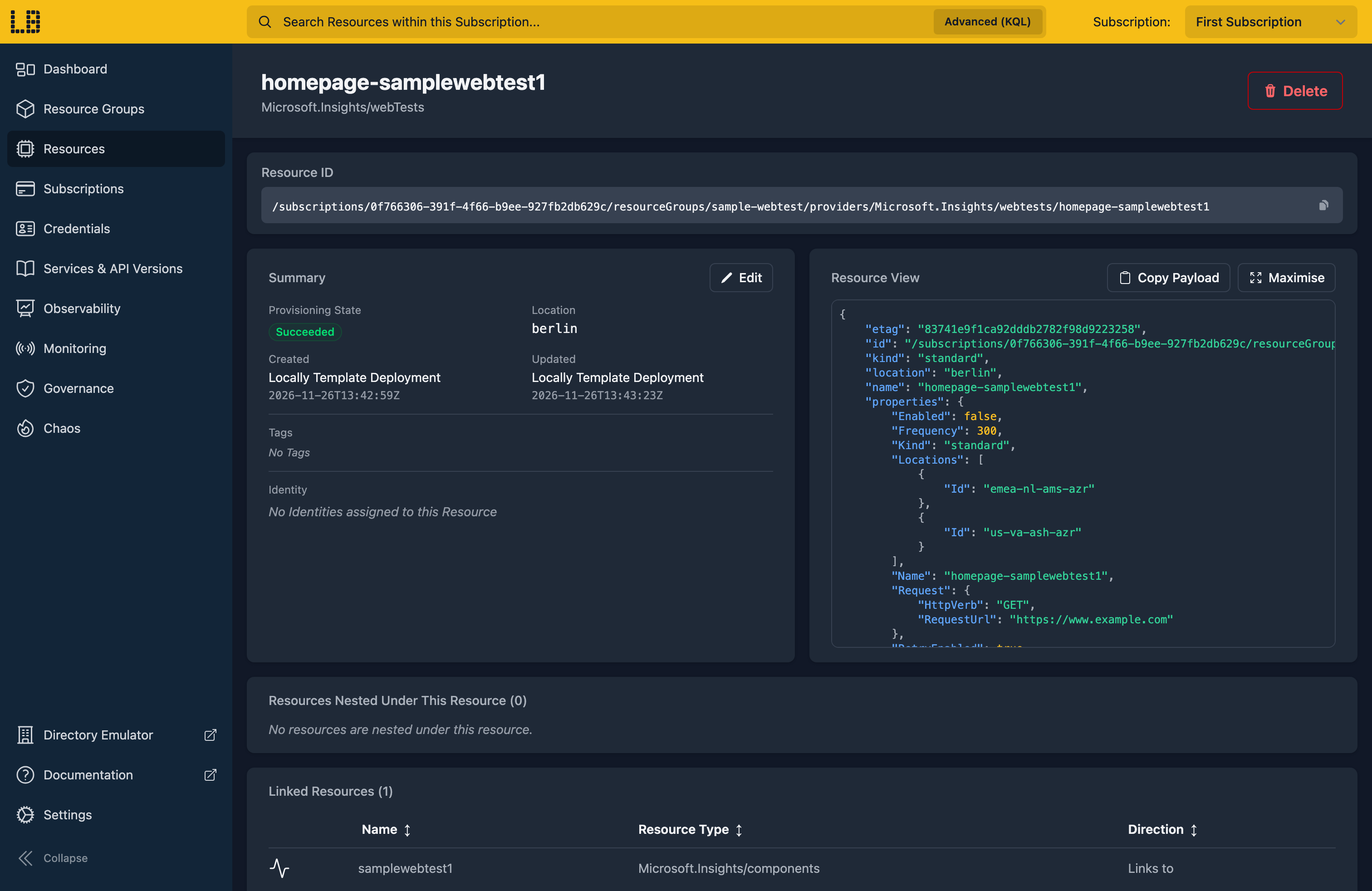
We can see the test in the Locally Dashboard too, along with the component it links to:
Doing this with other tooling
Whilst this guide used the Azure CLI, Availability Tests work the same way through any of the tooling that Locally supports - a Microsoft.Insights/webTests resource in HashiCorp Terraform or OpenTofu, Pulumi, Bicep or an ARM Template all provision against Locally in the same way, with only the location changed.
Next steps
To send telemetry to the component yourself, see Application Insights. To be told when something goes wrong, see Alerts.
Should you encounter any issues, please take a look at the troubleshooting section, reach out in our Discord or open an issue and we'll take a look.
Resource types this guide uses
These are the Azure resource types this guide creates in Locally:
During Public Preview you can use the Team plan for free, and get an early-adopter discount at GA. Sign in
