During Public Preview you can use the Team plan for free, and get an early-adopter discount at GA. Sign in
Provisioning a Function App
This guide shows you how to provision a Function App against Locally, deploy a function into it and call it. As with the other guides we're going to use the Azure CLI, but the same resources can be provisioned with HashiCorp Terraform, Pulumi or Bicep too.
Before you start
- The Azure CLI (
az) installed. - Locally installed, with Locally Setup completed.
- Docker or Podman installed and running, since Locally runs the function worker on your own machine.
Storage is needed because every Function App keeps its state in a Storage Account.
1. Start Locally
Firstly, we need to launch Locally which we can do from a terminal by running:
                $


            locally build
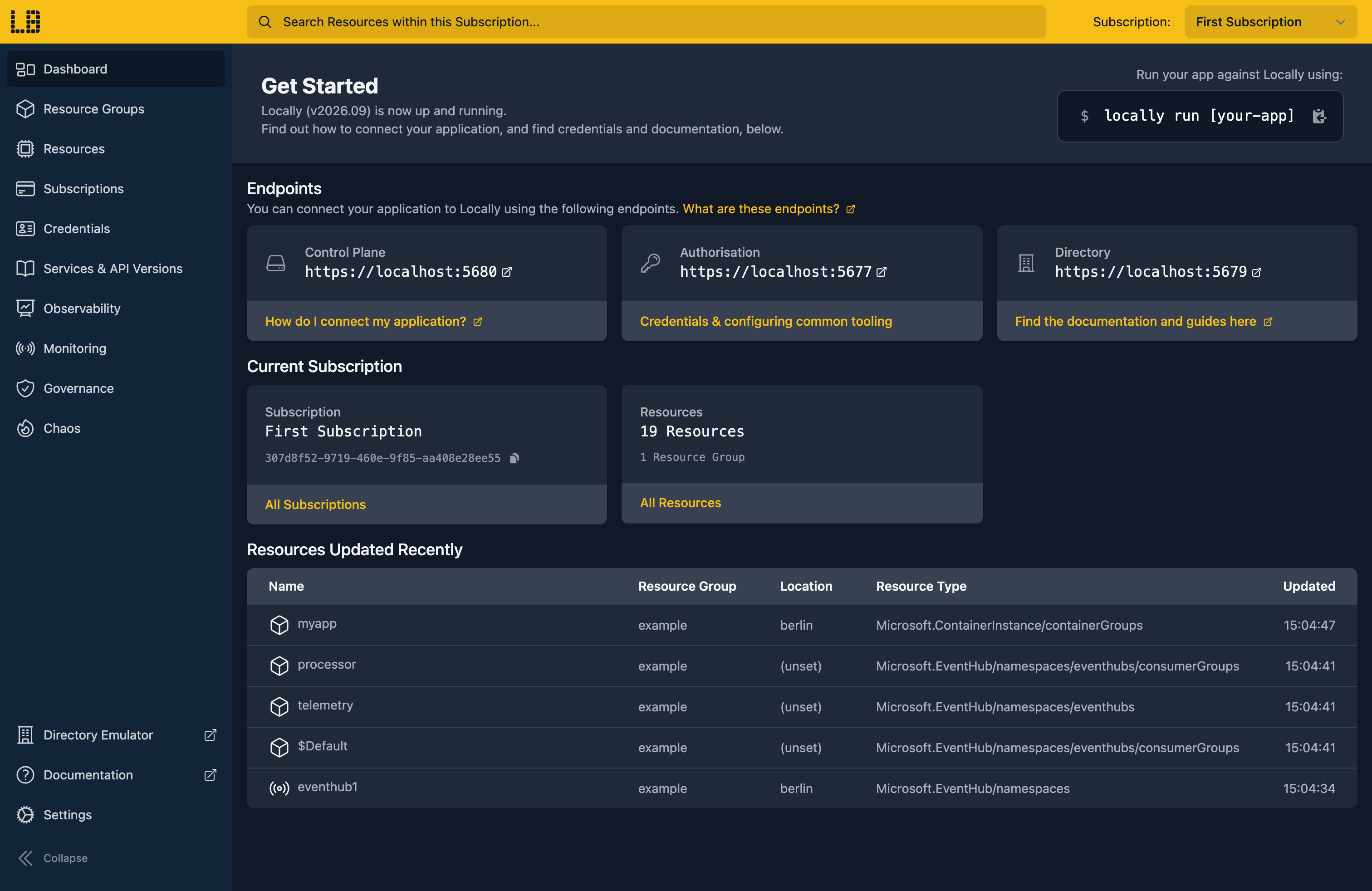
Once Locally has started, the Locally Dashboard will open automatically:
2. Create a Resource Group
Next we can create the Resource Group:
                $


            locally run az group create -n sample-resources -l berlin
There's two things to note here:
- The Azure CLI supports Automatic Configuration, meaning that it can automatically be configured to work against Locally just by prefixing commands with
locally run. - Locally intentionally uses a different set of locations to Azure as a safety precaution, so that you can be confident you're deploying against Locally rather than regular Azure. You can also configure Locally to use the Azure locations too, but you'll want to be extra sure that you're prefixing commands with
locally runwhen you do.
3. Create the Storage Account and Function App
A Function App keeps its state - trigger leases, timer schedules, the deployed package itself - in a Storage Account, so that comes first:
                $


            locally run az storage account create -g sample-resources -n samplefnstore1 -l berlin --sku Standard_LRS
Note
Now the Function App itself:
                $


            locally run az functionapp create -g sample-resources -n samplefuncapp1 --storage-account samplefnstore1 --consumption-plan-location berlin --runtime node --functions-version 4
{
  "note": "some fields skipped for brevity",

  "defaultHostName": "samplefuncapp1.furnace.locally:5663",
  "kind": "functionapp",
  "location": "berlin",
  "name": "samplefuncapp1",
  "resourceGroup": "sample-resources",
  "state": "Running",
  "type": "Microsoft.Web/sites"
}
That furnace.locally hostname is served by Locally's own DNS server and points at the Function App Emulator running on your machine.
4. Build a function package
With somewhere to deploy to, we need something to deploy. A Function App package is a zip of the files you'd have in your project, so we can build the smallest useful one by hand.
The host configuration:
                $


            echo '{ "version": "2.0" }' > host.json
A package.json, which is what tells the Functions host this is a Node app:
                $


            echo '{ "name": "sample-function", "version": "1.0.0", "main": "hello/index.js" }' > package.json
Then the function itself. Each function is a directory with a function.json describing its triggers and bindings, and the code they call:
                $


            mkdir -p hello
The function.json declares an anonymous HTTP trigger and an HTTP response:
{
  "bindings": [
    { "authLevel": "anonymous", "type": "httpTrigger", "direction": "in", "name": "req", "methods": ["get"] },
    { "type": "http", "direction": "out", "name": "res" }
  ]
}
                $


            echo '{ "bindings": [ { "authLevel": "anonymous", "type": "httpTrigger", "direction": "in", "name": "req", "methods": ["get"] }, { "type": "http", "direction": "out", "name": "res" } ] }' > hello/function.json
And the handler it points at:
module.exports = async function (context, req) {
  context.res = { body: "hello from Locally" };
};
                $


            echo 'module.exports = async function (context, req) { context.res = { body: "hello from Locally" }; };' > hello/index.js
authLevel: anonymous keeps this guide to one moving part. Functions default to requiring a key, and Locally enforces those keys too, so an authenticated function can be tested the same way.
Then zip it, which is the artefact Azure's own zip deploy expects:
                $


            zip -qr app.zip host.json package.json hello
5. Deploy the package
Locally can deploy the package for you:
                $


            locally function deploy --name samplefuncapp1 app.zip
Deploying app.zip to function app "samplefuncapp1"...
Deployment 81ebc763-7a60-492a-8084-55276d9f689a accepted. Waiting for worker to start...
Deployed. Dashboard: https://samplefuncapp1.furnace.locally:5663/_ui/
Note
locally function is part of Locally itself rather than a tool being configured, so it doesn't take the locally run prefix. Every az command does.Environment variables the function needs can go alongside it, which saves a round-trip through app settings while you're iterating:
                $


            locally function deploy --name samplefuncapp1 --env GREETING=hello app.zip
6. Invoke the function
And then we can call it:
                $


            locally function invoke --name samplefuncapp1 --endpoint /api/hello
hello from LocallyThat's your code, running in a real Functions worker on your machine, reached through the same host name and route it would have in Azure.
Note
function.json in the wrong place.7. List the Function Apps
To see the Function Apps in the Resource Group:
                $


            locally run az functionapp list -g sample-resources --query "[].{Name:name, State:state, Host:defaultHostName}" -o table
Name             State    Host
---------------  -------  ----------------------------------
samplefuncapp1   Running  samplefuncapp1.furnace.locally:5663
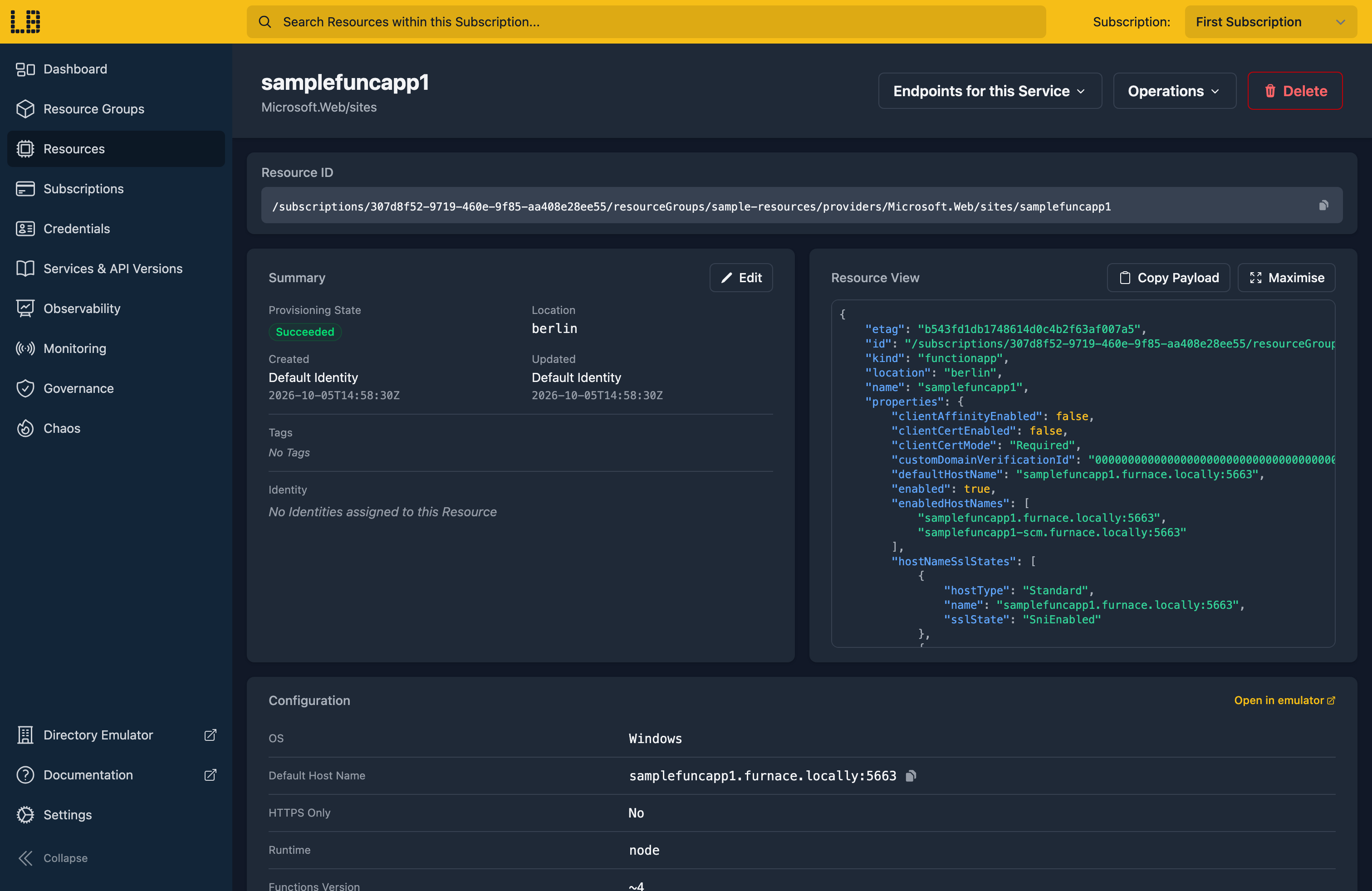
We can see the Function App in the Locally Dashboard too:
Doing this with other tooling
Whilst this guide used the Azure CLI, Function Apps work the same way through any of the tooling that Locally supports - a Microsoft.Web/sites resource in HashiCorp Terraform or OpenTofu, Pulumi, Bicep or an ARM Template all provision against Locally in the same way, with only the location changed.
Deployment works the same way too: az functionapp deployment source config-zip and the Azure Functions Core Tools both target Locally's Functions host unchanged, and locally function deploy above is a shortcut rather than a different mechanism.
Next steps
The Function App Emulator shows every invocation with its trigger payload. To read secrets without credentials in the app, see Managed Identity.
Should you encounter any issues, please take a look at the troubleshooting section, reach out in our Discord or open an issue and we'll take a look.
Resource types this guide uses
These are the Azure resource types this guide creates in Locally:
- Microsoft.Web/sites
During Public Preview you can use the Team plan for free, and get an early-adopter discount at GA. Sign in
