During Public Preview you can use the Team plan for free, and get an early-adopter discount at GA. Sign in
Using Locally with Azure DevOps
Locally can be used in Azure Pipelines to test your changes in pull requests. We recommend using the Locally extension for Azure DevOps, which adds five tasks to your pipelines:
SetupLocally- installs and starts Locally.InstallLocallyPlugins- installs plugins later in a job.TeardownLocally- stops Locally at the end of a job.SaveLocallySnapshot- saves everything in Locally as a snapshot.LoadLocallySnapshot- replaces everything in Locally with a snapshot.
Locally authenticates using the OIDC token that Azure DevOps issues for a service connection, so you don't need to store any secrets in your pipeline. To set this up:
- Install the Locally extension into your Azure DevOps Organisation.
- Create (or pick) an Azure Resource Manager service connection that uses Workload Identity Federation, under Project settings -> Service connections, and give your pipeline permission to use it. Locally never uses it to talk to Azure - Azure DevOps only uses it to issue the token.
- Add an OIDC Trust for that service connection in your Locally Account.
- Pass the service connection to the task using the
serviceConnectioninput, and your Team's UUID using theteamUUIDinput (oruserUUID, if your OIDC Trust belongs to your User).
Heads up
Adding an OIDC Trust
An OIDC Trust tells Locally which service connection can sign in. It can belong to your User, or to a Team - in which case Locally uses your Team's Runbooks too. To add one:
- In your Locally Account, open Account -> Personal CI (OIDC) for yourself, or Teams -> [name] -> Team CI (OIDC) for a Team.
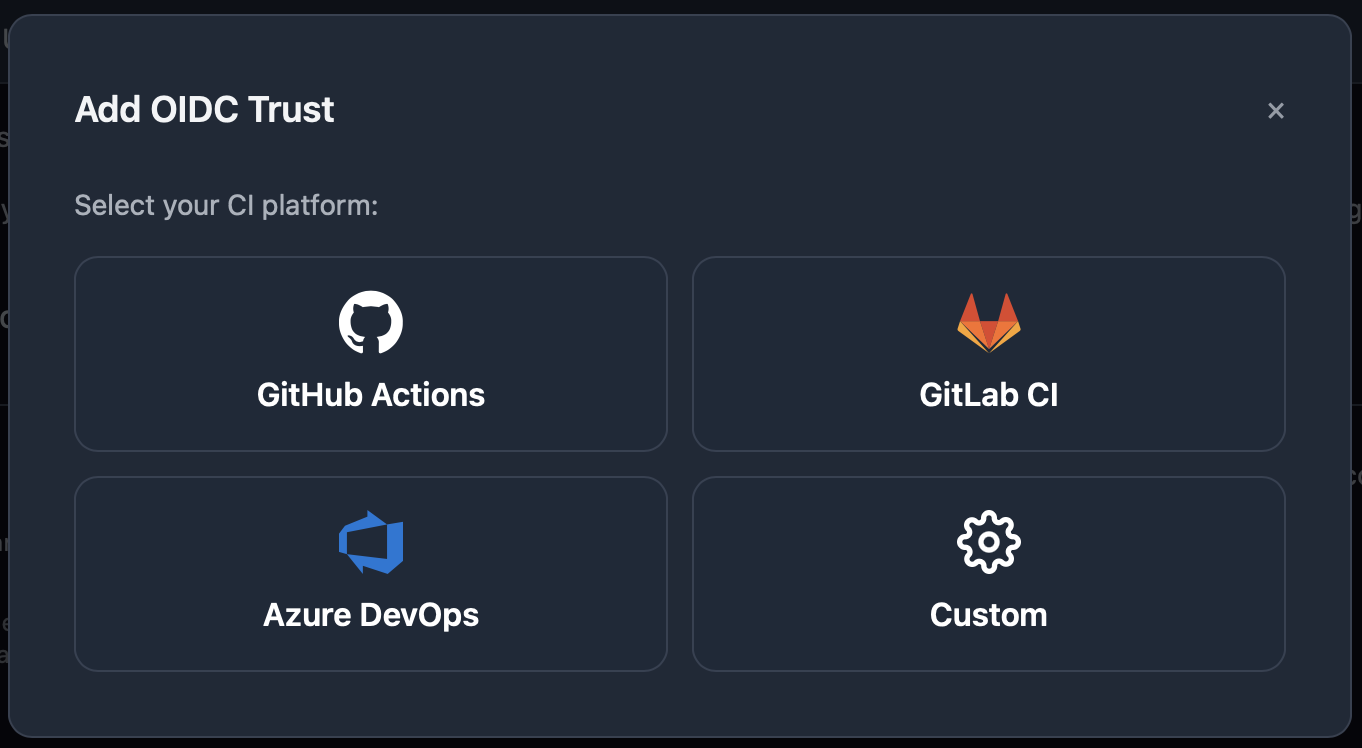
- Click Add Trust, then choose Azure DevOps.
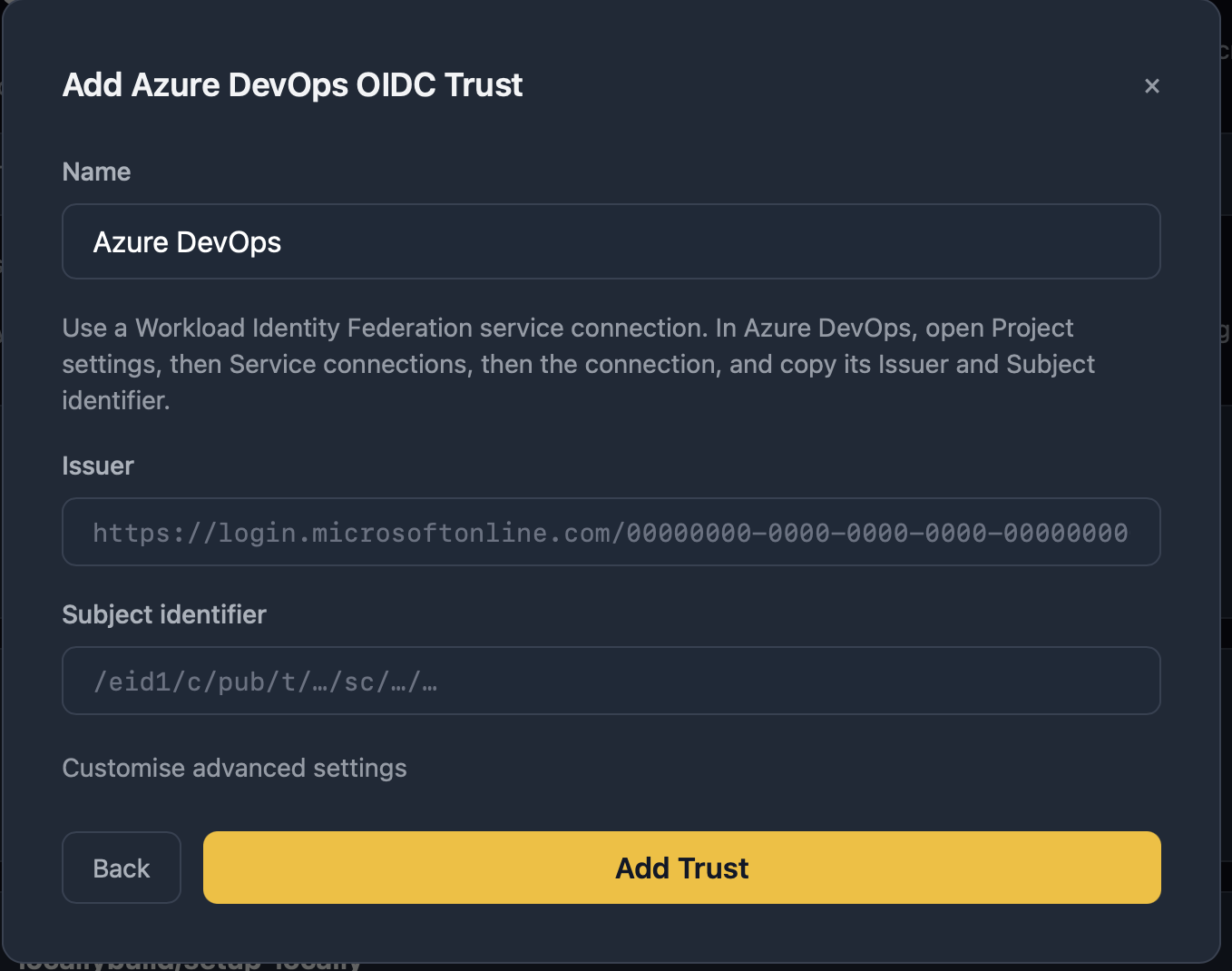
- Give the trust a Name, such as the name of the service connection.
- In Azure DevOps, open Project settings -> Service connections, then the service connection, and copy its Issuer and Subject identifier into the matching fields.
- Click Add Trust.
Note
The User ID or Team ID shown at the top of the page is what you pass to the task as userUUID or teamUUID. Each trust also has a Copy config button, which copies an example configuration you can paste into your pipeline.
Example Pipeline
trigger: none

pr:
  - main

pool:
  vmImage: ubuntu-latest

steps:
  # This example doesn't use anything from the repository,
  # which Azure Pipelines checks out for you by default.

  - task: SetupLocally@1
    displayName: Set up Locally
    inputs:
      # Azure DevOps issues the OIDC token that Locally
      # signs in with for this service connection.
      serviceConnection: my-service-connection
      teamUUID: $(LOCALLY_TEAM_UUID)
      # Installs the recommended plugins by default,
      # which include Microsoft.Storage.

  - script: locally run az group create -n example -l berlin
    displayName: Create a Resource Group using the Azure CLI

  - script: locally run az group list
    displayName: List the Resource Groups using the Azure CLI

  - script: |
      locally run az storage account create \
        -n account1 -g example -l berlin --sku Standard_LRS
    displayName: Create a Storage Account using the Azure CLI

  - script: |
      locally storage container create \
        --account account1 --name mydata
    displayName: Create a Container within that Storage Account

  - task: TeardownLocally@1
    displayName: Tear down Locally
    condition: always()
Task: Setting up Locally
The SetupLocally@1 task installs the Locally CLI and the recommended plugins, signs in and then starts Locally - as such it needs to run before any step which uses locally run (see How it works below).
- task: SetupLocally@1
  inputs:
    # Azure DevOps issues the OIDC token that Locally
    # signs in with for this service connection.
    serviceConnection: my-service-connection
teamUUID: $(LOCALLY_TEAM_UUID)| Input | Default | What it does |
|---|---|---|
| authentication | serviceConnection | How Locally signs in: serviceConnection (OIDC) or ciKey. |
| serviceConnection | The name (or ID) of the service connection to sign in with, which is required unless you're using a CI Key. This has to be known when the pipeline's compiled - as such a literal value or a ${{ parameters.x }} works, but a $(variable) doesn't. | |
| teamUUID / userUUID | The Team or User that the OIDC Trust belongs to. Set exactly one with a service connection, and neither with a CI Key. | |
| ciKey | A CI Key, passed in from a secret variable. | |
| version | latest | The version of the Locally CLI to install, such as v2026.11. |
| plugins | recommended | The plugin set to install: none, recommended, all or custom (see Installing Plugins). |
| pluginsList | The plugins to install with plugins: custom, one per line or comma-separated. | |
| start | true | Set to false to install the CLI without starting Locally. |
| configureDNS | true | Points the agent's DNS at Locally, so that *.locally addresses resolve. Needs passwordless sudo on Linux and macOS agents. |
| containerRuntime | auto | The container runtime Locally uses: auto, docker or podman. |
| acceptSqlServerLicence | false | Set to true to accept the Microsoft SQL Server licence. |
| expectedChecksum | A SHA-256 to verify the CLI download against, instead of the published checksum. |
Using a CI Key
Azure DevOps Server can't issue OIDC tokens, and a service connection isn't always an option. For those, the task can sign in with a CI Key instead. Store it as a secret variable in your pipeline, and pass it in:
- task: SetupLocally@1
  inputs:
    authentication: ciKey
    # A secret variable in the pipeline (or a variable group).
    ciKey: $(LOCALLY_CI_KEY)
Heads up
Caching plugins
Azure Pipelines tasks can't cache anything themselves, so to avoid downloading plugins on every run, add the Cache@2 task before SetupLocally, with the Locally version and plugin set in the key:
- task: Cache@2
  inputs:
    key: 'locally-plugins | "$(Agent.OS)" | "$(Agent.OSArchitecture)" | v2026.11 | recommended'
    path: $(Agent.TempDirectory)/locally-plugins

- task: SetupLocally@1
  inputs:
    serviceConnection: my-service-connection
    teamUUID: $(LOCALLY_TEAM_UUID)
    version: v2026.11
Task: Installing Plugins
The InstallLocallyPlugins@1 task installs plugins once Locally's already running (reusing the sign-in from SetupLocally) - which is useful when a later part of the job needs plugins that the earlier steps didn't. To install the recommended set of plugins:
- task: InstallLocallyPlugins@1
  inputs:
    plugins: recommended
Or to install every available plugin:
- task: InstallLocallyPlugins@1
  inputs:
    plugins: all
Alternatively you can install a specific list of plugins using plugins: custom, which'll be quicker than installing everything:
- task: InstallLocallyPlugins@1
  inputs:
    plugins: custom
    pluginsList: |
      Microsoft.KeyVault
      Microsoft.ServiceBus
      Microsoft.Storage
The SetupLocally task takes the same plugins and pluginsList inputs - so if you know up-front which plugins the whole job needs, you can specify them there rather than using this task:
- task: SetupLocally@1
  inputs:
    serviceConnection: my-service-connection
    teamUUID: $(LOCALLY_TEAM_UUID)
    plugins: custom
    pluginsList: |
      Microsoft.ServiceBus
Microsoft.Storage| Input | Default | What it does |
|---|---|---|
| plugins | none | The plugin set to install: none, recommended, all or custom. Whilst SetupLocally defaults to recommended, this task won't install anything unless this is set. |
| pluginsList | The plugins to install with plugins: custom, one per line or comma-separated. | |
| acceptSqlServerLicence | false | Set to true to accept the Microsoft SQL Server licence, if SetupLocally didn't. |
| authentication | inherit | Reuses the sign-in from SetupLocally. Only set serviceConnection or ciKey (with the matching inputs from that task) if it ran with start: false. |
Task: Tearing down Locally
The TeardownLocally@1 task should be the last step in any job which uses SetupLocally - it stops Locally, puts the agent's DNS back and (if the job's failed) uploads ci.log as a pipeline artifact for debugging. We'd recommend setting condition: always() so that this runs even when an earlier step fails:
- task: TeardownLocally@1
  displayName: Tear down Locally
  condition: always()
Note
*.locally to Locally's DNS port after Locally's been stopped.| Input | Default | What it does |
|---|---|---|
| uploadLogsOnFailure | true | Uploads ci.log when the job has failed, as an artifact named locally-ci-log-<job name>-<job attempt>. |
Task: Saving a Snapshot
The SaveLocallySnapshot@1 task saves all of the resources and data in Locally as a Locally Snapshot (which requires the Standard plan or above) - which can be used as a checkpoint to go back to later in the job, or to hand a deployed environment to another pipeline or someone on your team. This needs to run after SetupLocally, since it reuses its sign-in.
- task: SaveLocallySnapshot@1
  inputs:
    name: before
By default the snapshot's only saved on the agent - as such to use it outside of this job you can upload it as a pipeline artifact, like so:
- task: SaveLocallySnapshot@1
  inputs:
    name: deployed
    description: The staging environment, after terraform apply
    upload: artifact
    # A secret variable in the pipeline (or a variable group).
    passphrase: $(LOCALLY_SNAPSHOT_PASSPHRASE)
Heads up
passphrase before uploading or sharing one.| Input | Default | What it does |
|---|---|---|
| name | Required. The name to save the snapshot under: letters, digits, ., _ and -. | |
| description | One line on what the snapshot holds and why it was taken. | |
| passphrase | Encrypts the snapshot with this passphrase, passed in from a secret variable. | |
| upload | none | Where the snapshot goes once it's saved: none keeps it on the agent, artifact uploads a pipeline artifact, and team shares it with your Locally Team, which needs the Team plan. artifact, team does both. |
| artifactName | locally-snapshot-<name> | The artifact's name. Artifact names are unique within a run, so give each job's snapshot a different one. |
| team | The Locally Team to share with. Only needed if you're in more than one. | |
| timeout | How long to wait for running operations to finish, such as 5m. Waits until they're done by default. |
To use the snapshotName, snapshotPath and artifactName output variables in later steps you'll need to give the step a name - e.g. $(save.snapshotPath).
Task: Loading a Snapshot
The LoadLocallySnapshot@1 task replaces everything in Locally with a snapshot - which is useful for starting a job from an environment that's already been deployed, or for putting Locally back as it was between two sets of tests, like so:
- task: SaveLocallySnapshot@1
  inputs:
    name: before

- script: locally run terraform apply -auto-approve
  displayName: Terraform Apply against Locally

# Puts Locally back as it was before the apply.
- task: LoadLocallySnapshot@1
  inputs:
    snapshot: before
Any plugins which the snapshot needs (and aren't already installed) are installed first - and if the snapshot can't be loaded in full, then Locally's left as it was.
To load a snapshot which another pipeline has uploaded as an artifact, you'll first need to download it using DownloadPipelineArtifact@2 - and then pass the folder that it's been downloaded to as snapshot:
- task: DownloadPipelineArtifact@2
  inputs:
    buildType: specific
    project: $(System.TeamProject)
    definition: <pipeline ID>
    buildVersionToDownload: latestFromBranch
    branchName: refs/heads/main
    artifactName: locally-snapshot-deployed
    targetPath: $(Pipeline.Workspace)/locally-snapshot

- task: LoadLocallySnapshot@1
  inputs:
    # The folder holding the downloaded .locallysnap file.
    snapshot: $(Pipeline.Workspace)/locally-snapshot
    passphrase: $(LOCALLY_SNAPSHOT_PASSPHRASE)
If you're on the Team plan, you can also load a snapshot that's been shared with your Locally Team using source: team:
- task: LoadLocallySnapshot@1
  inputs:
    snapshot: shared-baseline
    source: team
passphrase: $(LOCALLY_SNAPSHOT_PASSPHRASE)| Input | Default | What it does |
|---|---|---|
| snapshot | Required. With source: local, a snapshot's name, the path of a .locallysnap file, or a folder holding exactly one. With source: team, the name of a shared snapshot. | |
| source | local | Where the snapshot comes from: local (on the agent) or team. |
| team | The Locally Team to load from. Only needed if you're in more than one. | |
| passphrase | The snapshot's passphrase, if it's encrypted, passed in from a secret variable. | |
| timeout | How long to wait for running operations to finish, such as 5m. Waits until they're done by default. |
How it works
When the SetupLocally task runs, it:
- Downloads and verifies the Locally CLI (against either an explicit
expectedChecksumor the published archive checksum), and adds it to thePATH. - Generates short-lived TLS material and sets the
LOCALLY_TLS_*andLOCALLY_WORKING_DIRECTORYvariables for subsequent steps. - Requests an OIDC token from Azure DevOps for your service connection. The token is only passed to Locally - it's never set as a pipeline variable.
- Installs the requested plugin set.
- Starts
locally ciin the background, which exchanges the token with the Locally API against your configured OIDC trust, and waits until the local endpoints are ready. - Points the agent's DNS at Locally, so that
*.locallyaddresses (such as Key Vault data planes) resolve. This needs passwordlesssudoon Linux and macOS agents, which Microsoft-hosted agents have - on a self-hosted agent without it, setconfigureDNS: false.
The tasks run on Microsoft-hosted and self-hosted Linux, macOS and Windows agents, on x64 and arm64.
Next steps
The Automation API lets later steps in your job look up Locally's endpoints. Once Locally's running, your pipeline runs commands through locally run as it would on your machine - the Guides cover each tool.
Should you encounter any issues, please take a look at the troubleshooting section, reach out in our Discord or open an issue and we'll take a look.
During Public Preview you can use the Team plan for free, and get an early-adopter discount at GA. Sign in
