Provisioning a Network Security Group
Sign in during Public Preview to get the Team plan free, plus an early-adopter discount when we launch. Sign in
Provisioning a Network Security Group
This guide shows you how to provision a Network Security Group against Locally. As with the other guides we're going to use the Azure CLI, but the same resources can be provisioned with HashiCorp Terraform, Pulumi or Bicep too.
Before you start
- The Azure CLI (
az) installed. - Locally installed, with Locally Setup completed.
1. Start Locally
Firstly, we need to launch Locally which we can do from a terminal by running:
                $


            locally build
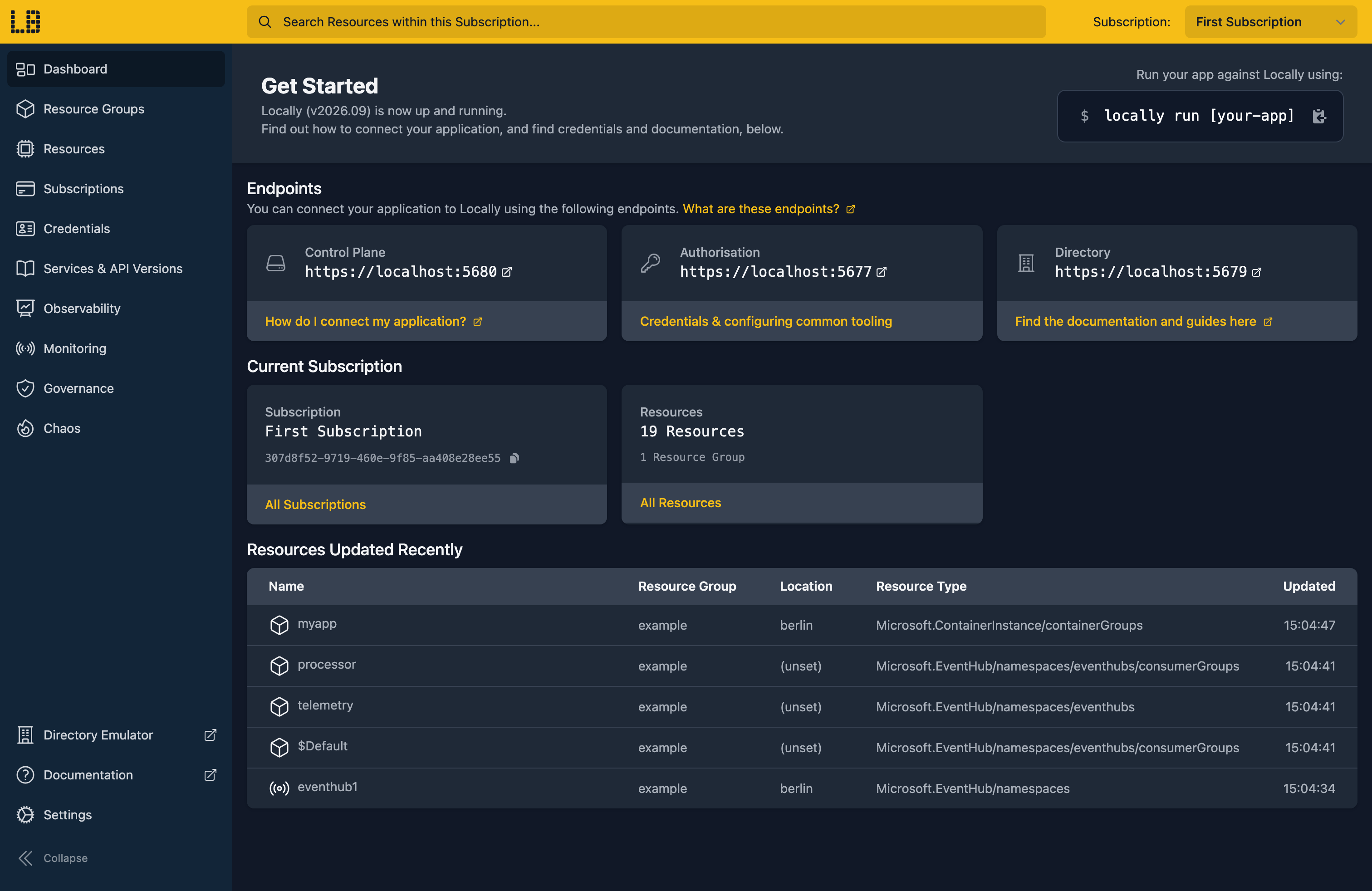
Once Locally has started, the Locally Dashboard will open automatically:
2. Create a Resource Group
Next we can create the Resource Group:
                $


            locally run az group create -n sample-resources -l berlin
There's two things to note here:
- The Azure CLI supports Automatic Configuration, meaning that it can automatically be configured to work against Locally just by prefixing commands with
locally run. - Locally intentionally uses a different set of locations to Azure as a safety precaution, so that you can be confident you're deploying against Locally rather than regular Azure. You can also configure Locally to use the Azure locations too, but you'll want to be extra sure that you're prefixing commands with
locally runwhen you do.
3. Create the Network Security Group
With the Resource Group in place, we can create the Network Security Group itself. An NSG is just a container for rules, so creating one is straightforward:
                $


            locally run az network nsg create -g sample-resources -n sample-nsg
{
  "name": "sample-nsg",
  "state": "Succeeded"
}
4. Add a security rule
The interesting part is the rules. Each rule needs a priority - lower numbers are evaluated first - along with a direction, an action and what traffic it matches. Here we'll allow inbound HTTPS:
                $


            locally run az network nsg rule create -g sample-resources --nsg-name sample-nsg -n allow-https --priority 100 --access Allow --protocol Tcp --direction Inbound --destination-port-ranges 443
{
  "access": "Allow",
  "direction": "Inbound",
  "name": "allow-https",
  "port": "443",
  "priority": 100
}
Note
We can list the rules we've defined:
                $


            locally run az network nsg rule list -g sample-resources --nsg-name sample-nsg --query "[].{Name:name, Priority:priority, Access:access, Port:destinationPortRange}" -o table
Name         Priority    Access    Port
-----------  ----------  --------  ------
allow-https  100         Allow     443
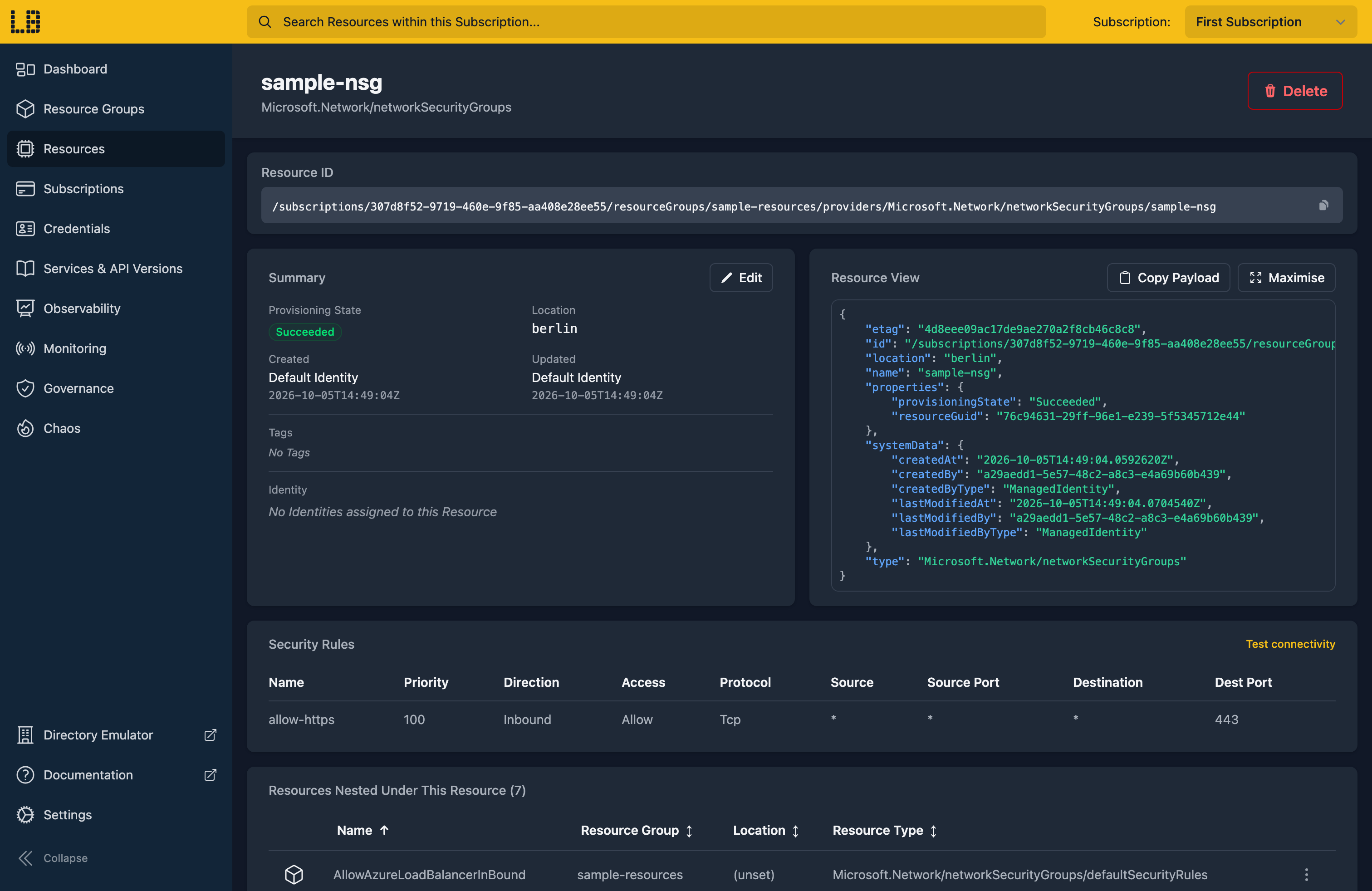
We can see the Network Security Group in the Locally Dashboard too:
5. Tidy up
Finally, we can tidy up. To remove the Resource Group and everything within it:
                $


            locally run az group delete -n sample-resources --yes
There's nothing billable to clean up, since everything ran on your machine, but it's still worth checking your teardown scripts work here before you run them against Azure.
Doing this with other tooling
Whilst this guide used the Azure CLI, Network Security Groups work the same way through any of the tooling that Locally supports - a Microsoft.Network/networkSecurityGroups resource in HashiCorp Terraform or OpenTofu, Pulumi, Bicep or an ARM Template all provision against Locally in the same way, with only the location changed.
Next steps
To attach the group to a subnet, see Virtual Network. For outbound traffic from that subnet, see NAT Gateway.
Should you encounter any issues, please take a look at the troubleshooting section.
Sign in during Public Preview to get the Team plan free, plus an early-adopter discount when we launch. Sign in
