Provisioning a Key Vault
Sign in during Public Preview to get the Team plan free, plus an early-adopter discount when we launch. Sign in
Provisioning a Key Vault
This guide shows you how to provision a Key Vault against Locally, and then store and read a secret in it. As with the other guides we're going to use the Azure CLI, but the same resource can be provisioned with HashiCorp Terraform, Pulumi or Bicep too.
Before you start
- The Azure CLI (
az) installed. - Locally installed, with Locally Setup completed.
1. Start Locally
Firstly, we need to launch Locally which we can do from a terminal by running:
                $


            locally build
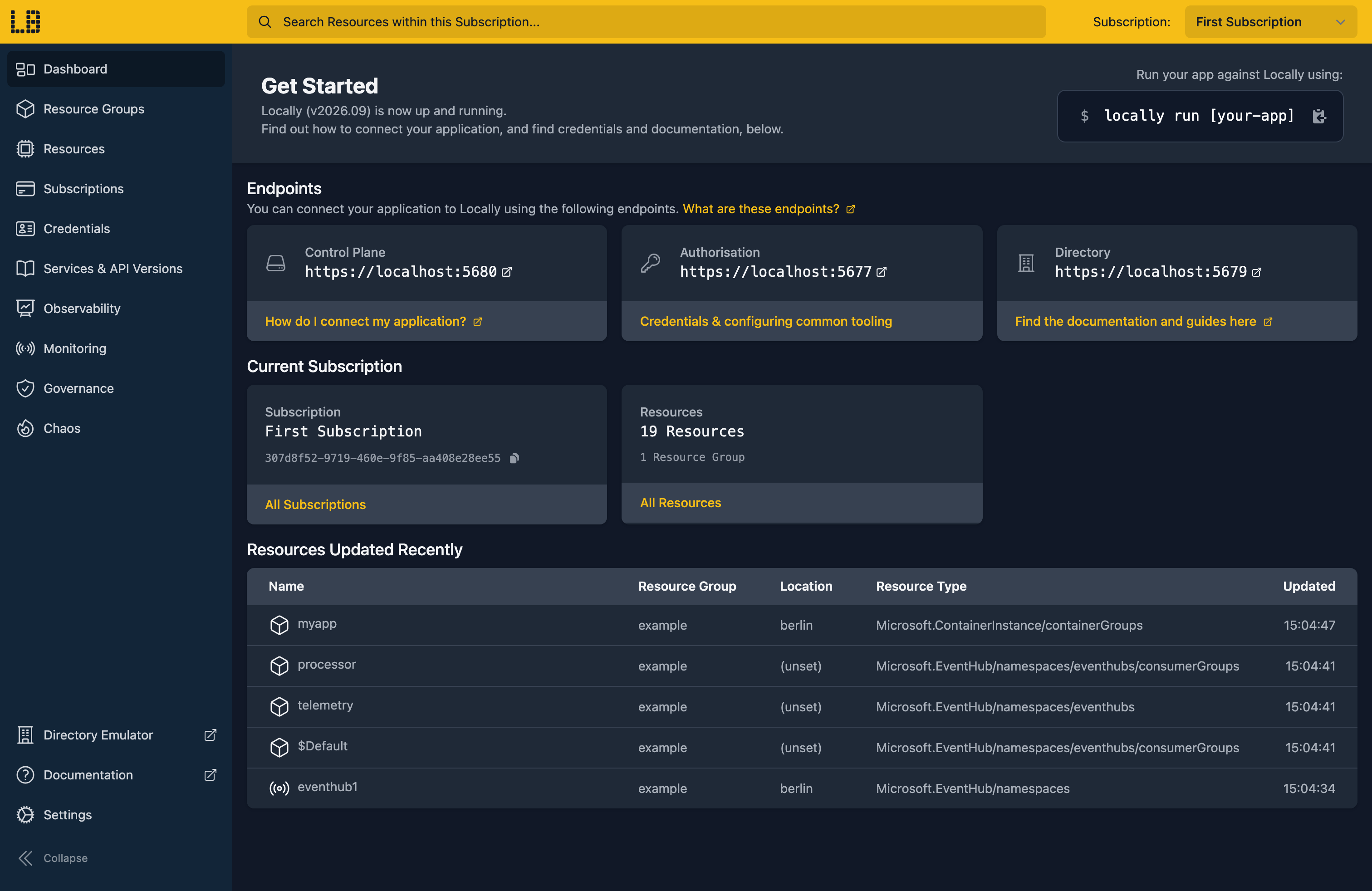
Once Locally has started, the Locally Dashboard will open automatically:
2. Create a Resource Group
Next we can create the Resource Group to hold the Key Vault:
                $


            locally run az group create -n sample-resources -l berlin
There's two things to note here:
- The Azure CLI supports Automatic Configuration, meaning that it can automatically be configured to work against Locally just by prefixing commands with
locally run. - Locally intentionally uses a different set of locations to Azure as a safety precaution, so that you can be confident you're deploying against Locally rather than regular Azure. You can also configure Locally to use the Azure locations too, but you'll want to be extra sure that you're prefixing commands with
locally runwhen you do.
3. Create the Key Vault
With the Resource Group in place, we can create the Key Vault itself:
                $


            locally run az keyvault create --name samplevault1 --resource-group sample-resources --location berlin
Note
The interesting part of the response is the vaultUri, which is the address the data plane lives at:
{
  "note": "some fields skipped for brevity",

  "name": "samplevault1",
  "properties": {
    "provisioningState": "Succeeded",
    "vaultUri": "https://samplevault1.vault.locally:5661/"
  },
  "type": "Microsoft.KeyVault/vaults"
}
That vault.locally hostname is served by Locally's own DNS server and points at the Key Vault Emulator running on your machine. Tools run through locally run reach it as they would Azure, and apps built on the Azure SDKs need a few lines of setup.
We can retrieve the vault again at any point with:
                $


            locally run az keyvault show --name samplevault1 --resource-group sample-resources --query "{name:name, location:location, vaultUri:properties.vaultUri, sku:properties.sku.name}"
Which gives us:
{
  "location": "berlin",
  "name": "samplevault1",
  "sku": "standard",
  "vaultUri": "https://samplevault1.vault.locally:5661/"
}
4. Use the data plane
So far we've only used the control plane - creating the vault itself. The more useful part is the data plane, where the secrets live.
We can store a secret with:
                $


            locally run az keyvault secret set --vault-name samplevault1 --name database-password --value 'correct-horse-battery-staple'
Which returns the secret along with its generated version:
{
  "note": "some fields skipped for brevity",

  "id": "https://samplevault1.vault.locally:5661/secrets/database-password/352b7b47-2eb0-449c-9c5e-6992c03eb3a1",
  "name": "database-password",
  "value": "correct-horse-battery-staple"
}
And read it back:
                $


            locally run az keyvault secret show --vault-name samplevault1 --name database-password --query value -o tsv
Which prints just the value, ready to be used in a script:
correct-horse-battery-stapleTo see everything stored in the vault:
                $


            locally run az keyvault secret list --vault-name samplevault1 --query "[].{Name:name, Enabled:attributes.enabled}" -o table
Name               Enabled
-----------------  ---------
database-password  True
Note
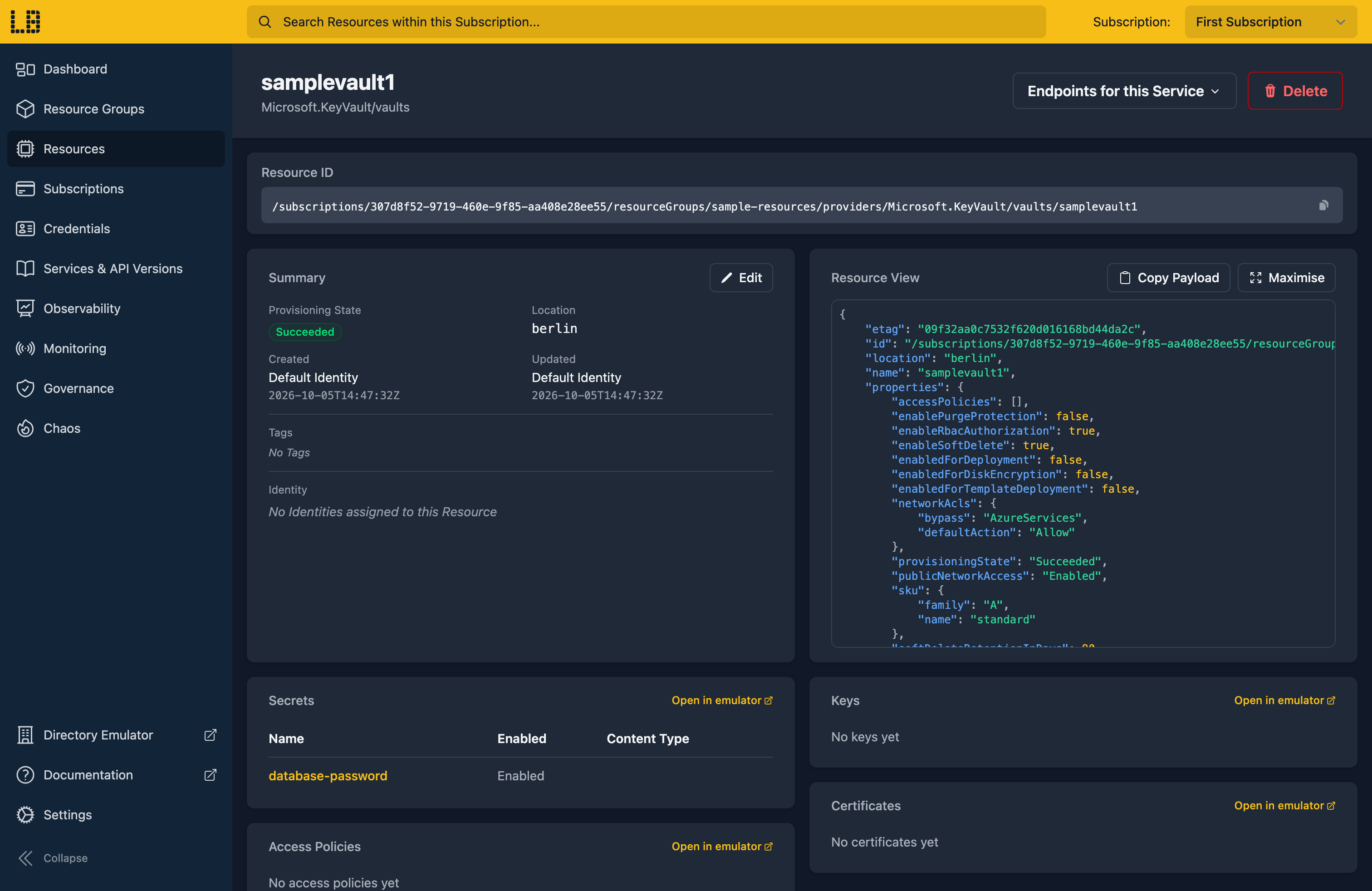
We can see the Key Vault in the Locally Dashboard too:
5. Tidy up
Finally, we can tidy up. To remove the Resource Group and everything within it:
                $


            locally run az group delete -n sample-resources --yes
As in Azure, deleting a Key Vault soft-deletes it rather than removing it outright, so the name samplevault1 stays reserved. To free it up for next time, purge it:
                $


            locally run az keyvault purge --name samplevault1
There's nothing billable to clean up, since everything ran on your machine, but it's still worth checking your teardown scripts work here before you run them against Azure.
Doing this with other tooling
Whilst this guide used the Azure CLI, Key Vaults work the same way through any of the tooling that Locally supports - a Microsoft.KeyVault/vaults resource in HashiCorp Terraform or OpenTofu, Pulumi, Bicep or an ARM Template all provision against Locally in the same way, with only the location changed.
The same is true of the data plane: point the Azure SDK for .NET, Go or Python at the vaultUri above and your application reads secrets from Locally.
Next steps
To work with keys and certificates in the same vault, see Key Vault Keys & Certificates. To read a secret from an app with no credentials, see Managed Identity.
Should you encounter any issues, please take a look at the troubleshooting section.
Sign in during Public Preview to get the Team plan free, plus an early-adopter discount when we launch. Sign in
