Using Deployment Slots
Sign in during Public Preview to get the Team plan free, plus an early-adopter discount when we launch. Sign in
Using Deployment Slots
This guide shows you how to use Deployment Slots against Locally: we'll deploy one version of an app to production and another to a staging slot, then swap them. As with the other guides we're going to use the Azure CLI, but the same resources can be provisioned with HashiCorp Terraform, Pulumi or Bicep too.
Before you start
- The Azure CLI (
az) installed. - Locally installed, with Locally Setup completed.
- Docker or Podman installed and running, since Locally runs each slot in its own container on your machine.
1. Start Locally
Firstly, we need to launch Locally which we can do from a terminal by running:
                $


            locally build
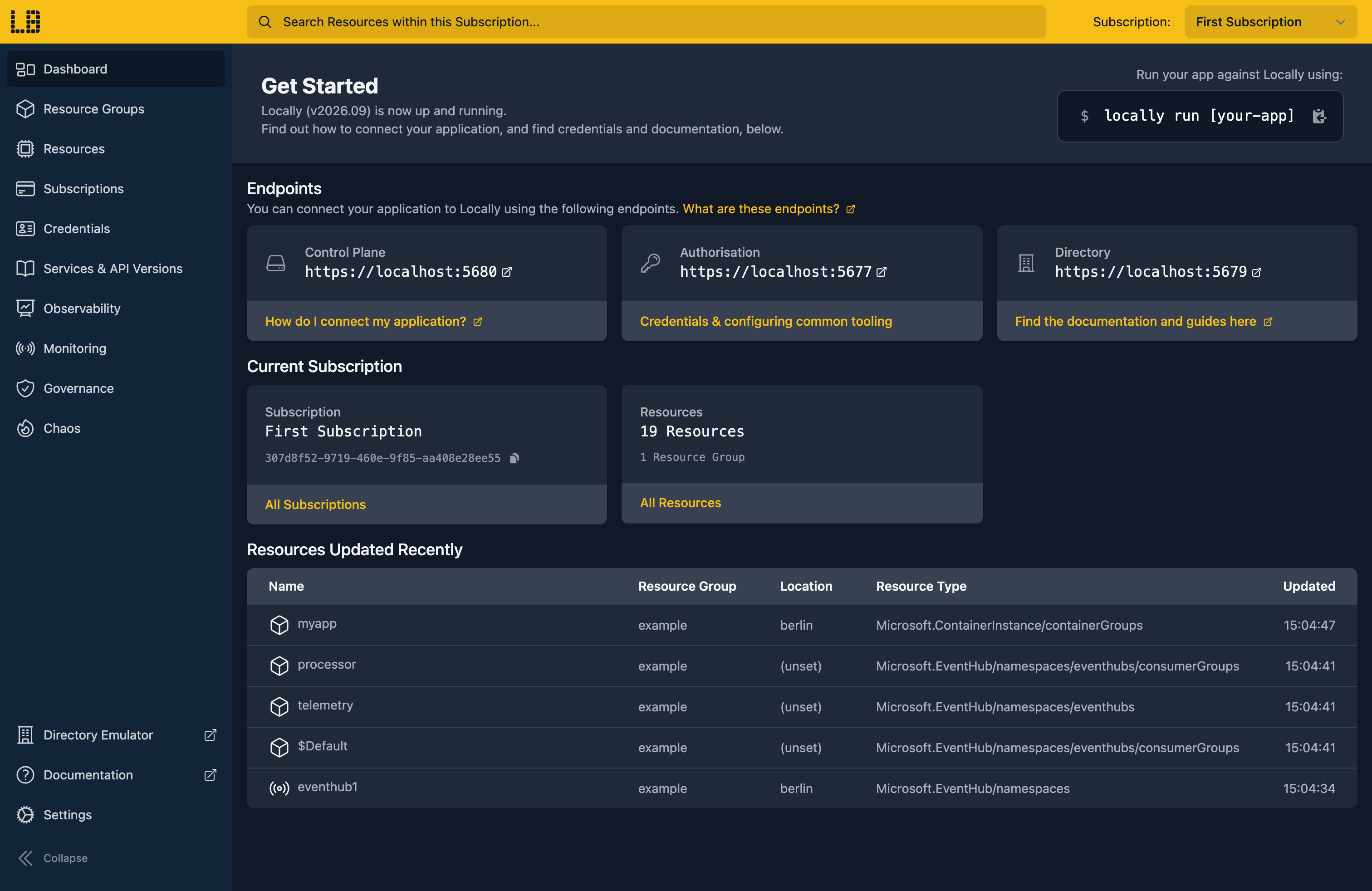
Once Locally has started, the Locally Dashboard will open automatically:
2. Create a Resource Group
Next we can create the Resource Group:
                $


            locally run az group create -n sample-deployment-slots -l berlin
There's two things to note here:
- The Azure CLI supports Automatic Configuration, meaning that it can automatically be configured to work against Locally just by prefixing commands with
locally run. - Locally intentionally uses a different set of locations to Azure as a safety precaution, so that you can be confident you're deploying against Locally rather than regular Azure. You can also configure Locally to use the Azure locations too, but you'll want to be extra sure that you're prefixing commands with
locally runwhen you do.
3. Create the App Service Plan and Web App
Slots need a Standard tier plan or above, so we'll use S1:
                $


            locally run az appservice plan create -g sample-deployment-slots -n sample-slots-plan -l berlin --sku S1 --is-linux
{
  "note": "some fields skipped for brevity",

  "kind": "linux",
  "location": "berlin",
  "name": "sample-slots-plan",
  "provisioningState": "Succeeded",
  "resourceGroup": "sample-deployment-slots",
  "sku": {
    "capacity": 1,
    "name": "S1",
    "size": "S1",
    "tier": "STANDARD"
  },
  "status": "Ready",
  "type": "Microsoft.Web/serverFarms"
}
Then the Web App on that plan:
                $


            locally run az webapp create -g sample-deployment-slots -n sample-slots-app2 --plan sample-slots-plan --runtime NODE:24-lts
{
  "note": "some fields skipped for brevity",

  "defaultHostName": "sample-slots-app2.furnace.locally:5663",
  "kind": "app,linux",
  "location": "berlin",
  "name": "sample-slots-app2",
  "resourceGroup": "sample-deployment-slots",
  "state": "Running",
  "type": "Microsoft.Web/sites"
}
Note
The app itself is the production slot. For more on Web Apps in general, see Provisioning a Web App.
4. Add a staging slot
Now let's add a slot called staging:
                $


            locally run az webapp deployment slot create -g sample-deployment-slots -n sample-slots-app2 --slot staging
{
  "note": "some fields skipped for brevity",

  "defaultHostName": "sample-slots-app2-staging.furnace.locally:5663",
  "kind": "app,linux",
  "location": "berlin",
  "name": "staging",
  "resourceGroup": "sample-deployment-slots",
  "state": "Running",
  "type": "Microsoft.Web/sites/slots"
}
The slot gets its own host name, with the slot name added to the app's, served by Locally's own DNS server.
5. Build two versions of the app
We need two builds we can tell apart. A tiny Node server that says which version it is will do. First a package.json, which tells App Service how to start it:
                $


            echo '{ "name": "sample-slots", "version": "1.0.0", "scripts": { "start": "node server.js" } }' > package.json
Then the server, listening on the port App Service passes it in PORT:
require("http")
  .createServer((req, res) => res.end("Hello from v1"))
  .listen(process.env.PORT);
                $


            echo 'require("http").createServer((req, res) => res.end("Hello from v1")).listen(process.env.PORT);' > server.js
Zip that up as version 1:
                $


            zip -q v1.zip package.json server.js
Then change the greeting and zip it again as version 2:
                $


            echo 'require("http").createServer((req, res) => res.end("Hello from v2")).listen(process.env.PORT);' > server.js
                $


            zip -q v2.zip package.json server.js
6. Deploy a version to each slot
Version 1 goes to production:
                $


            locally run az webapp deploy -g sample-deployment-slots -n sample-slots-app2 --src-path v1.zip --type zip
{
  "note": "some fields skipped for brevity",

  "name": "8c341cbb-21c6-4443-9504-85976b096d1b",
  "properties": {
    "errors": [],
    "numberOfInstancesFailed": 0,
    "numberOfInstancesSuccessful": 1,
    "status": "RuntimeSuccessful"
  },
  "resourceGroup": "sample-deployment-slots",
  "type": "Microsoft.Web/sites/deploymentStatus"
}
And version 2 to staging. The only difference is --slot:
                $


            locally run az webapp deploy -g sample-deployment-slots -n sample-slots-app2 --slot staging --src-path v2.zip --type zip
Now we can request production:
                $


            curl https://sample-slots-app2.furnace.locally:5663
Hello from v1And staging:
                $


            curl https://sample-slots-app2-staging.furnace.locally:5663
Hello from v2If you get web app is warming up; please retry shortly, the slot's container is still starting. Give it a few seconds and try again.
We can list the app's slots too:
                $


            locally run az webapp deployment slot list -g sample-deployment-slots -n sample-slots-app2 --query "[].{Name:name, State:state, Host:defaultHostName}" -o table
Name     State    Host
-------  -------  ----------------------------------------------
staging  Running  sample-slots-app2-staging.furnace.locally:5663
7. Swap staging into production
Happy with version 2? Let's swap it into production:
                $


            locally run az webapp deployment slot swap -g sample-deployment-slots -n sample-slots-app2 --slot staging --target-slot production
Both slots restart, so give them up to a minute to warm up. Then production serves version 2:
                $


            curl https://sample-slots-app2.furnace.locally:5663
Hello from v2And staging now has version 1, ready to swap back if version 2 turns out to be a mistake:
                $


            curl https://sample-slots-app2-staging.furnace.locally:5663
Hello from v1Note
Doing this with other tooling
Whilst this guide used the Azure CLI, slots work the same way through any of the tooling that Locally supports - a Microsoft.Web/sites/slots resource in HashiCorp Terraform or OpenTofu, Pulumi, Bicep or an ARM Template all provision against Locally in the same way, with only the location changed.
Next steps
The Web App Emulator shows each slot's deployments and streams its console output. For the basics of App Service on Locally, see Provisioning a Web App.
Should you encounter any issues, please take a look at the troubleshooting section.
Resource types this guide uses
These are the Azure resource types this guide creates in Locally:
- Microsoft.Web/sites/slots
- Microsoft.Web/sites
- Microsoft.Web/serverFarms
Sign in during Public Preview to get the Team plan free, plus an early-adopter discount when we launch. Sign in
