Using Storage Queues
Sign in during Public Preview to get the Team plan free, plus an early-adopter discount when we launch. Sign in
Using Storage Queues
This guide shows you how to use Azure Queue Storage against Locally. We'll create a queue in a Storage Account, then send, peek, receive and delete messages through its data plane with the Azure CLI.
Before you start
- The Azure CLI (
az) installed. - Locally installed, with Locally Setup completed.
1. Start Locally
Firstly, we need to launch Locally which we can do from a terminal by running:
                $


            locally build
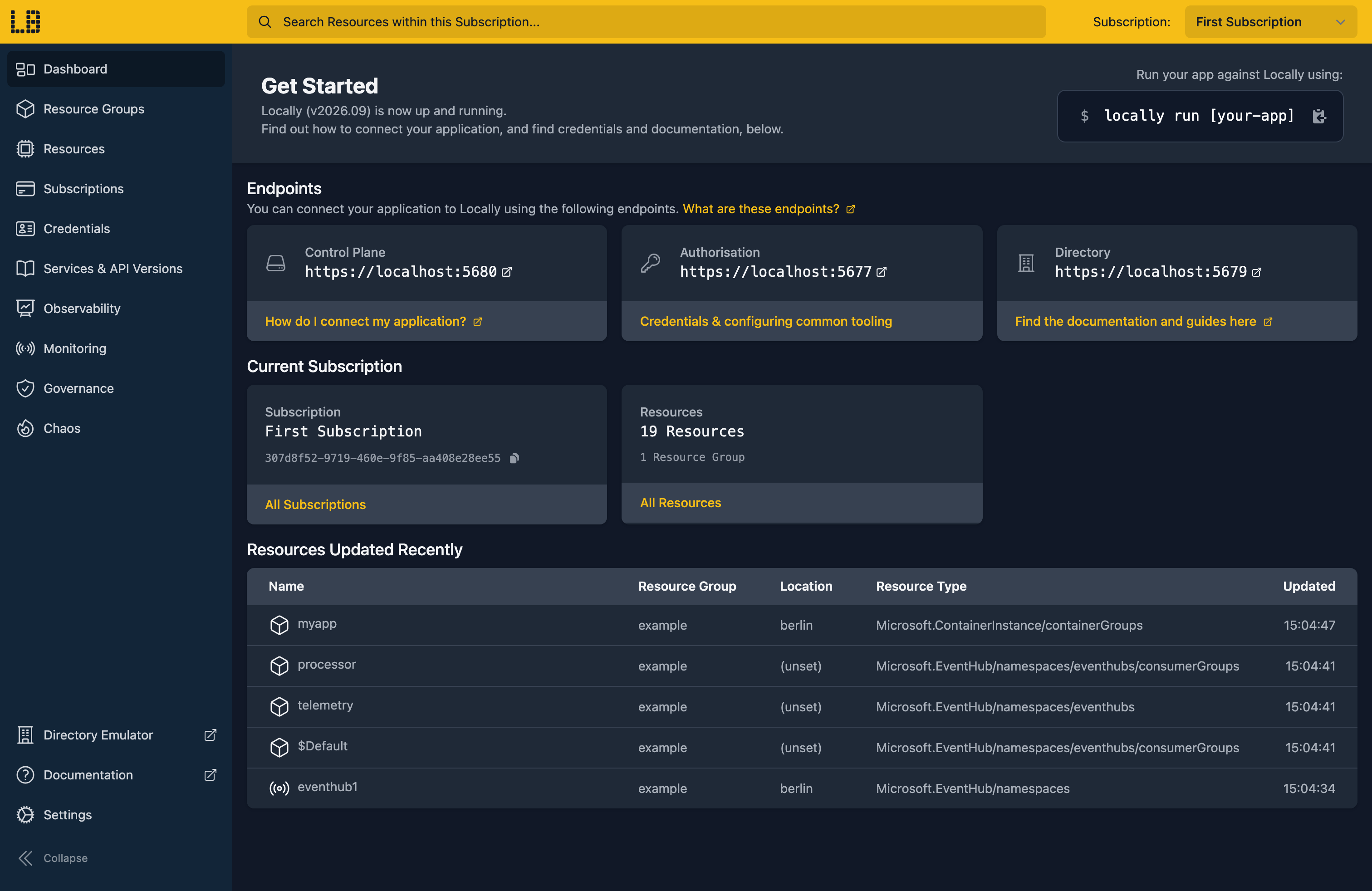
Once Locally has started, the Locally Dashboard will open automatically:
2. Create a Resource Group
Next we can create the Resource Group to hold the Storage Account:
                $


            locally run az group create -n sample-queues -l berlin
There's two things to note here:
- The Azure CLI supports Automatic Configuration, meaning that it can automatically be configured to work against Locally just by prefixing commands with
locally run. - Locally intentionally uses a different set of locations to Azure as a safety precaution, so that you can be confident you're deploying against Locally rather than regular Azure. You can also configure Locally to use the Azure locations too, but you'll want to be extra sure that you're prefixing commands with
locally runwhen you do.
3. Create the Storage Account
Queues live in a Storage Account, so let's create one:
                $


            locally run az storage account create --name samplequeues1 --resource-group sample-queues --location berlin --sku Standard_LRS --query "{name:name, provisioningState:provisioningState, queueEndpoint:primaryEndpoints.queue}"
{
  "name": "samplequeues1",
  "provisioningState": "Succeeded",
  "queueEndpoint": "https://samplequeues1.queue.core.storage.locally:5660/"
}
That queue endpoint is served by the Storage Emulator running on your machine.
4. Create a queue
Now we can create a queue called jobs:
                $


            locally storage queue create --account samplequeues1 --name jobs
And check it's there:
                $


            locally storage queue list --account samplequeues1
NAME
jobs
Note
locally storage is part of Locally itself, so it doesn't take the locally run prefix. Every az command does.5. Send and peek at messages
The az storage message commands need the account's connection string, just as they do against Azure. Putting it in AZURE_STORAGE_CONNECTION_STRING means we don't have to pass it to each one:
                $


            export AZURE_STORAGE_CONNECTION_STRING=$(locally storage connection-string --account samplequeues1)
Let's send two messages:
                $


            locally run az storage message put --queue-name jobs --content "resize image 42"
{
  "content": "resize image 42",
  "dequeueCount": null,
  "expirationTime": "2026-10-12T15:41:14+00:00",
  "id": "57de616c-fd35-4e51-81a5-b1ba4959bfb2",
  "insertionTime": "2026-10-05T15:41:14+00:00",
  "popReceipt": "9cf5c6bd-ae80-4bc8-a80b-31d075a39e9b",
  "timeNextVisible": "2026-10-05T15:41:14+00:00"
}
                $


            locally run az storage message put --queue-name jobs --content "resize image 43" -o none
Peeking shows what's on the queue without taking anything off it:
                $


            locally run az storage message peek --queue-name jobs --num-messages 5 --query "[].{Content:content, DequeueCount:dequeueCount}" -o table
Content          DequeueCount
---------------  --------------
resize image 42  0
resize image 43  0
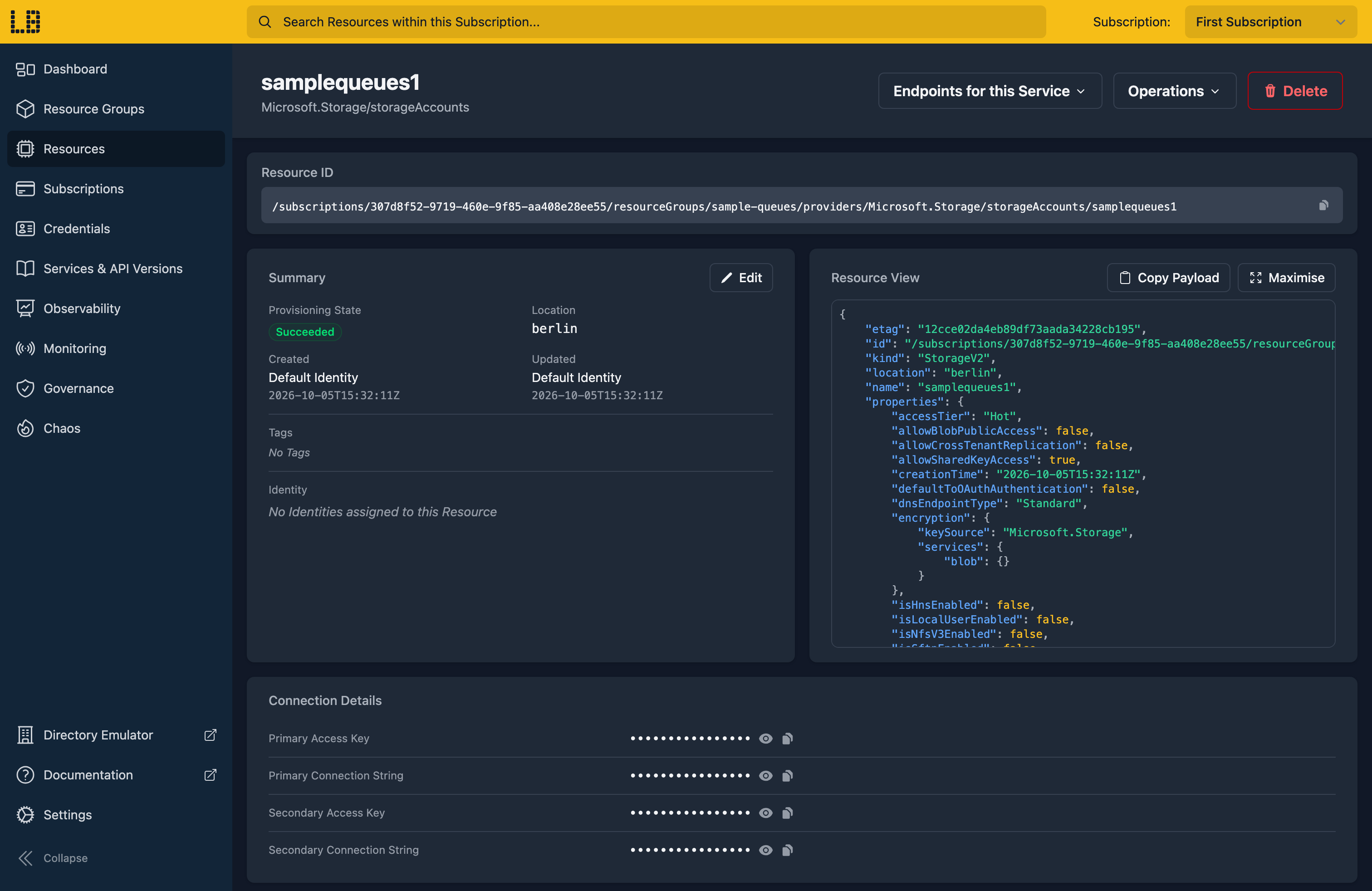
We can see the Storage Account in the Locally Dashboard too:
6. Receive and delete a message
Receiving a message hides it from other readers for the visibility timeout, here five minutes, and hands back a pop receipt. We'll save the message ID, pop receipt and content to a file, since we need the first two to delete it:
                $


            locally run az storage message get --queue-name jobs --visibility-timeout 300 --query "[].[id, popReceipt, content]" -o tsv | tee message.tsv
57de616c-fd35-4e51-81a5-b1ba4959bfb2 f99af053-fb3f-4601-aab5-fd2cf2078480 resize image 42
                $


            export MESSAGE_ID=$(cut -f1 message.tsv)
                $


            export POP_RECEIPT=$(cut -f2 message.tsv)
While it's hidden, a peek only shows the other message:
                $


            locally run az storage message peek --queue-name jobs --num-messages 5 --query "[].{Content:content, DequeueCount:dequeueCount}" -o table
Content          DequeueCount
---------------  --------------
resize image 43  0
Once the work is done, deleting the message stops it coming back when the timeout runs out:
                $


            locally run az storage message delete --queue-name jobs --id "$MESSAGE_ID" --pop-receipt "$POP_RECEIPT"
Note
PopReceiptMismatch error Azure returns - so a worker that holds on to a message for too long fails here the same way it would in Azure.Doing this with other tooling
Whilst this guide used the Azure CLI, the Storage Account and its queues work the same way through any of the tooling that Locally supports - Microsoft.Storage/storageAccounts and Microsoft.Storage/storageAccounts/queueServices/queues resources in HashiCorp Terraform or OpenTofu, Pulumi, Bicep or an ARM Template all provision against Locally in the same way.
The same is true of the data plane: hand the connection string to the Azure SDK for .NET, Go or Python and your application sends and receives messages against Locally.
Next steps
To write and read blobs in the same kind of account, see Storage Account. If you need topics or a dead-letter queue, see Service Bus.
Should you encounter any issues, please take a look at the troubleshooting section.
Sign in during Public Preview to get the Team plan free, plus an early-adopter discount when we launch. Sign in
