Provisioning a Container App
Sign in during Public Preview to get the Team plan free, plus an early-adopter discount when we launch. Sign in
Provisioning a Container App
This guide shows you how to provision a Container App against Locally and reach the application running inside it. As with the other guides we're going to use the Azure CLI, but the same resources can be provisioned with HashiCorp Terraform, Pulumi or Bicep too.
Before you start
- The Azure CLI (
az) installed. - Locally installed, with Locally Setup completed.
- Docker or Podman installed and running, since Locally runs your container image on your own machine rather than simulating it.
1. Start Locally
Firstly, we need to launch Locally which we can do from a terminal by running:
                $


            locally build
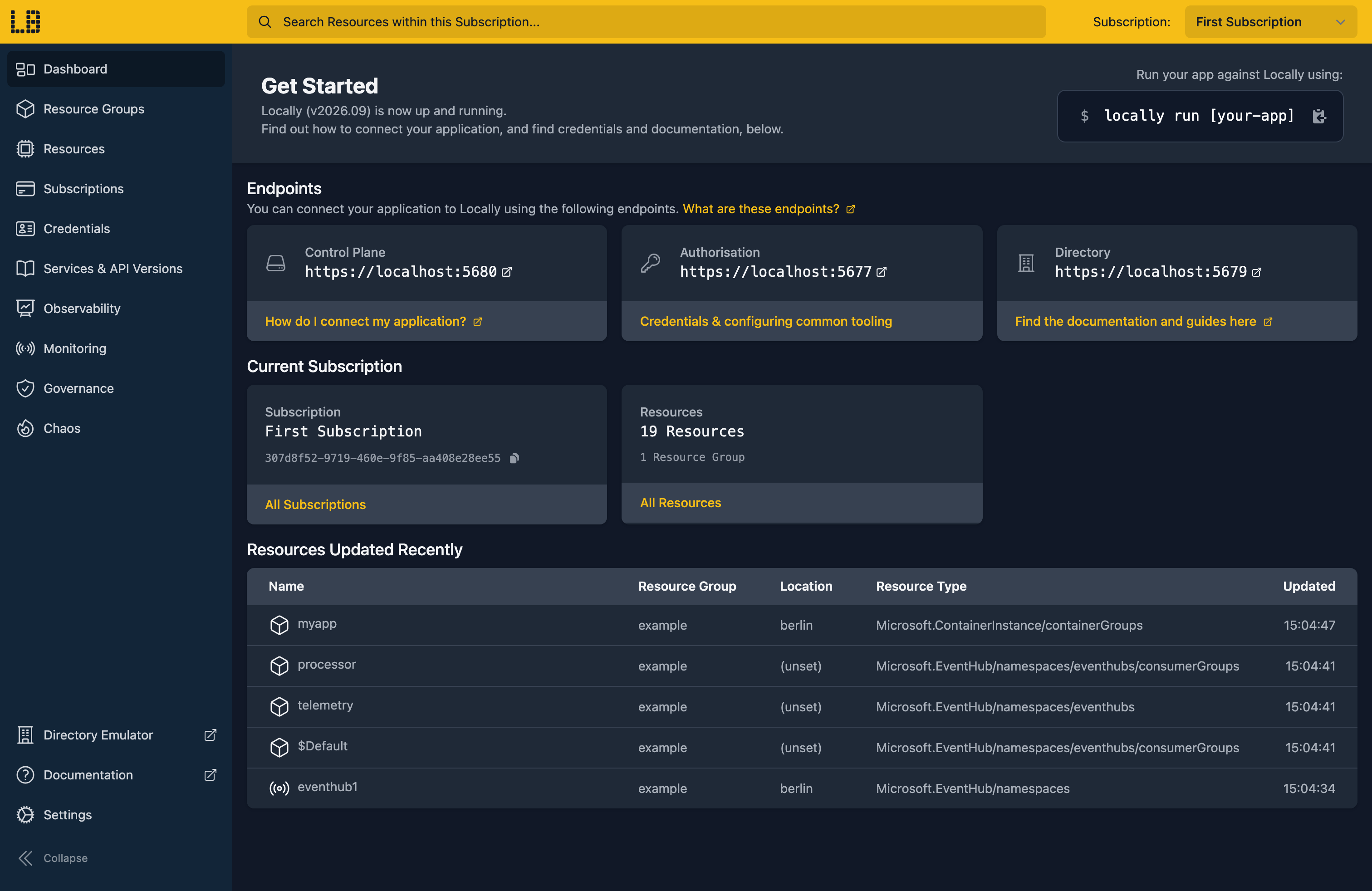
Once Locally has started, the Locally Dashboard will open automatically:
2. Create a Resource Group
Next we can create the Resource Group:
                $


            locally run az group create -n sample-resources -l berlin
There's two things to note here:
- The Azure CLI supports Automatic Configuration, meaning that it can automatically be configured to work against Locally just by prefixing commands with
locally run. - Locally intentionally uses a different set of locations to Azure as a safety precaution, so that you can be confident you're deploying against Locally rather than regular Azure. You can also configure Locally to use the Azure locations too, but you'll want to be extra sure that you're prefixing commands with
locally runwhen you do.
3. Create the environment
Container Apps run inside an environment, which is the boundary they share a network and a set of secrets within. That comes first:
                $


            locally run az containerapp env create -g sample-resources -n sample-env -l berlin --query "{name:name, state:properties.provisioningState, domain:properties.defaultDomain}"
{
  "domain": "sample-env-5de8866e.furnace.locally",
  "name": "sample-env",
  "state": "Succeeded"
}
Locally serves Container Apps on the furnace.locally domain, which Locally's own DNS server resolves to your own machine - with each Container App getting a unique subdomain, as you'd expect.
Note
4. Deploy the app
With the environment in place, we can deploy an app into it. We'll use traefik/whoami, a small image that answers HTTP with details of the request it received - enough to prove the whole path works:
                $


            locally run az containerapp create -g sample-resources -n sample-app --environment sample-env --image traefik/whoami:latest --target-port 80 --ingress external --query "{name:name, fqdn:properties.configuration.ingress.fqdn, state:properties.provisioningState}"
{
  "fqdn": "sample-app-sample-env-5de8866e.furnace.locally",
  "name": "sample-app",
  "state": "Succeeded"
}
Two flags are doing the work here. --target-port 80 is the port the container itself listens on, and --ingress external asks for the app to be reachable from outside the environment - without it the app is only addressable by other apps alongside it.
5. Call the app
We can open the deployed application in a browser, or via curl which we're going to do here:
                $


            curl "https://$(locally run az containerapp show -g sample-resources -n sample-app --query properties.configuration.ingress.fqdn -o tsv)"
Hostname: sample-app--3f1c9d2
IP: 127.0.0.1
GET / HTTP/1.1
Host: sample-app-sample-env-5de8866e.furnace.locally
User-Agent: curl/8.7.1
Note
curl here isn't prefixed with locally run as it's talking to the deployed application, rather than the Locally Control Plane.Note
6. Revisions and environment variables
Container Apps keeps a revision per deployed version of your app, which is what makes rollbacks and traffic splitting possible:
                $


            locally run az containerapp revision list -g sample-resources -n sample-app --query "[].{Name:name, Active:properties.active, Replicas:properties.replicas}" -o table
Name                 Active    Replicas
-------------------  --------  ----------
sample-app--7bc27a   True      1
Changing the app creates a new one. Setting an environment variable is the smallest change that does:
                $


            locally run az containerapp update -g sample-resources -n sample-app --set-env-vars GREETING=hello --query "properties.template.containers[0].env"
[
  {
    "name": "GREETING",
    "value": "hello"
  }
]
And to see the apps in the Resource Group:
                $


            locally run az containerapp list -g sample-resources --query "[].{Name:name, Fqdn:properties.configuration.ingress.fqdn, State:properties.provisioningState}" -o table
Name        Fqdn                                             State
----------  -----------------------------------------------  ---------
sample-app  sample-app-sample-env-5de8866e.furnace.locally   Succeeded
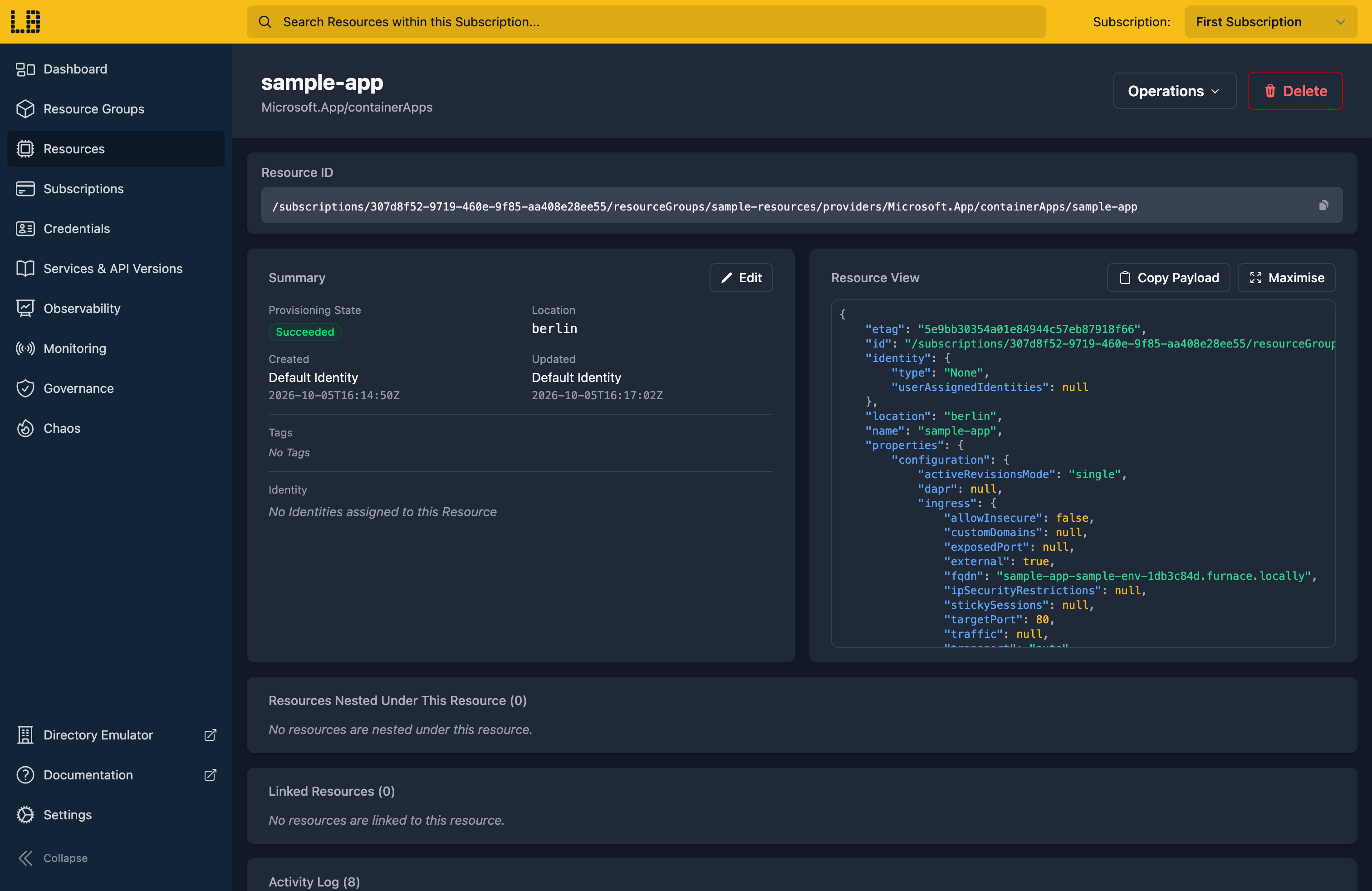
We can see the Container App in the Locally Dashboard too:
Doing this with other tooling
Whilst this guide used the Azure CLI, Container Apps work the same way through any of the tooling that Locally supports - Microsoft.App/managedEnvironments and Microsoft.App/containerApps resources in HashiCorp Terraform or OpenTofu, Pulumi, Bicep or an ARM Template all provision against Locally in the same way, with only the location changed.
Next steps
To run your own images, push them to a Container Registry first. For a single container group without an environment, see Container Instances.
Should you encounter any issues, please take a look at the troubleshooting section.
Sign in during Public Preview to get the Team plan free, plus an early-adopter discount when we launch. Sign in
