Provisioning a Durable Task Scheduler
Sign in during Public Preview to get the Team plan free, plus an early-adopter discount when we launch. Sign in
Provisioning a Durable Task Scheduler
This guide shows you how to provision a Durable Task Scheduler and a task hub against Locally, and then run an orchestration on it from a small .NET app using the Durable Task SDK. As with the other guides we're going to use the Azure CLI, but the same resources can be provisioned with HashiCorp Terraform, Pulumi or Bicep too.
Before you start
- The Azure CLI (
az) installed, with thedurabletaskextension added by runningaz extension add --name durabletask. - The .NET SDK, version 8 or later.
- Locally installed, with Locally Setup completed.
1. Start Locally
Firstly, we need to launch Locally which we can do from a terminal by running:
                $


            locally build
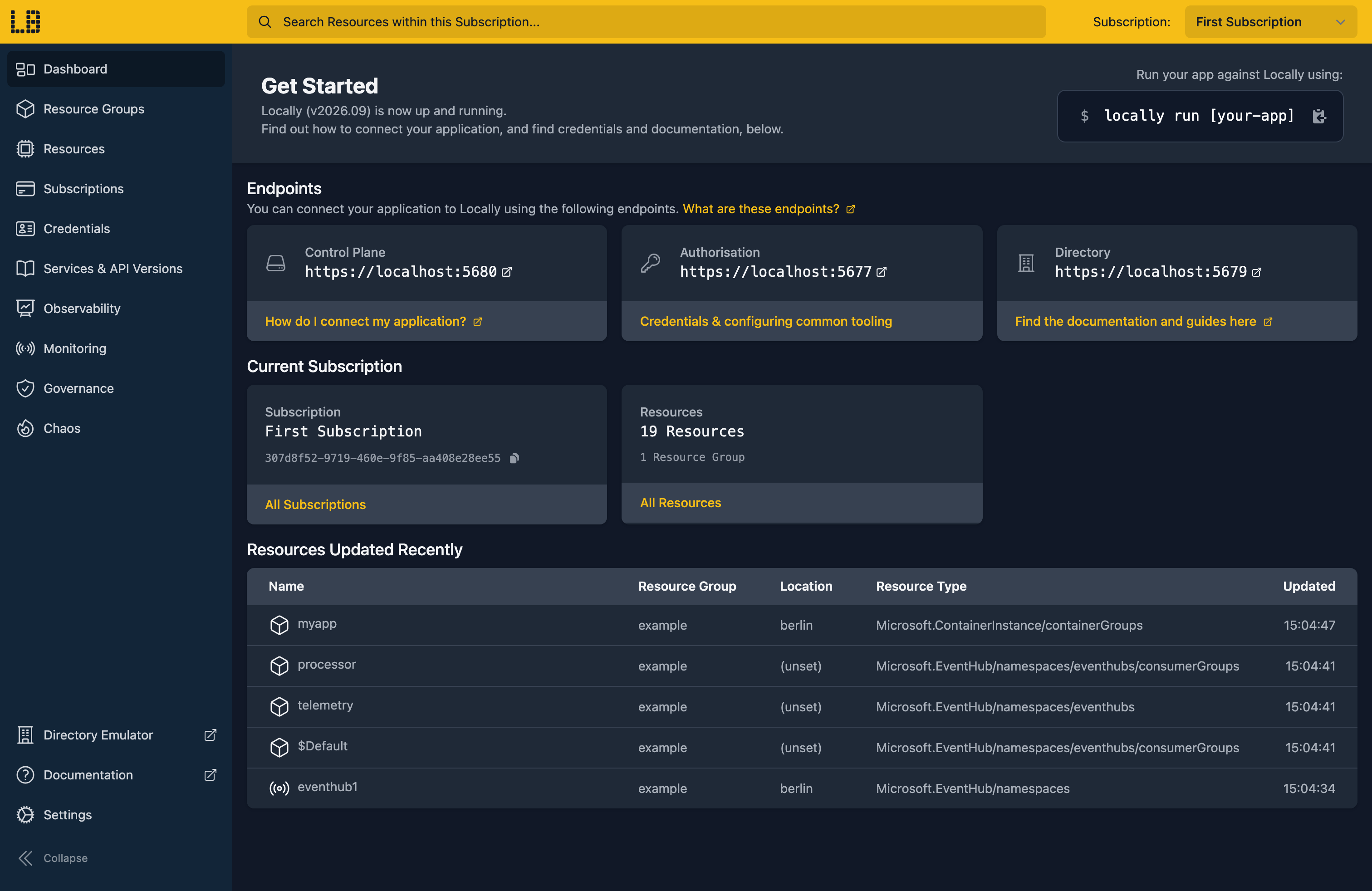
Once Locally has started, the Locally Dashboard will open automatically:
2. Create a Resource Group
Next we can create the Resource Group to hold the scheduler:
                $


            locally run az group create -n sample-durabletask -l berlin
There's two things to note here:
- The Azure CLI supports Automatic Configuration, meaning that it can automatically be configured to work against Locally just by prefixing commands with
locally run. - Locally intentionally uses a different set of locations to Azure as a safety precaution, so that you can be confident you're deploying against Locally rather than regular Azure. You can also configure Locally to use the Azure locations too, but you'll want to be extra sure that you're prefixing commands with
locally runwhen you do.
3. Create the scheduler
Now we can create the scheduler itself. We'll use the Consumption SKU, and allow connections from any address:
                $


            locally run az durabletask scheduler create -g sample-durabletask -n sample-scheduler --sku-name Consumption --ip-allowlist "[0.0.0.0/0]" --query "{name:name, endpoint:properties.endpoint, sku:properties.sku.name, provisioningState:properties.provisioningState}"
{
  "endpoint": "https://sample-scheduler-bqu6zu-berlin.durabletask.locally:5672",
  "name": "sample-scheduler",
  "provisioningState": "Succeeded",
  "sku": "Consumption"
}
The endpoint is where clients and workers connect. It's served by Locally's own DNS server, rather than durabletask.io.
Note
4. Create a task hub
A scheduler holds one or more task hubs, and each task hub keeps its own orchestrations. A client or worker that names a task hub which doesn't exist is refused, so let's create one:
                $


            locally run az durabletask taskhub create -g sample-durabletask --scheduler-name sample-scheduler -n sample-hub --query "{name:name, dashboardUrl:properties.dashboardUrl, provisioningState:properties.provisioningState}"
{
  "dashboardUrl": "https://sample-scheduler-bqu6zu-berlin.durabletask.locally:5672/_ui/taskhubs/sample-hub",
  "name": "sample-hub",
  "provisioningState": "Succeeded"
}
We'll come back to that dashboardUrl once there's an orchestration to look at.
5. Run an orchestration
With the scheduler and task hub in place, we can run some code on them. We'll create a .NET console app using the Durable Task SDK, along with the Azure Identity library for its credential:
dotnet new console -n Orchestration
cd Orchestration
dotnet add package Microsoft.DurableTask.Client.AzureManaged
dotnet add package Microsoft.DurableTask.Worker.AzureManaged
dotnet add package Microsoft.Extensions.Hosting
dotnet add package Azure.Identity
This app starts a worker, then uses a client to schedule an orchestration which calls an activity once for each of three cities, and waits for it to finish. Replace the contents of Program.cs with:
using Azure.Identity;
using Microsoft.DurableTask;
using Microsoft.DurableTask.Client;
using Microsoft.DurableTask.Client.AzureManaged;
using Microsoft.DurableTask.Worker;
using Microsoft.DurableTask.Worker.AzureManaged;
using Microsoft.Extensions.DependencyInjection;
using Microsoft.Extensions.Hosting;
using Microsoft.Extensions.Logging;

string endpoint = Environment.GetEnvironmentVariable("DTS_ENDPOINT")!;
string taskHub = Environment.GetEnvironmentVariable("DTS_TASKHUB")!;

var credential = new DefaultAzureCredential(new DefaultAzureCredentialOptions
{
    // MSAL Instance Discovery validates that the Tenant is known and hosted by Microsoft, with the
    // intention being to prevent credentials accidentally being sent to a non-Microsoft provided service.
    //
    // Since Locally is running on your local machine (and therefore isn't a Microsoft-hosted service)
    // we need to disable Instance Discovery, else we'll fail to connect.
    DisableInstanceDiscovery = true,
});

var builder = Host.CreateApplicationBuilder(args);
builder.Logging.SetMinimumLevel(LogLevel.Warning);

builder.Services.AddDurableTaskWorker(worker =>
{
    worker.AddTasks(tasks =>
    {
        tasks.AddOrchestratorFunc<List<string>>("Greetings", async context =>
        {
            var results = new List<string>();
            foreach (var city in new[] { "Berlin", "Kyiv", "London" })
            {
                results.Add(await context.CallActivityAsync<string>("SayHello", city));
            }
            return results;
        });
        tasks.AddActivityFunc<string, string>("SayHello", (context, city) => $"Hello, {city}!");
    });
    worker.UseDurableTaskScheduler(endpoint, taskHub, credential);
});
builder.Services.AddDurableTaskClient(client => client.UseDurableTaskScheduler(endpoint, taskHub, credential));

using var host = builder.Build();
await host.StartAsync();

var client = host.Services.GetRequiredService<DurableTaskClient>();
string instanceId = await client.ScheduleNewOrchestrationInstanceAsync("Greetings");
Console.WriteLine($"Started orchestration {instanceId}");

using var timeout = new CancellationTokenSource(TimeSpan.FromSeconds(60));
var state = await client.WaitForInstanceCompletionAsync(instanceId, getInputsAndOutputs: true, timeout.Token);
Console.WriteLine($"Status: {state.RuntimeStatus}");
Console.WriteLine($"Output: {state.SerializedOutput}");

await host.StopAsync();
The app reads the endpoint and task hub from environment variables, so let's set those, taking the endpoint from the scheduler:
                $


            export DTS_ENDPOINT=$(locally run az durabletask scheduler show -g sample-durabletask -n sample-scheduler --query properties.endpoint -o tsv)
                $


            export DTS_TASKHUB=sample-hub
Now we can run the app. Prefixing it with locally run gives it the credentials of Locally's default identity, which DefaultAzureCredential picks up and uses to get an access token for the scheduler:
                $


            locally run dotnet run
Once the orchestration completes, the app prints its output:
Started orchestration e550acdf600946d2ad1c701c843d02fb
Status: Completed
Output: ["Hello, Berlin!","Hello, Kyiv!","Hello, London!"]
Note
6. See the orchestration on the dashboard
Each task hub has its own dashboard, served by the scheduler at the dashboardUrl from step 4. Open it in your browser to see the task hub's orchestrations and the workers attached to it, and open our Greetings orchestration to see its input, output and full history:
We can see the scheduler and its task hub in the Locally Dashboard too:
7. Tidy up
Finally, we can tidy up. To remove the Resource Group and everything within it, including the scheduler and its task hub:
                $


            locally run az group delete -n sample-durabletask --yes
There's nothing billable to clean up, since everything ran on your machine, but it's still worth checking your teardown scripts work here before you run them against Azure.
Doing this with other tooling
Whilst this guide used the Azure CLI, the Durable Task Scheduler works the same way through any of the tooling that Locally supports - Microsoft.DurableTask/schedulers and Microsoft.DurableTask/schedulers/taskHubs resources in HashiCorp Terraform or OpenTofu, Pulumi, Bicep or an ARM Template all provision against Locally in the same way, with only the location changed. Take the endpoint from your tooling's outputs, since it carries the random suffix.
The Durable Task SDKs for Java, Go, JavaScript and Python connect to the same endpoint and task hub. Whichever you use, give it a credential with instance discovery disabled, as we did in step 5, rather than Authentication=DefaultAzure in a connection string - the credential that builds checks your tenant with Microsoft, which fails against Locally.
Next steps
The Durable Task Scheduler Emulator page covers what the scheduler supports, the roles it checks and how it differs from Azure. To run your orchestrations as Durable Functions instead, point a Function App at the scheduler with the azureManaged storage provider.
Should you encounter any issues, please take a look at the troubleshooting section.
Sign in during Public Preview to get the Team plan free, plus an early-adopter discount when we launch. Sign in
