Provisioning a PostgreSQL Flexible Server
Sign in during Public Preview to get the Team plan free, plus an early-adopter discount when we launch. Sign in
Provisioning a PostgreSQL Flexible Server
This guide shows you how to provision an Azure Database for PostgreSQL Flexible Server against Locally, create a database on it and then connect with psql. As with the other guides we're going to use the Azure CLI, but the same resources can be provisioned with HashiCorp Terraform, Pulumi or Bicep too.
Before you start
- The Azure CLI (
az) installed. - Locally installed, with Locally Setup completed.
- Either Docker or Podman installed and running - Locally runs each server as a real PostgreSQL container.
- The PostgreSQL client (
psql) installed on your machine.
1. Start Locally
Firstly, we need to launch Locally which we can do from a terminal by running:
                $


            locally build
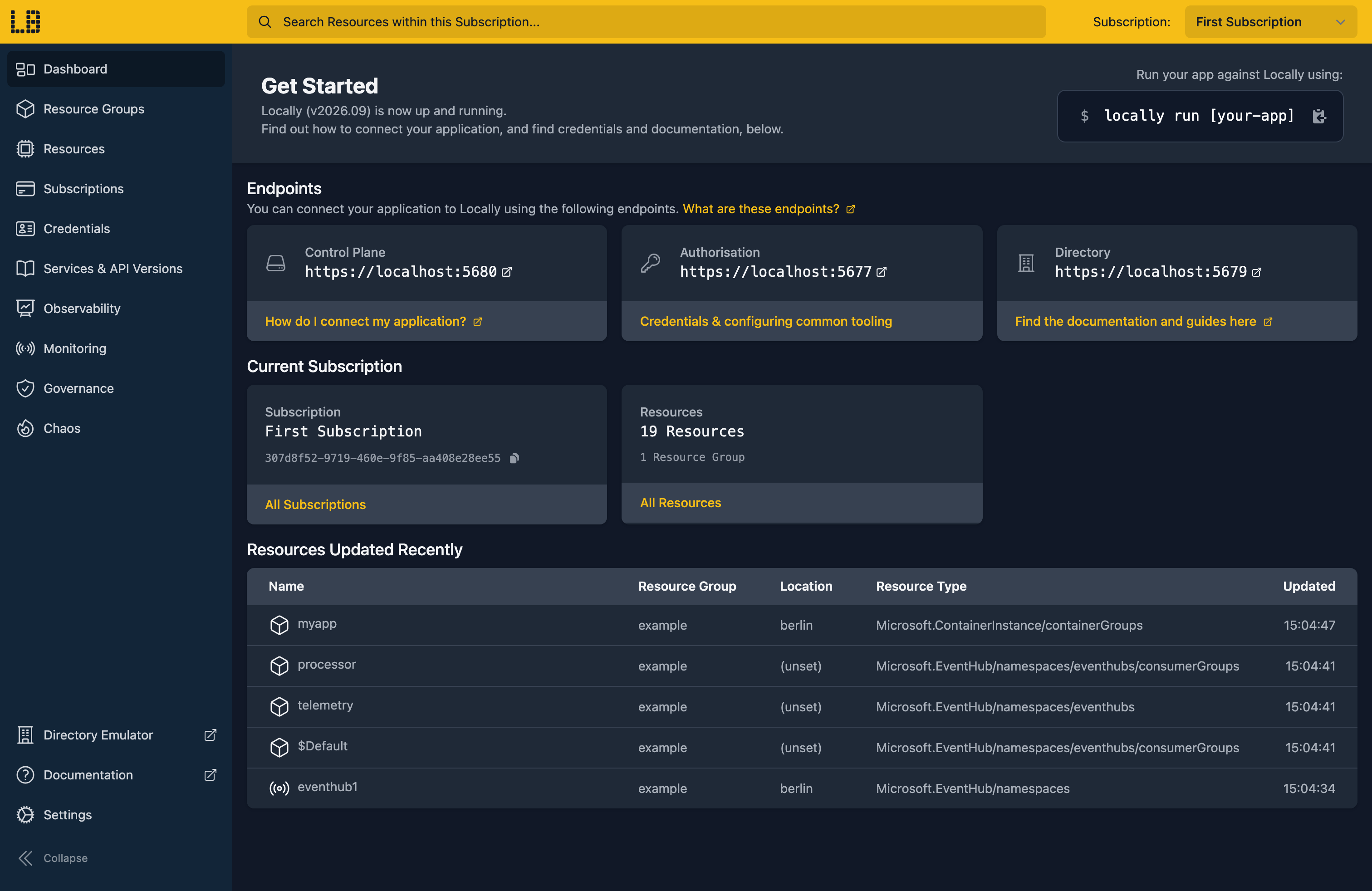
Once Locally has started, the Locally Dashboard will open automatically:
2. Create a Resource Group
Next we can create the Resource Group to hold the server:
                $


            locally run az group create -n sample-postgres -l berlin
There's two things to note here:
- The Azure CLI supports Automatic Configuration, meaning that it can automatically be configured to work against Locally just by prefixing commands with
locally run. - Locally intentionally uses a different set of locations to Azure as a safety precaution, so that you can be confident you're deploying against Locally rather than regular Azure. You can also configure Locally to use the Azure locations too, but you'll want to be extra sure that you're prefixing commands with
locally runwhen you do.
3. Create the Flexible Server
With the Resource Group in place, we can create the server itself, along with the admin login we'll connect as:
                $


            locally run az postgres flexible-server create --name samplepg-docs1 --resource-group sample-postgres --location berlin --admin-user pgadmin --admin-password 'Correct-Horse-42' --tier Burstable --sku-name Standard_B1ms --public-access None --yes
Note
Behind the scenes Locally starts a PostgreSQL container for the server, and the Azure CLI hands back everything needed to connect to it:
{
  "connectionString": "postgresql://pgadmin:[email protected]:58285/postgres?sslmode=require",
  "databaseName": "postgres",
  "host": "samplepg-docs1.gondola.locally:58285",
  "id": "/subscriptions/307d8f52-9719-460e-9f85-aa408e28ee55/resourceGroups/sample-postgres/providers/Microsoft.DBforPostgreSQL/flexibleServers/samplepg-docs1",
  "location": "berlin",
  "password": "Correct-Horse-42",
  "resourceGroup": "sample-postgres",
  "skuname": "Standard_B1ms",
  "username": "pgadmin",
  "version": "18"
}
We've used --public-access None to skip the firewall prompt. Locally doesn't apply firewall rules to the server, so you can connect from your machine either way - in Azure you'd allow your client's IP address instead.
We can retrieve the server again at any point with:
                $


            locally run az postgres flexible-server show --name samplepg-docs1 --resource-group sample-postgres --query "{name:name, state:state, version:version, fullyQualifiedDomainName:fullyQualifiedDomainName, administratorLogin:administratorLogin}"
Which gives us:
{
  "administratorLogin": "pgadmin",
  "fullyQualifiedDomainName": "samplepg-docs1.gondola.locally:58285",
  "name": "samplepg-docs1",
  "state": "Ready",
  "version": "18"
}
That gondola.locally hostname is served by Locally's own DNS server. Unlike Azure, the fullyQualifiedDomainName includes the port, since each server on your machine listens on its own port rather than 5432.
4. Create a database
Every server starts with a postgres database. We'll create one of our own for the application:
                $


            locally run az postgres flexible-server db create --resource-group sample-postgres --server-name samplepg-docs1 --name appdb
{
  "note": "some fields skipped for brevity",

  "charset": "UTF8",
  "collation": "en_US.utf8",
  "id": "/subscriptions/307d8f52-9719-460e-9f85-aa408e28ee55/resourceGroups/sample-postgres/providers/Microsoft.DBforPostgreSQL/flexibleServers/samplepg-docs1/databases/appdb",
  "name": "appdb",
  "resourceGroup": "sample-postgres",
  "type": "Microsoft.DBforPostgreSQL/flexibleServers/databases"
}
5. Connect with psql
Now for the fun part. First we'll grab the server's connection string, which locally postgres connection-string prints with the address, port and admin credentials already filled in:
                $


            export POSTGRES_URL=$(locally postgres connection-string --server samplepg-docs1)
Note
locally postgres is part of Locally itself, so it doesn't take the locally run prefix. Every az command does.The connection string points at the server's default postgres database, so we switch to appdb with \connect first. Then we can create a table and add a couple of rows:
                $


            psql "$POSTGRES_URL" -c '\connect appdb' -c "CREATE TABLE orders (id serial PRIMARY KEY, customer text NOT NULL, total numeric(10,2) NOT NULL); INSERT INTO orders (customer, total) VALUES ('Ada', 42.50), ('Grace', 17.25);"
You are now connected to database "appdb" as user "pgadmin".
INSERT 0 2
And read them back:
                $


            psql "$POSTGRES_URL" -c '\connect appdb' -c "SELECT * FROM orders;"
You are now connected to database "appdb" as user "pgadmin".
 id | customer | total
----+----------+-------
  1 | Ada      | 42.50
  2 | Grace    | 17.25
(2 rows)
That's a real PostgreSQL server answering over TLS, so sslmode=require works just as it does against Azure, and any PostgreSQL driver or ORM can use the same connection string.
Note
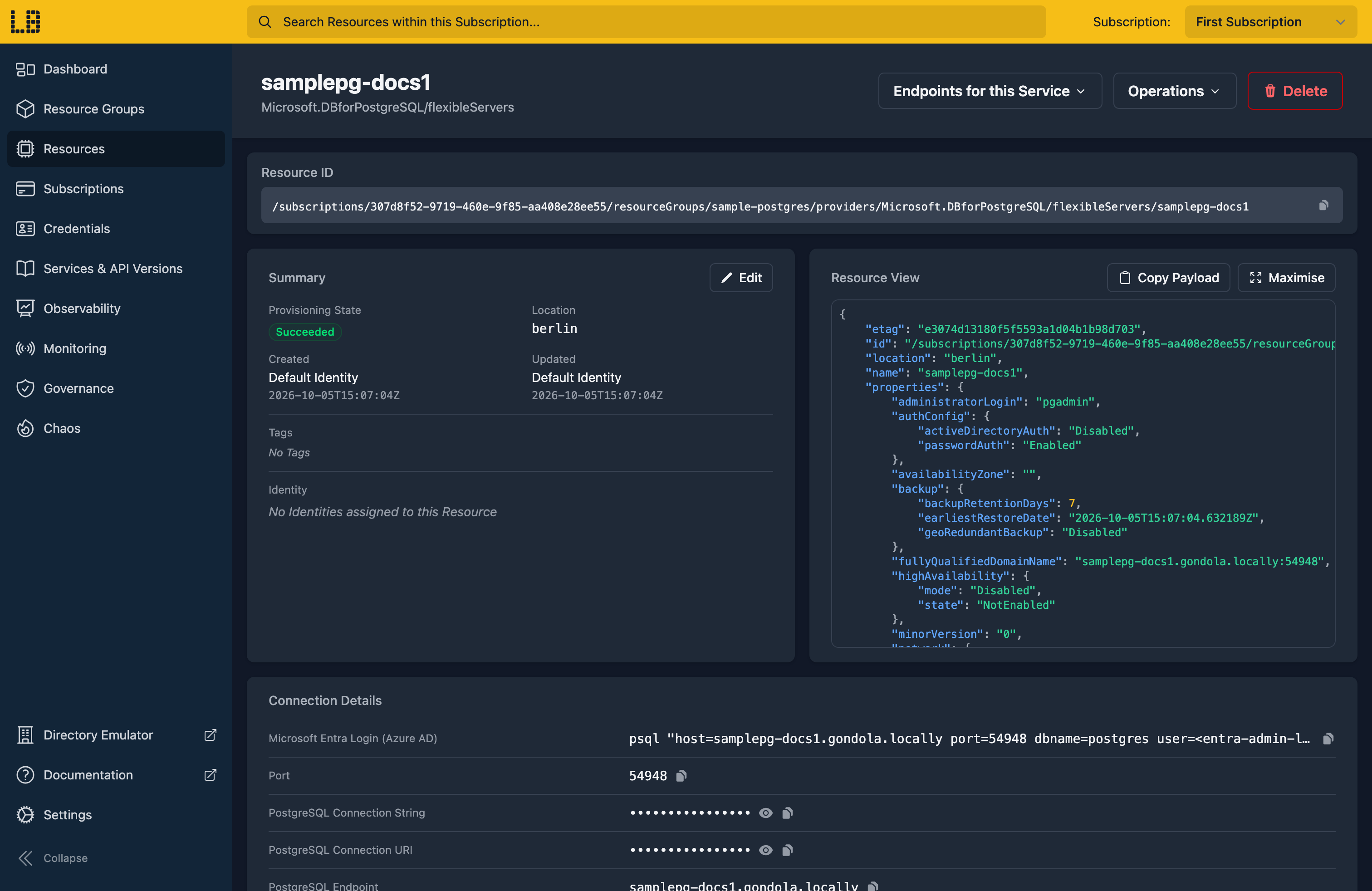
We can see the PostgreSQL Flexible Server in the Locally Dashboard too:
Doing this with other tooling
Whilst this guide used the Azure CLI, Flexible Servers work the same way through any of the tooling that Locally supports - a Microsoft.DBforPostgreSQL/flexibleServers resource in HashiCorp Terraform or OpenTofu, Pulumi, Bicep or an ARM Template all provision against Locally in the same way, with only the location changed.
Next steps
If you're using MySQL instead, see MySQL Flexible Server. To host an app that connects to the server, see Web App.
Should you encounter any issues, please take a look at the troubleshooting section.
Sign in during Public Preview to get the Team plan free, plus an early-adopter discount when we launch. Sign in
