Provisioning a Container Registry
Sign in during Public Preview to get the Team plan free, plus an early-adopter discount when we launch. Sign in
Provisioning a Container Registry
This guide shows you how to provision a Container Registry against Locally and sign in to it with Docker. As with the other guides we're going to use the Azure CLI, but the same resources can be provisioned with HashiCorp Terraform, Pulumi or Bicep too.
Before you start
- The Azure CLI (
az) installed. - Locally installed, with Locally Setup completed.
- Docker or Podman installed, for the sign-in step at the end.
1. Start Locally
Firstly, we need to launch Locally which we can do from a terminal by running:
                $


            locally build
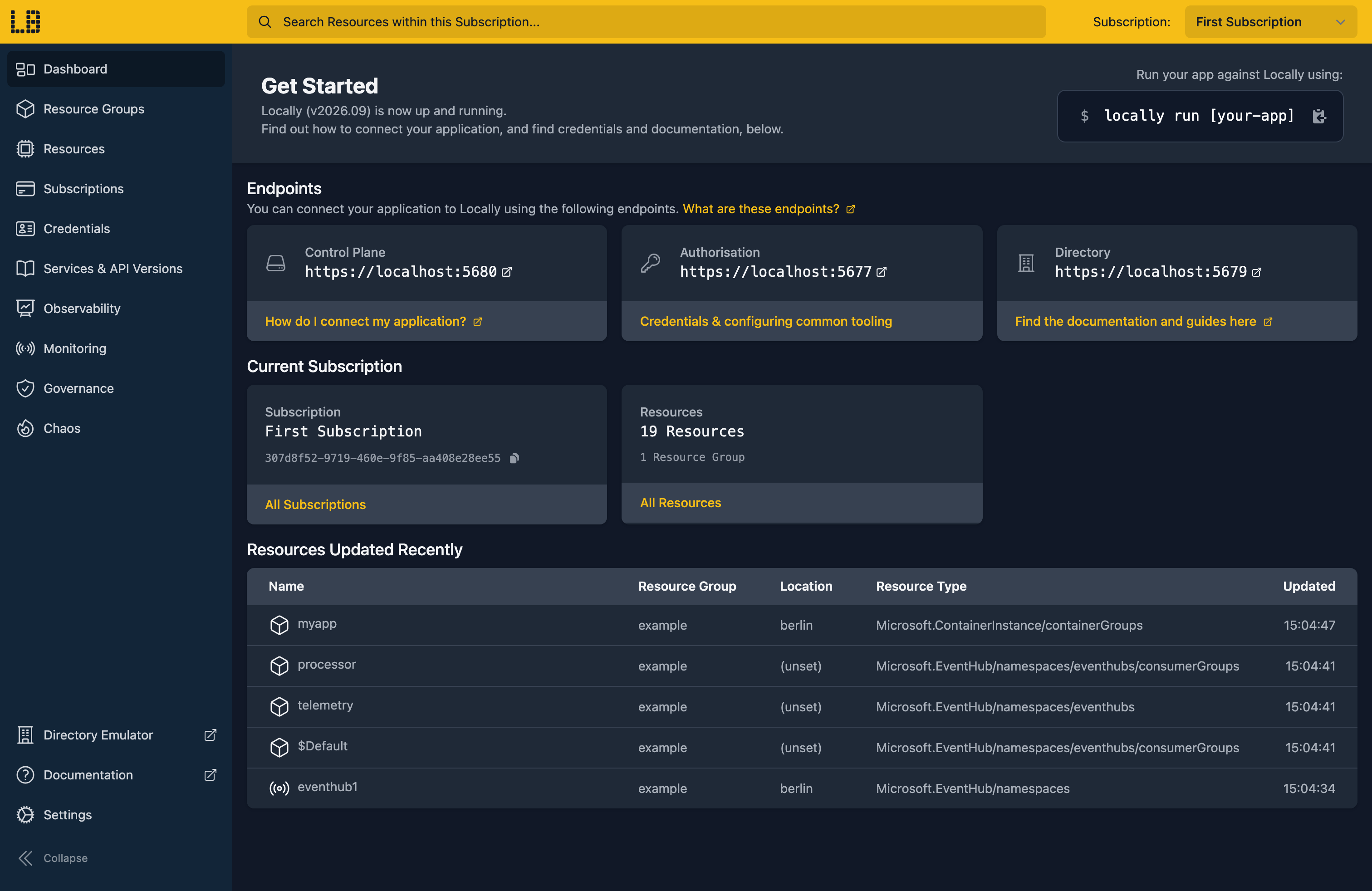
Once Locally has started, the Locally Dashboard will open automatically:
2. Create a Resource Group
Next we can create the Resource Group to hold the registry:
                $


            locally run az group create -n sample-resources -l berlin
There's two things to note here:
- The Azure CLI supports Automatic Configuration, meaning that it can automatically be configured to work against Locally just by prefixing commands with
locally run. - Locally intentionally uses a different set of locations to Azure as a safety precaution, so that you can be confident you're deploying against Locally rather than regular Azure. You can also configure Locally to use the Azure locations too, but you'll want to be extra sure that you're prefixing commands with
locally runwhen you do.
3. Create the registry
With the Resource Group in place, we can create the registry:
                $


            locally run az acr create -g sample-resources -n samplereg1 -l berlin --sku Basic --admin-enabled true
{
  "note": "some fields skipped for brevity",

  "adminUserEnabled": true,
  "location": "berlin",
  "loginServer": "samplereg1.dockhand.locally:5667",
  "name": "samplereg1",
  "provisioningState": "Succeeded",
  "resourceGroup": "sample-resources",
  "sku": {
    "name": "Basic",
    "tier": "Basic"
  },
  "type": "Microsoft.ContainerRegistry/registries"
}
Note
The field to keep hold of is loginServer. That's the address you tag images against and sign in to.
That dockhand.locally hostname is served by Locally's own DNS server and points at the Container Registry Emulator running on your machine.
Note
<name>.azurecr.io on the default HTTPS port; Locally's sit on <name>.dockhand.locally:5667. Anywhere you'd hard-code a registry hostname is somewhere to read loginServer back instead - which is good practice against Azure too.4. Get the admin credentials
--admin-enabled true above turned on the registry's admin account, which is the simplest way to authenticate. Its credentials come from the registry rather than from your own identity:
                $


            locally run az acr credential show -n samplereg1 --query "{username:username, password:passwords[0].value}"
{
  "password": "637c5b37b996cff6ba783fd2a6aa56f4",
  "username": "samplereg1"
}
The username is the registry's own name, and there are two passwords so that one can be rotated while the other is in use - the same shape Azure gives you.
Note
az acr login does in the next step.5. Sign in with Docker
With a registry and credentials, we can sign in. The Azure CLI does it for you, by calling docker - so if you're using Podman, first tell it to call podman instead:
                $


            export DOCKER_COMMAND=podman
Then sign in:
                $


            locally run az acr login -n samplereg1
Login SucceededThat hands the registry's token to your local Docker or Podman installation, so docker push and docker pull (or their podman equivalents) against samplereg1.dockhand.locally:5667 work from that point on.
You can do the same thing directly, which is the form to reach for in a CI script where the Azure CLI may not be installed:
                $


            docker login samplereg1.dockhand.locally:5667 -u samplereg1 -p 637c5b37b996cff6ba783fd2a6aa56f4
Note
export and docker commands here aren't prefixed with locally run as they're for Docker or Podman, rather than the Locally Control Plane.6. List the registries
And to see the registries in the Resource Group:
                $


            locally run az acr list -g sample-resources --query "[].{Name:name, LoginServer:loginServer, Sku:sku.name}" -o table
Name        LoginServer                        Sku
----------  ---------------------------------  -----
samplereg1  samplereg1.dockhand.locally:5667   Basic
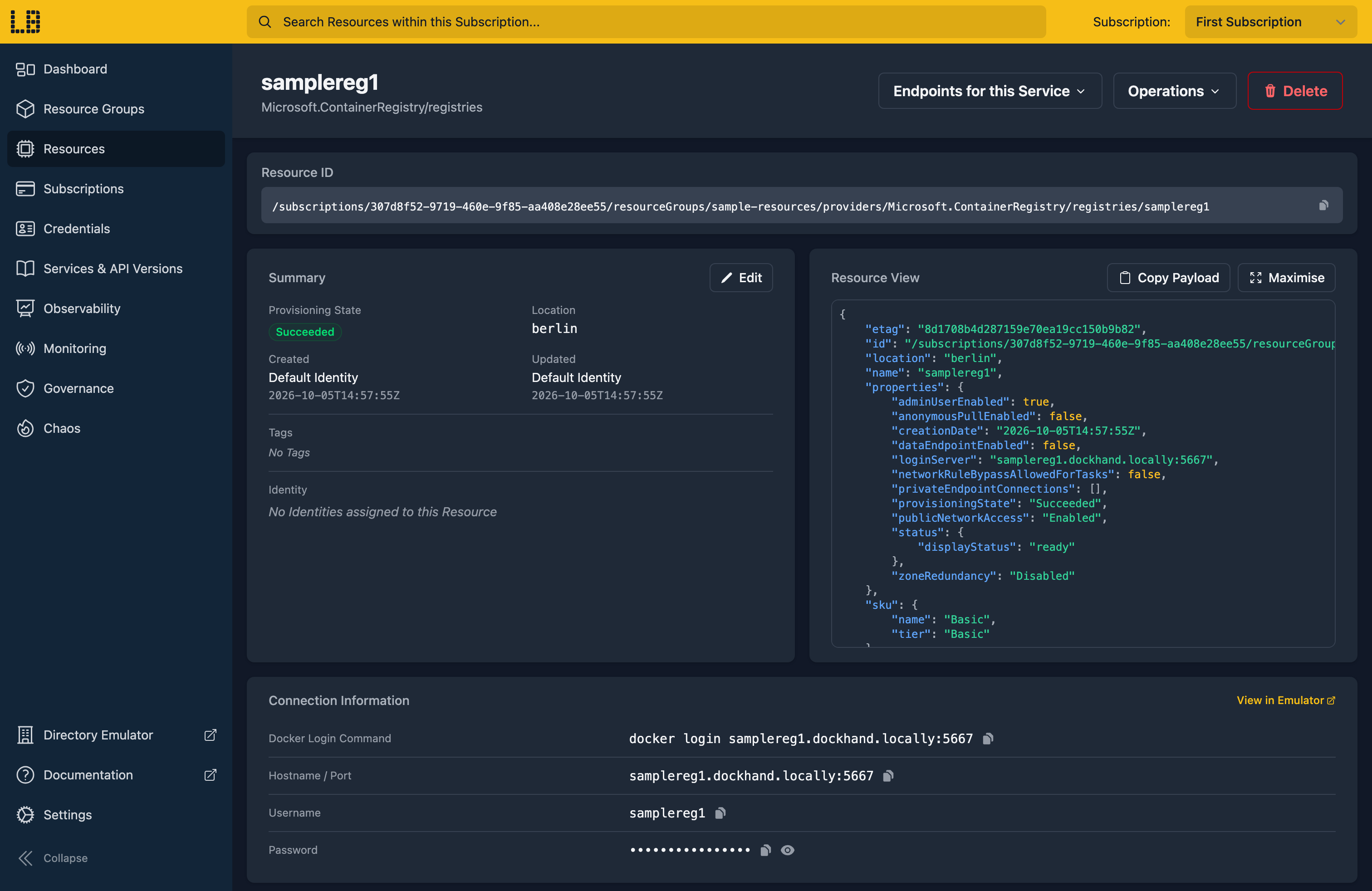
We can see the Container Registry in the Locally Dashboard too:
7. Tidy up
Finally, we can tidy up. To remove the Resource Group and everything within it:
                $


            locally run az group delete -n sample-resources --yes
There's nothing billable to clean up, since everything ran on your machine, but it's still worth checking your teardown scripts work here before you run them against Azure.
Doing this with other tooling
Whilst this guide used the Azure CLI, Container Registry works the same way through any of the tooling that Locally supports - a Microsoft.ContainerRegistry/registries resource in HashiCorp Terraform or OpenTofu, Pulumi, Bicep or an ARM Template all provision against Locally in the same way, with only the location changed.
Next steps
Images in the registry can be pulled by Container Instances and Container Apps. The Container Registry Emulator covers authentication and importing images.
Should you encounter any issues, please take a look at the troubleshooting section.
Sign in during Public Preview to get the Team plan free, plus an early-adopter discount when we launch. Sign in
