Provisioning a Service Bus Namespace
Sign in during Public Preview to get the Team plan free, plus an early-adopter discount when we launch. Sign in
Provisioning a Service Bus Namespace
This guide shows you how to provision a Service Bus Namespace and a queue against Locally. As with the other guides we're going to use the Azure CLI, but the same resources can be provisioned with HashiCorp Terraform, Pulumi or Bicep too.
Before you start
- The Azure CLI (
az) installed. - Locally installed, with Locally Setup completed.
1. Start Locally
Firstly, we need to launch Locally which we can do from a terminal by running:
                $


            locally build
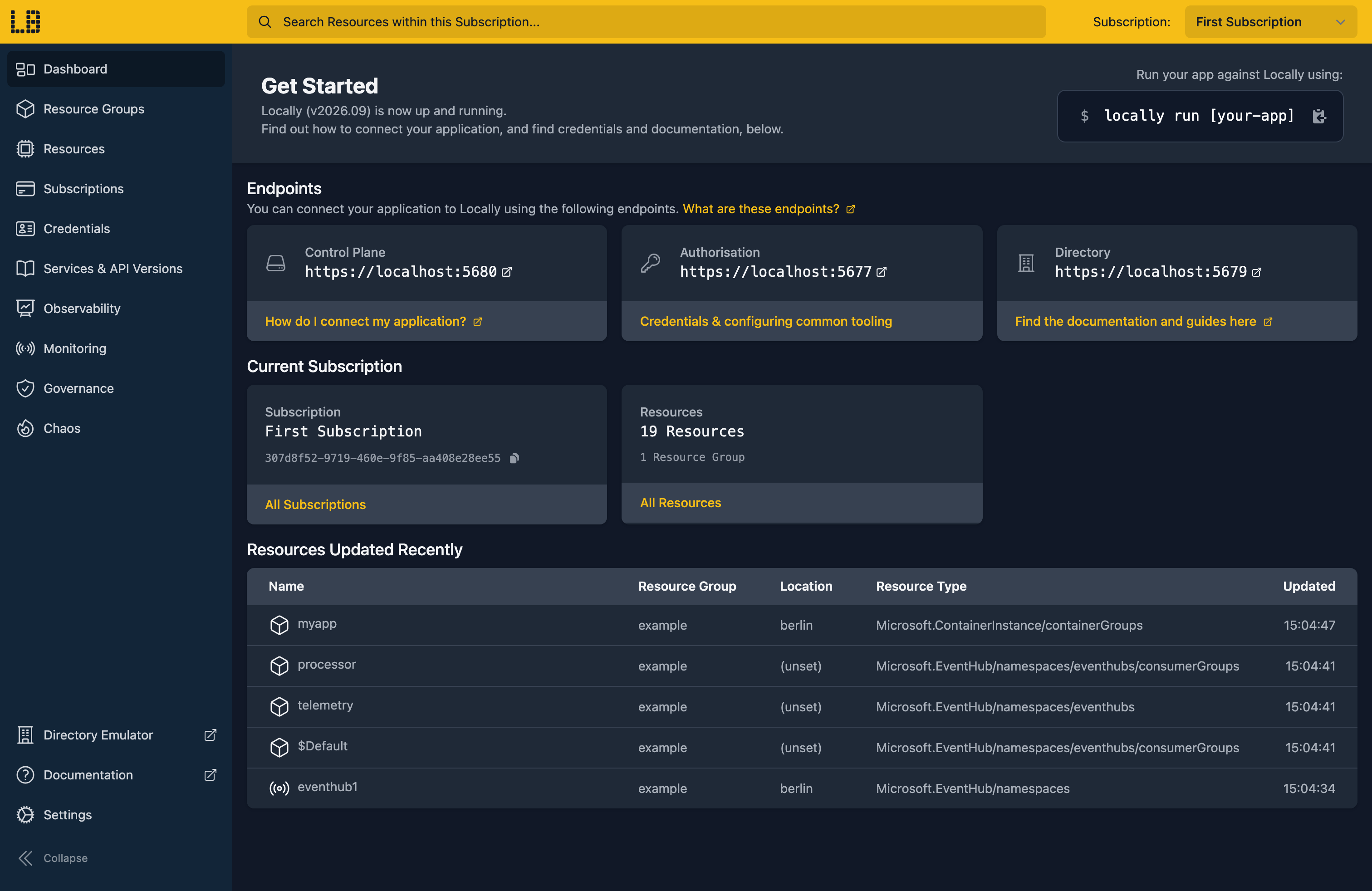
Once Locally has started, the Locally Dashboard will open automatically:
2. Create a Resource Group
Next we can create the Resource Group to hold the namespace:
                $


            locally run az group create -n sample-resources -l berlin
There's two things to note here:
- The Azure CLI supports Automatic Configuration, meaning that it can automatically be configured to work against Locally just by prefixing commands with
locally run. - Locally intentionally uses a different set of locations to Azure as a safety precaution, so that you can be confident you're deploying against Locally rather than regular Azure. You can also configure Locally to use the Azure locations too, but you'll want to be extra sure that you're prefixing commands with
locally runwhen you do.
3. Create the Service Bus Namespace
With the Resource Group in place, we can create the Service Bus Namespace:
                $


            locally run az servicebus namespace create --name samplebus1 --resource-group sample-resources --location berlin
Note
The response includes the endpoint the data plane lives at:
{
  "note": "some fields skipped for brevity",

  "location": "berlin",
  "name": "samplebus1",
  "resourceGroup": "sample-resources",
  "serviceBusEndpoint": "https://samplebus1.servicebus.locally:5662",
  "status": "Active",
  "type": "Microsoft.ServiceBus/Namespaces"
}
That servicebus.locally hostname is served by Locally's own DNS server and points at the Service Bus Emulator running on your machine.
4. Create a queue
A namespace on its own doesn't do much, so next we'll create a queue within it:
                $


            locally run az servicebus queue create --name orders --namespace-name samplebus1 --resource-group sample-resources
Which gives us a queue with the same defaults you'd get in Azure:
{
  "note": "some fields skipped for brevity",

  "maxDeliveryCount": 10,
  "messageCount": 0,
  "name": "orders",
  "resourceGroup": "sample-resources",
  "status": "Active",
  "type": "Microsoft.ServiceBus/Namespaces/Queues"
}
5. Get the connection string
To have an application send and receive messages, we need the namespace's connection string. Locally has a built-in helper for this:
                $


            locally servicebus connection-string --namespace samplebus1
Endpoint=sb://samplebus1.servicebus.locally;SharedAccessKeyName=RootManageSharedAccessKey;SharedAccessKey=...Note
locally servicebus is part of Locally itself rather than a tool being configured, so it doesn't take the locally run prefix. Every az command does.That connection string works with the Azure Service Bus SDKs unchanged - point your application at it and it publishes and consumes against Locally.
6. Send a message
You don't need to write a producer to get a message onto the queue, though - Locally can send one for you:
                $


            locally servicebus queue send --namespace samplebus1 --name orders --body '{"orderId": 1}'
Sent message d0da9d61-d83a-4ece-b668-c9cf4e303e82 to queue "orders" (sequence 1).That's enough to start working on a consumer, without having to build something to publish first.
For anything larger than a one-liner, the body can come from a file, and --count sends the same message repeatedly - useful for seeing how your consumer behaves with a backlog in front of it:
                $


            locally servicebus queue send --namespace samplebus1 --name orders --body-file order.json --count 5
Sent 5 messages to queue "orders" (sequence 2-6).7. Peek at the queue
With messages on the queue, we can look at what's sitting there without consuming it - which is the thing you actually want while debugging a producer:
                $


            locally servicebus queue peek --namespace samplebus1 --name orders
[1] Sequence: 1  MessageID: d0da9d61-d83a-4ece-b668-c9cf4e303e82  Enqueued: 2026-10-05T16:52:27Z
    Body:          {
                 "orderId": 1
               }

[2] Sequence: 2  MessageID: a9f19b5f-2b47-45b9-985e-7f76a3dad4d6  Enqueued: 2026-10-05T16:52:27Z
    Body:          {
                 "orderId": 1
               }
That carries on to [6] - the message we sent directly, then the five from the file, in the order the broker will hand them out.
Note
peek is non-destructive - the messages stay on the queue and your consumer will still receive them. That's what makes it safe to run against a queue your application is working through.And to see the queues in a namespace along with their depths:
                $


            locally servicebus queue list --namespace samplebus1
NAME    ACTIVE  DEAD-LETTERED
orders  6       0
8. Exercise the dead-letter queue
The other thing worth exercising locally is what your consumer does with a message it can't process. In Azure those end up on the queue's dead-letter sub-queue, which is awkward to reach deliberately - you have to make delivery fail repeatedly. Locally lets you put one there directly:
                $


            locally servicebus queue send --namespace samplebus1 --name orders --dead-letter --body-file order.json
Then read it back with the same peek, pointed at the dead-letter queue:
                $


            locally servicebus queue peek --namespace samplebus1 --name orders --dead-letter
[1] Sequence: 7  MessageID: b69edffc-23cf-40b9-8a01-a81de27faca9  Enqueued: 2026-10-05T16:52:30Z
    DLQ Reason:    MaxDeliveryCountExceeded
    DLQ Desc:      Message could not be consumed after 10 delivery attempts.
    Body:          {
                 "orderId": 1
               }
Dead-lettered messages carry a reason and a description, and handlers usually branch on them - retry this, alert on that, drop the other. Both default to what the broker itself would set, and you can override them to exercise a specific path:
                $


            locally servicebus queue send --namespace samplebus1 --name orders --dead-letter --dead-letter-reason TTLExpiredException --body '{"orderId": 2}'
Note
Note
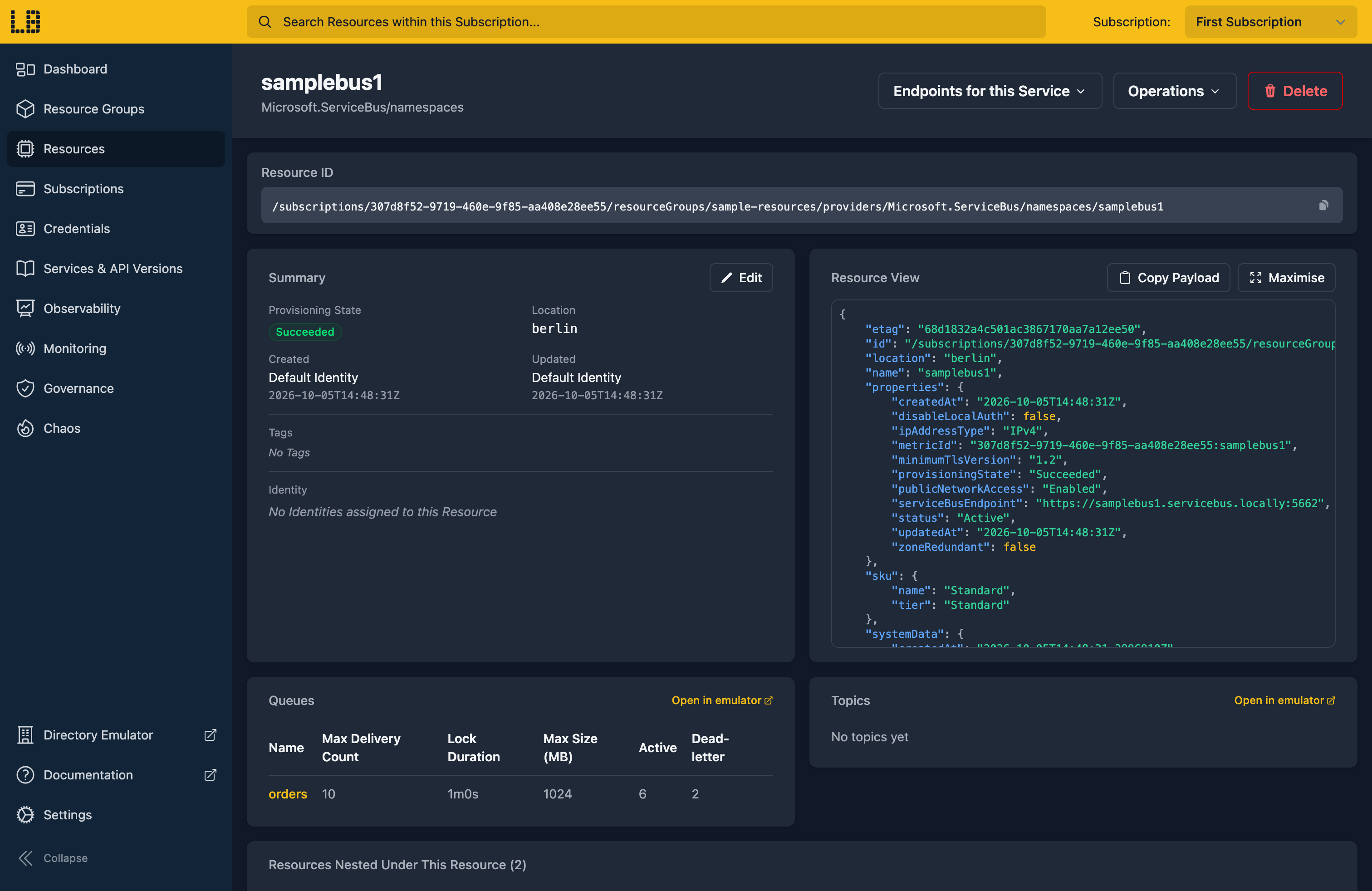
We can see the Service Bus Namespace in the Locally Dashboard too:
9. Tidy up
Finally, we can tidy up. To remove the Resource Group and everything within it:
                $


            locally run az group delete -n sample-resources --yes
There's nothing billable to clean up, since everything ran on your machine, but it's still worth checking your teardown scripts work here before you run them against Azure.
Doing this with other tooling
Whilst this guide used the Azure CLI, Service Bus works the same way through any of the tooling that Locally supports - Microsoft.ServiceBus/namespaces and Microsoft.ServiceBus/namespaces/queues resources in HashiCorp Terraform or OpenTofu, Pulumi, Bicep or an ARM Template all provision against Locally in the same way, with only the location changed.
Next steps
For publish-subscribe with filters, see Service Bus Topics. To test how your consumers cope when Service Bus misbehaves, see Chaos Engineering.
Should you encounter any issues, please take a look at the troubleshooting section.
Sign in during Public Preview to get the Team plan free, plus an early-adopter discount when we launch. Sign in
