Provisioning Service Bus Topics and Subscriptions
Sign in during Public Preview to get the Team plan free, plus an early-adopter discount when we launch. Sign in
Provisioning Service Bus Topics and Subscriptions
This guide shows you how to provision a Service Bus topic and its subscriptions against Locally. We'll give one subscription a SQL filter, send a couple of messages, and see each one land only where it should.
If you're after queues, sending in bulk or the dead-letter queue, the Service Bus guide covers those.
Before you start
- The Azure CLI (
az) installed. - Locally installed, with Locally Setup completed.
1. Start Locally
Firstly, we need to launch Locally which we can do from a terminal by running:
                $


            locally build
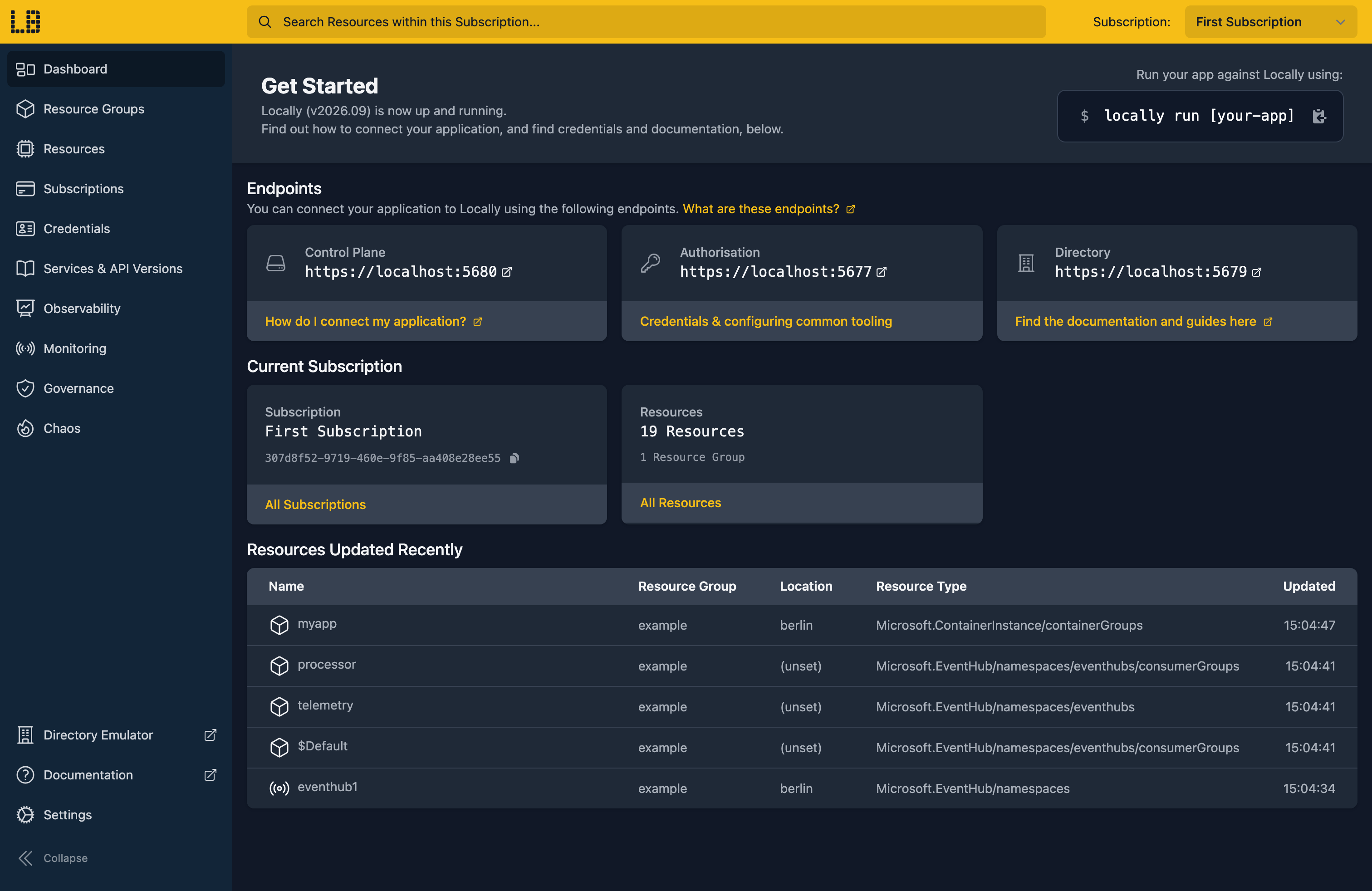
Once Locally has started, the Locally Dashboard will open automatically:
2. Create a Resource Group
Next we can create the Resource Group to hold the namespace:
                $


            locally run az group create -n sample-topics -l berlin
There's two things to note here:
- The Azure CLI supports Automatic Configuration, meaning that it can automatically be configured to work against Locally just by prefixing commands with
locally run. - Locally intentionally uses a different set of locations to Azure as a safety precaution, so that you can be confident you're deploying against Locally rather than regular Azure. You can also configure Locally to use the Azure locations too, but you'll want to be extra sure that you're prefixing commands with
locally runwhen you do.
3. Create the Service Bus Namespace
Topics live in a Service Bus Namespace, so we'll create one of those first:
                $


            locally run az servicebus namespace create --name samplebustopics1 --resource-group sample-topics --location berlin --query "{name:name, status:status, serviceBusEndpoint:serviceBusEndpoint}"
{
  "name": "samplebustopics1",
  "serviceBusEndpoint": "https://samplebustopics1.servicebus.locally:5662",
  "status": "Active"
}
Note
samplebustopics1 is already taken on your machine, pick a different name and use it in the commands below.4. Create a topic
Next, a topic called orders:
                $


            locally run az servicebus topic create --name orders --namespace-name samplebustopics1 --resource-group sample-topics --query "{name:name, status:status, maxSizeInMegabytes:maxSizeInMegabytes, defaultMessageTimeToLive:defaultMessageTimeToLive}"
{
  "defaultMessageTimeToLive": "P10675199DT2H48M5.4775807S",
  "maxSizeInMegabytes": 1024,
  "name": "orders",
  "status": "Active"
}
Unlike a queue, nothing reads from a topic directly. Each message sent to it is copied to every subscription whose rules it matches, and consumers read from those.
5. Create two subscriptions
We'll have one subscription that gets every order:
                $


            locally run az servicebus topic subscription create --name all-orders --topic-name orders --namespace-name samplebustopics1 --resource-group sample-topics --query "{name:name, status:status, maxDeliveryCount:maxDeliveryCount, lockDuration:lockDuration}"
{
  "lockDuration": "PT1M",
  "maxDeliveryCount": 10,
  "name": "all-orders",
  "status": "Active"
}
And a second that we'll narrow down to high priority orders in the next step:
                $


            locally run az servicebus topic subscription create --name priority-orders --topic-name orders --namespace-name samplebustopics1 --resource-group sample-topics --query "{name:name, status:status, maxDeliveryCount:maxDeliveryCount, lockDuration:lockDuration}"
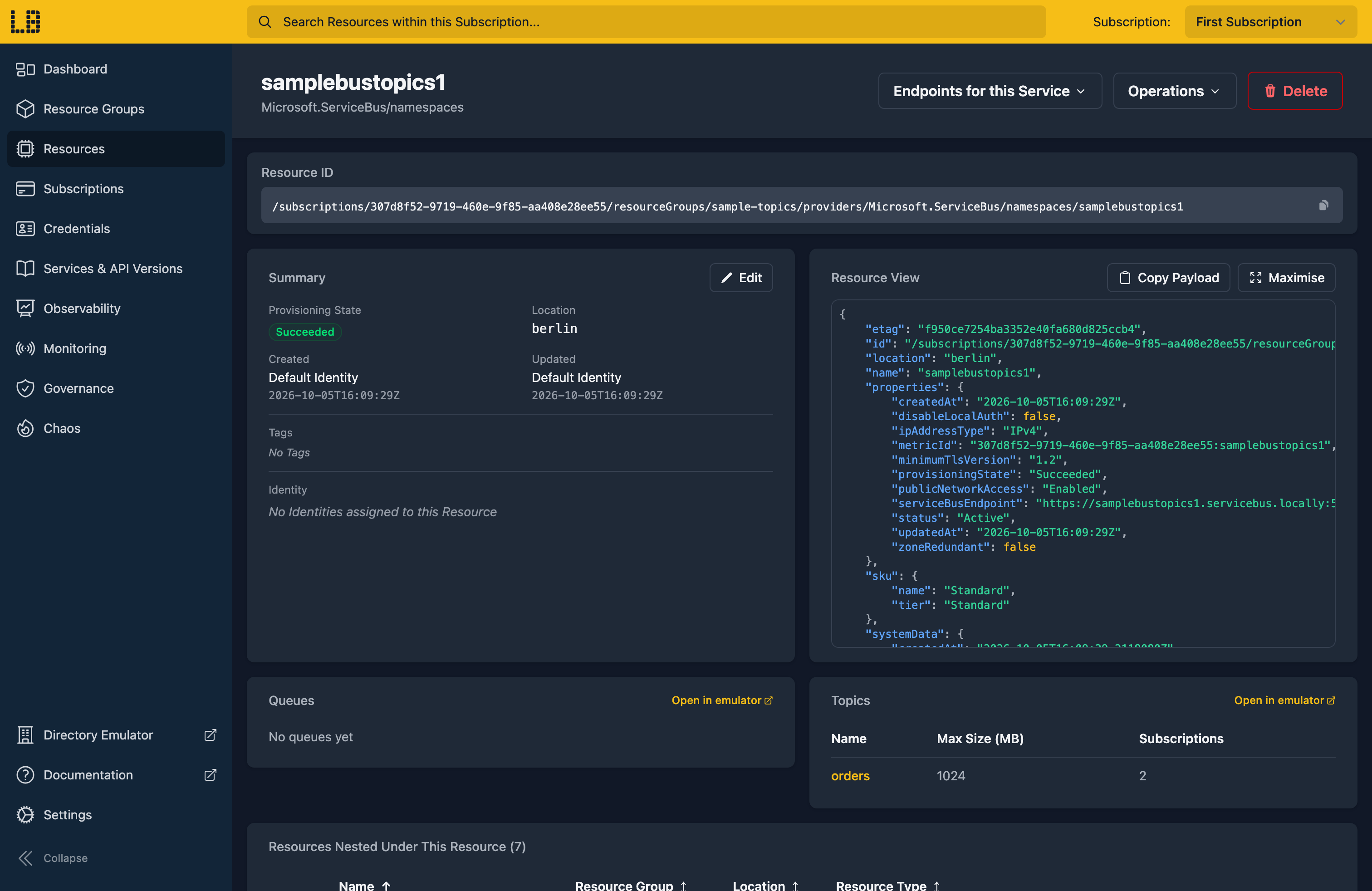
We can see the Service Bus Namespace in the Locally Dashboard too:
6. Add a filter rule
As in Azure, a new subscription comes with a rule called $Default that matches everything:
                $


            locally run az servicebus topic subscription rule list --namespace-name samplebustopics1 --resource-group sample-topics --topic-name orders --subscription-name priority-orders --query "[].{Name:name, Type:filterType, Expression:sqlFilter.sqlExpression}" -o table
Name      Type       Expression
--------  ---------  ------------
$Default  SqlFilter  1=1
Let's add a SQL filter that only matches messages with a priority property of high:
                $


            locally run az servicebus topic subscription rule create --name high-priority --subscription-name priority-orders --topic-name orders --namespace-name samplebustopics1 --resource-group sample-topics --filter-sql-expression "priority = 'high'" --query "{name:name, filterType:filterType, sqlExpression:sqlFilter.sqlExpression}"
{
  "filterType": "SqlFilter",
  "name": "high-priority",
  "sqlExpression": "priority = 'high'"
}
A message only needs to match one rule to be delivered, so while $Default is still there the new rule changes nothing. Let's remove it:
                $


            locally run az servicebus topic subscription rule delete --name '$Default' --subscription-name priority-orders --topic-name orders --namespace-name samplebustopics1 --resource-group sample-topics
Note
$Default stop your shell treating it as a variable.Which leaves just our filter:
                $


            locally run az servicebus topic subscription rule list --namespace-name samplebustopics1 --resource-group sample-topics --topic-name orders --subscription-name priority-orders --query "[].{Name:name, Type:filterType, Expression:sqlFilter.sqlExpression}" -o table
Name           Type       Expression
-------------  ---------  -----------------
high-priority  SqlFilter  priority = 'high'
7. Get the connection string
Your application needs the namespace's connection string to publish to the topic and read from the subscriptions:
                $


            locally servicebus connection-string --namespace samplebustopics1
Endpoint=sb://samplebustopics1.servicebus.locally;SharedAccessKeyName=RootManageSharedAccessKey;SharedAccessKey=7H2ZVGxmJ+yJmmaJkmE3VMpMgtIIsOIpLkuUyxNXKMs=Note
locally servicebus is part of Locally itself rather than a tool being configured, so it doesn't take the locally run prefix. Every az command does.That works with the Azure Service Bus SDKs unchanged, filters included.
8. Send some messages
Locally can send to the topic for us too. --property sets a custom message property, which is what the filter looks at. First, a normal priority order:
                $


            locally servicebus topic send --namespace samplebustopics1 --name orders --body '{"orderId": 1}' --property priority=normal
Sent message 70a25efe-5ee1-4373-b11a-6856c7962a8a to topic "orders" (sequence 1) (fanned out to 1 subscription(s)).That went to one subscription. Now a high priority one:
                $


            locally servicebus topic send --namespace samplebustopics1 --name orders --body '{"orderId": 2}' --property priority=high
Sent message de73571d-626e-4df7-ab0e-efc9d9d43cfd to topic "orders" (sequence 1) (fanned out to 2 subscription(s)).And that one went to both.
9. See where they landed
Peeking at a subscription shows what's waiting in it, without consuming anything. all-orders has both:
                $


            locally servicebus topic peek --namespace samplebustopics1 --name orders --subscription all-orders
[1] Sequence: 1  MessageID: 70a25efe-5ee1-4373-b11a-6856c7962a8a  Enqueued: 2026-10-05T15:39:10Z
    Properties:    map[priority:normal]
    Body:          {
                     "orderId": 1
                   }

[2] Sequence: 2  MessageID: de73571d-626e-4df7-ab0e-efc9d9d43cfd  Enqueued: 2026-10-05T15:39:11Z
    Properties:    map[priority:high]
    Body:          {
                     "orderId": 2
                   }
While priority-orders only has the high priority one:
                $


            locally servicebus topic peek --namespace samplebustopics1 --name orders --subscription priority-orders
[1] Sequence: 1  MessageID: de73571d-626e-4df7-ab0e-efc9d9d43cfd  Enqueued: 2026-10-05T15:39:11Z
    Properties:    map[priority:high]
    Body:          {
                     "orderId": 2
                   }
The message counts are visible through the Azure CLI as well:
                $


            locally run az servicebus topic subscription list --topic-name orders --namespace-name samplebustopics1 --resource-group sample-topics --query "[].{Name:name, Messages:messageCount}" -o table
Name             Messages
---------------  ----------
all-orders       2
priority-orders  1
Note
Doing this with other tooling
Whilst this guide used the Azure CLI, topics work the same way through any of the tooling that Locally supports - Microsoft.ServiceBus/namespaces/topics, Microsoft.ServiceBus/namespaces/topics/subscriptions and Microsoft.ServiceBus/namespaces/topics/subscriptions/rules resources in HashiCorp Terraform or OpenTofu, Pulumi, Bicep or an ARM Template all provision against Locally in the same way, with only the location changed.
Next steps
The Service Bus Emulator covers connecting to the namespace from the Service Bus SDKs. To test how your consumers cope when Service Bus misbehaves, see Chaos Engineering.
Should you encounter any issues, please take a look at the troubleshooting section.
Sign in during Public Preview to get the Team plan free, plus an early-adopter discount when we launch. Sign in
